Tax refers to mandatory charges legally levied on particular types of goods, services and transactions, paid as a contribution to the state’s revenue, for example VAT or city tax.
- API endpoint: Pull_ListSpecProp_RS/Property/AdditionalFees
Fee refers to mandatory or optional charges paid in exchange for particular services. These include charges for additional services, for example Internet access or shuttle, or fees defined by local governments that do not fall into the tax category, for example environmental fees.
- API endpoint: Pull_ListSpecProp_RS/Property/AdditionalFees
Set taxes and fees
Follow the steps below to add fees and taxes to your the property.
Step by step:
- Click the Add line item button.
-
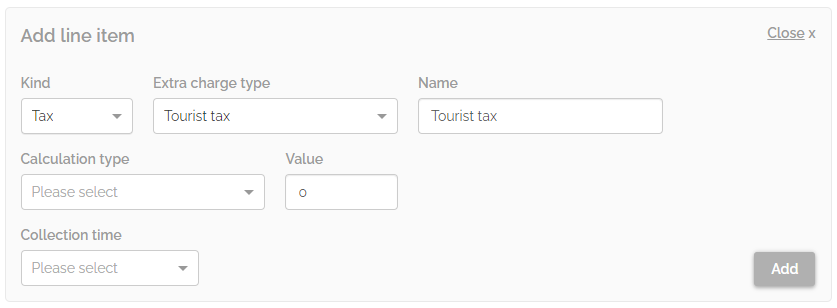
From the dropdown list, specify the charge Kind ("Tax" or "Fee"). Two additional fields appear.
-
Select the Extra charge type from the dropdown list.
When you select the charge type, the Name field automatically inherits the charge name. You can still edit the Name field.
Note: In Rentals United you can specify only one fee/tax of the same type, for example a local tax. However, in the API, you can specify multiple fees/taxes of the same type, for example three local taxes.
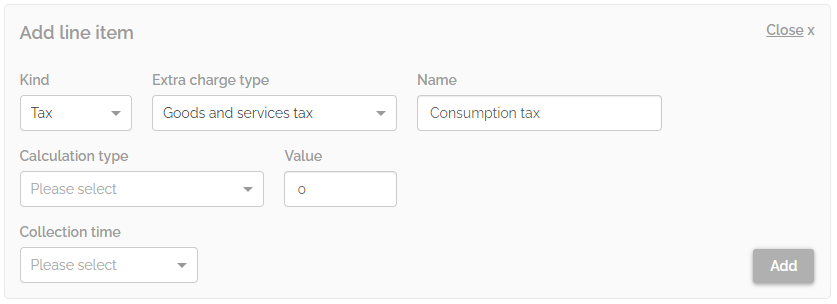
- Set the Value and select the calculation logic from the Calculation type dropdown list.
- From the Collection time dropdown select when the charge is collected.
-
Optionally, you can set a charge as "Optional" by ticking the checkbox.
Note: Only fees can be optional.
- Click the Add button.
-
The charge is successfully added. It is possible to edit
 or delete
  the charge.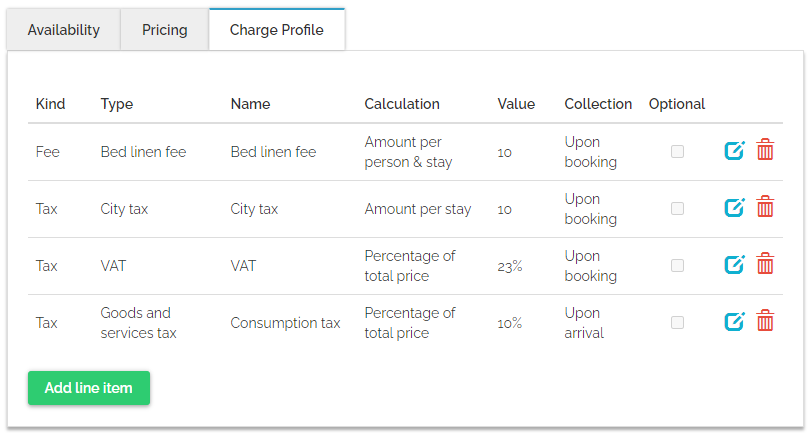
Fees and tax application
Standard fees application rule
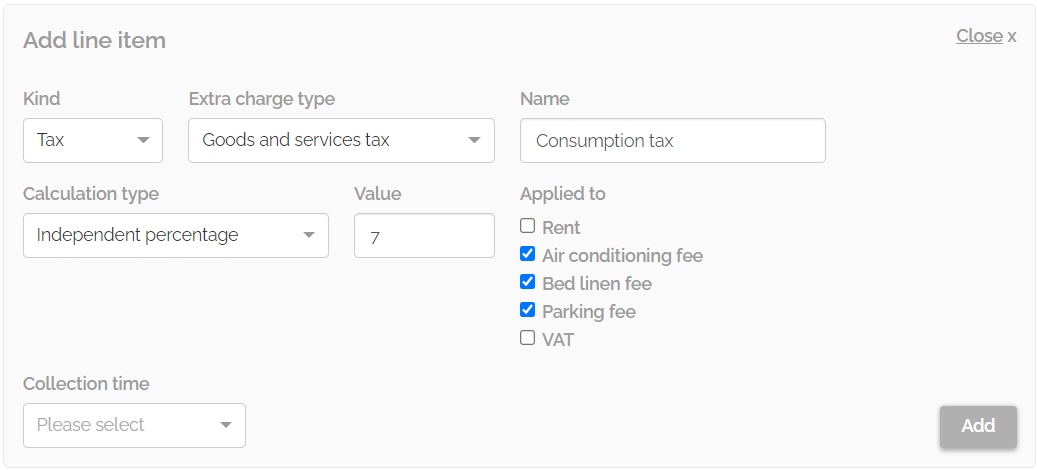
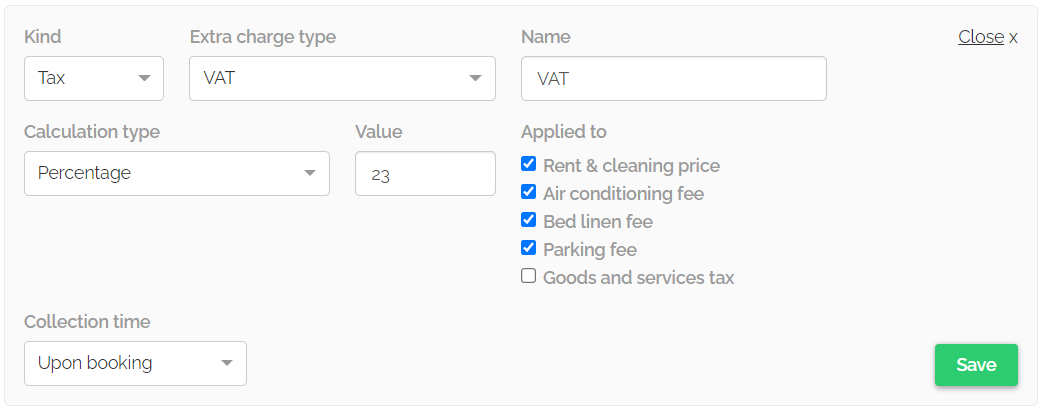
After you select the "Percentage of the total price", then you can select which line items this charge should be applied to. The system calculates the fee or tax value from the items it applies to.
For example, the GST tax is 7% and it applies to the following line items:
- Air-conditioning fee ($15)
- Bed linen fee ($10)
- Parking fee ($100)
The system calculates the GST value by multiplying the tax (7%) by each line item value. In this case, the total GST amount is $8.12.
Rent and cleaning price
Not supported configurations
Charges of specific calculation follow some restrictions. Check out the mappings that are not supported:
"Percentage per day" can't apply to:
- Amount per person and week,
- Amount per week,
- Amount per usage and hour,
- Amount by usage,
- Amount per set,
- Fixed amount per set per week.
"Percentage per person" can't apply to:
- Amount per person and night,
- Amount per person and week,
- Amount per usage and hour,
- Amount by usage,
- Amount per set,
- Fixed amount per set per week.
Time-restricted charges
Time-restricted charges are charges based on the length of stay. Currently, LOS-based fees are available only via API:
- Pull_ListSpecProp_RS/Property/ChargeProfiles/ChargeProfile/ApplicableAdditionalFee@MinLOS
- Pull_ListSpecProp_RS/Property/ChargeProfiles/ChargeProfile/ApplicableAdditionalFee@MaxLOS
Most of PMS integrations do not synchronise LOS-based fees, yet. If you have such fees in your PMS, note that they will not respect these rules after being synchronised to Rentals United and in most cases they will "always apply".
For example, you have a fee in your system which applies only for stays up to 30 nights, but does not apply for stays longer than 30 nights. In this case, after being synchronised to Rentals United, this fee will be applied for all stay lengths, even longer than 30 nights.
Set taxes and fees in batch
If you manage a large inventory or your properties follow identical tax and fee rules, you may find it useful to update charges for multiple properties in batch. You no longer have to update each property separately, as it is possible to create a common pricing plan for many. Note, however, that this option is only possible if you are not a PMS user.
-
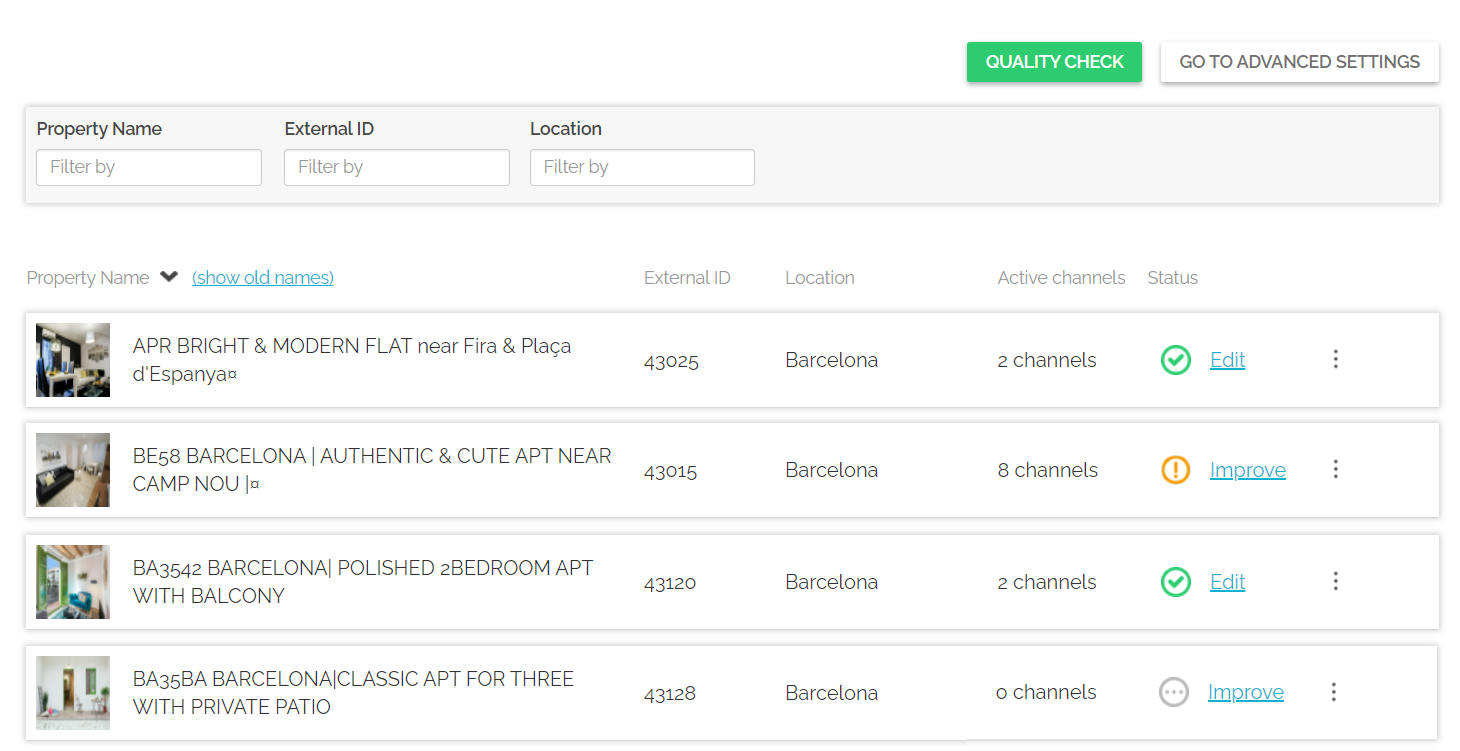
Log in to Rentals United and click on the Properties tab and select the All properties option. A list of all your properties gets opened.
-
Click the Go to advanced settings button. The list of your properties is displayed. Select the ones that you wish to update and click the Batch edit button.
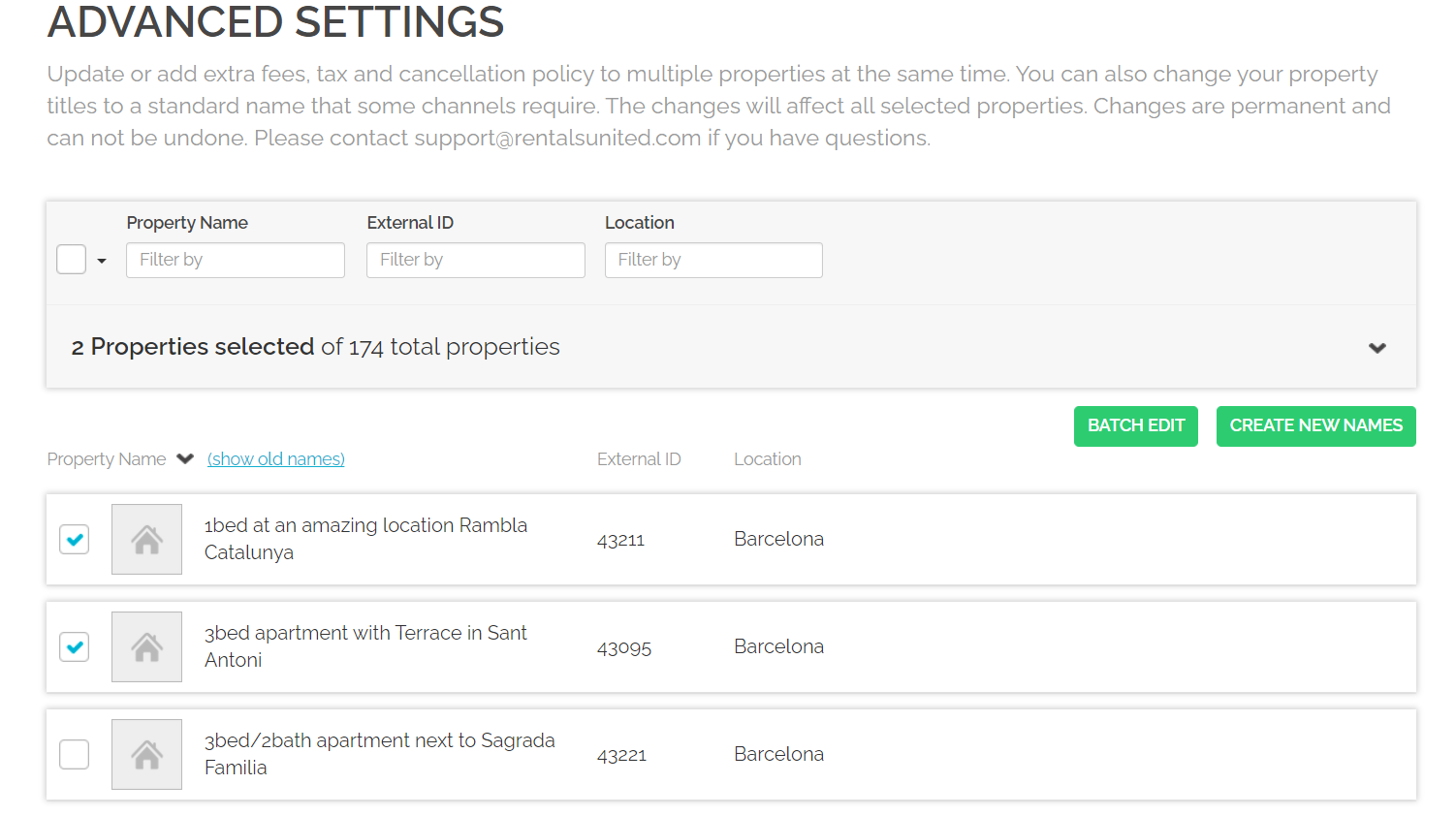 Tip: If you have multiple properties, you can also use filtering options on the left and filter out properties by their name or location. If you are a PMS user, you can also filter them by external ID.
-
The Charge Profile view is displayed. Note that in the batch settings, Charge Profile is separated from Down payment and Security deposit. Select the Charge Profile tab.
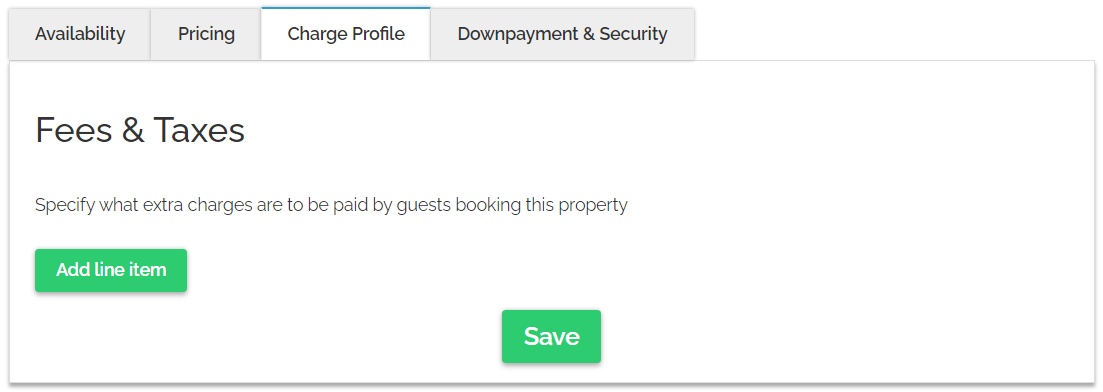
Whenever you enter Charge Profile in the Advanced settings, it will always look empty. Charges you currently have on the individual property level will be entirely replaced by the settings that you are about to define. If you wish that the selected properties have an identical set-up of charges, you can define now the first element for the selected properties.
- Click the Add line item button and follow the steps described in Setting taxes and fees.
-
Once you finish setting up the Charge Profile for multiple properties, click the Save button.
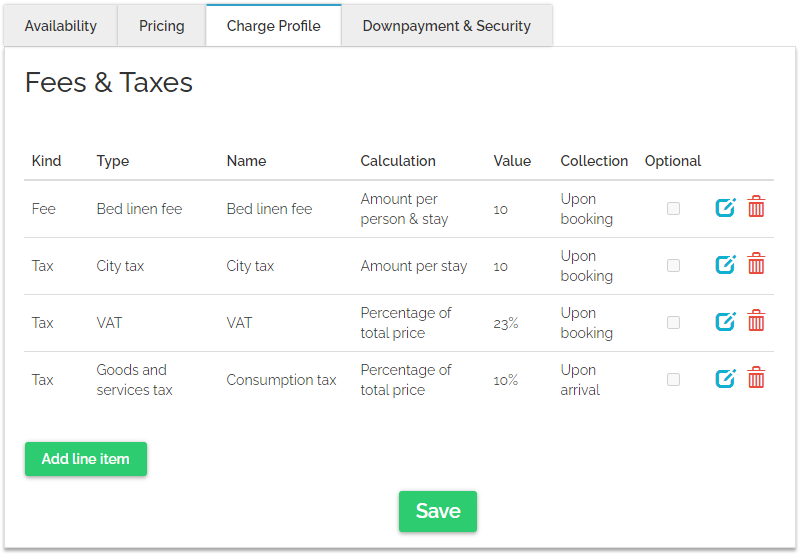 Note: If you leave the Charge Profile in Advanced settings empty and click Save, you will remove all the charges from the selected properties.
 -
A notification is displayed. Read carefully and confirm the changes in order to overwrite the settings on the individual property level.