To start advertising on Trip.com, you must first establish a connection between your accounts. This process involves adding Trip.com to your services and configuring your account-level settings through the Connection Wizard.
Establish connection
Follow the steps below to add a specific channel to your account.
Step-by-step:
- Sign in to your Rentals United account.
- Go to the Services tab and select Find Services.
- Type the channel name in the search box.
- Click the
 to expand the channel section.
 - Click Get connected.
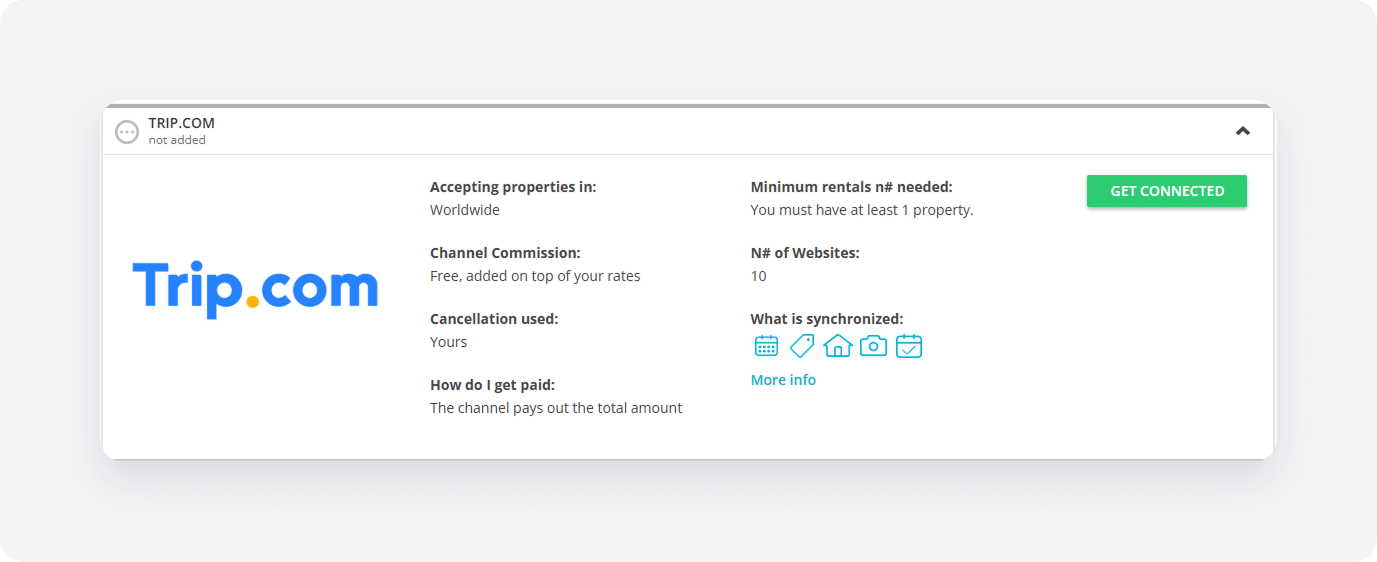
The system validates your connection in the background. If you meet the initial requirements, the Connection Wizard launches automatically. If an eligibility error appears, follow the on-screen instructions to resolve the specific requirement before proceeding.
Minimum requirements to connect
- Company profile: Must be filled in , including phone number, email address and so on
- Property name: Required, but can't contain the word test;
- Property type: Can't be "Shared room"
- Property size: Required
- Address (street number): Required
- Geo-coordinates: Required
- Photos: At least 10 photos, minimum size 1024 px (width) x 683 px (height)
- Number of beds: It must match the maximum number of guests
- Rooms:
- At least 1 "Bathroom"
- Separate "Kitchen"
- License number: Required
- Cancellation policy: Required
- Fee and tax:
- "Unknown" or "Other" don't sync to Trip.com
- Taxes mapped to a single Trip.com tax type must use the same calculation logic
- For PMS clients, all taxes must have properly defined names.
- Payment methods: At least 1 payment methods
- Arrival information: Required
- Normal check-in and check-out times: Required
Service configuration
The Connection Wizard guides you through the necessary settings for the new integration. You can track your progress at the top of the page.
How it works
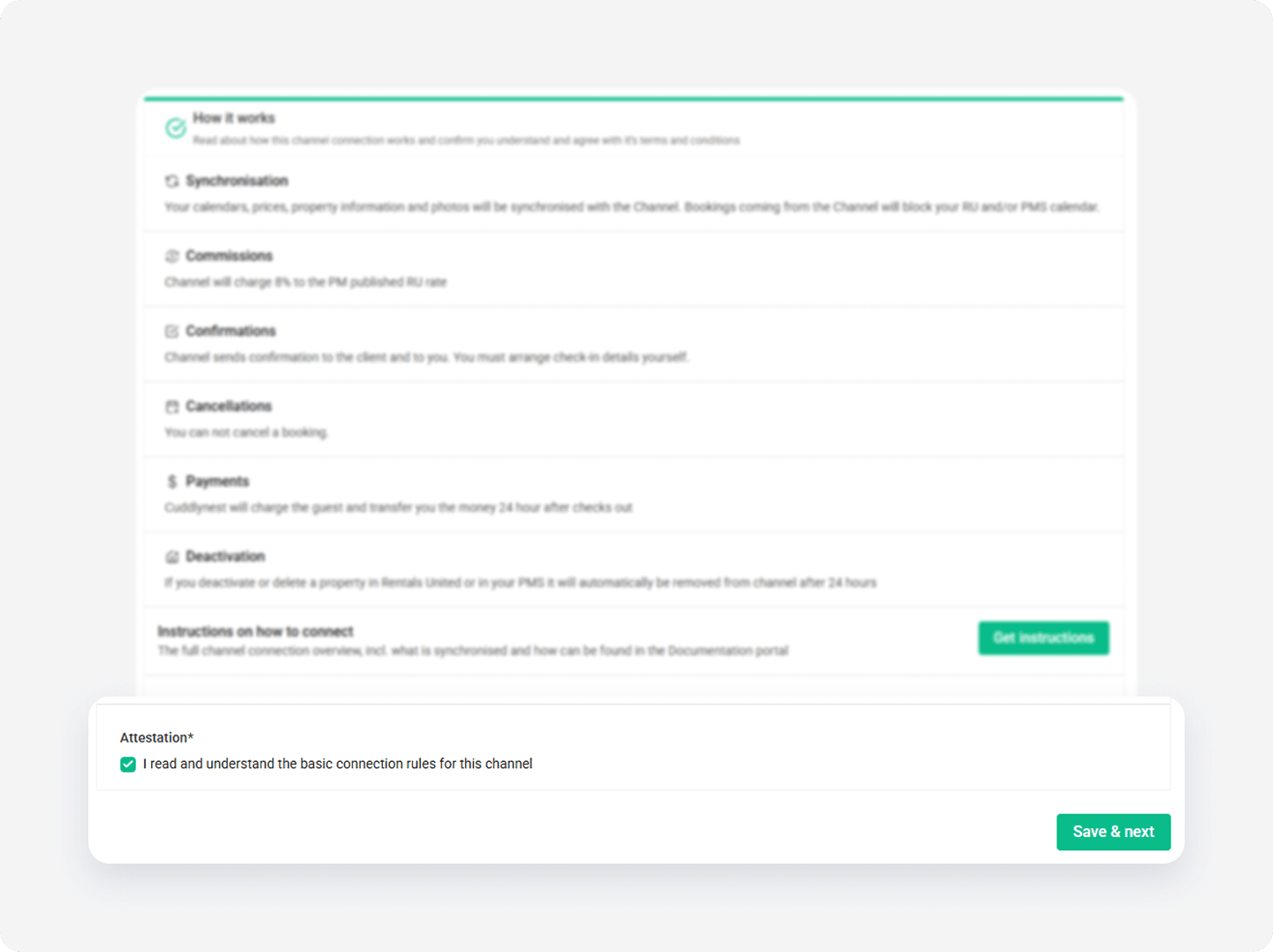
Read the basic information about the integration. Check the I read and understand the basic connection rules box and click Save & Next.
Channel Settings
The Connection Wizard guides you through the necessary settings for your Trip.com integration. You can track your progress at the top of the page. If you exit the wizard, you can resume from the last completed step later.
Tip: You can revisit the Channel Settings section and adjust these settings at any time from the channel's integration page after completing the setup.