Importing properties from Booking.com saves you time when you need to create them in Rentals United. After importing the properties, the system automatically maps them to Booking.com equivalents in Booking.com. This easy process helps you save time and reduce errors.
- Save time and import properties that you have already created in Booking.com. Do not spend time on repeating the same task twice in different systems.
- Manage properties from one place - imported hotels are ready to be managed in Rentals United, as they are immediately connected to their equivalents in Booking.com.
- Expand to new platforms once you have imported hotels from Booking.com, you can easily list them on other sales channels and maximize your booking opportunities
Note: The "Booking.com Import & Connect" process differs from "Airbnb Import". Unlike with the Airbnb import, the hotels imported from Booking.com become immediately mapped to their equivalents in Booking.com. The connection is established and you can manage your hotels from Rentals United.
Before you start
Importing properties isn't available by default for users who use a PMS. However, some PMSs are eligible to use this feature. To check if this feature can be enabled for your PMS/your account, contact the Rentals United Support Team.
Importing properties
Step by step:
In your Rentals United account, open Property Settings for Booking.com. Follow the steps here.
-
Click + Add properties.
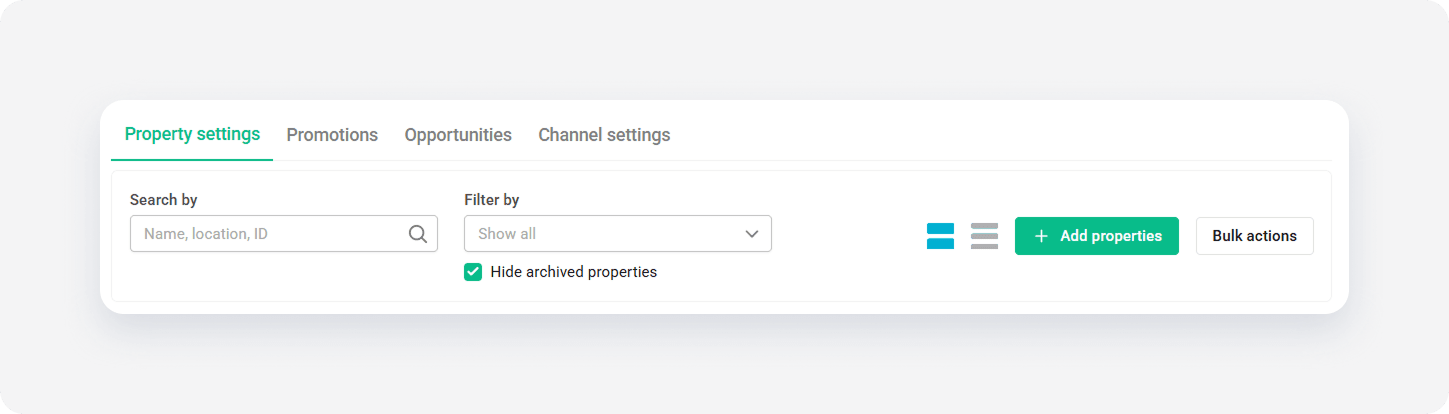
- When the question "Is your property already published in Booking.com?" appears, select Yes.
- Choose the identity confirmation method.
- Email registered in Booking.com
-
Booking.com Legal Entity ID (LEID) - you can use an entirely new LEID or select an LEID used in the past.
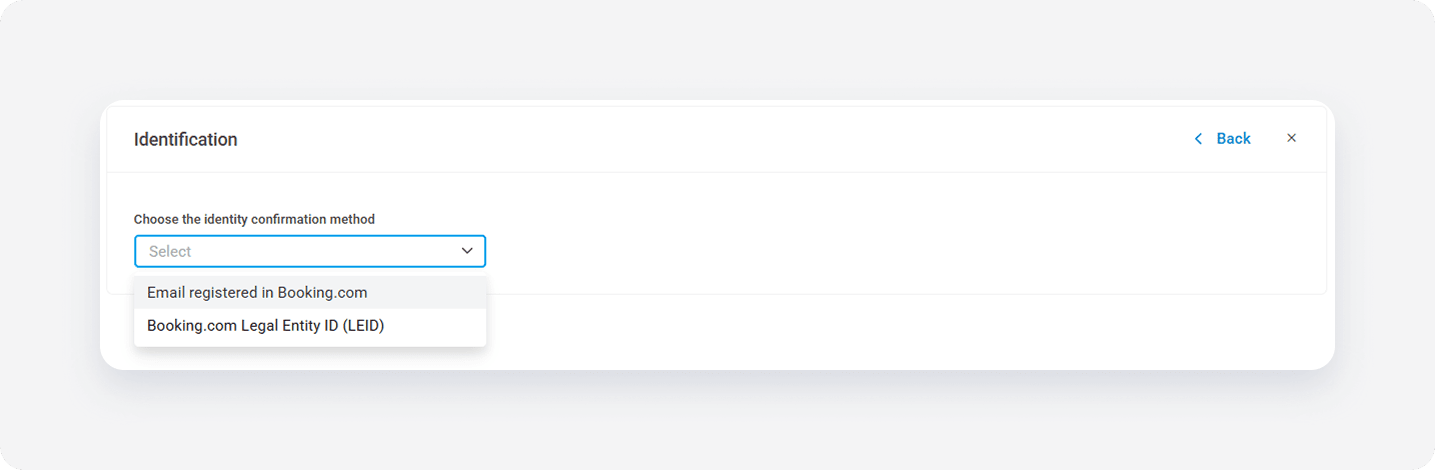
-
Provide the Property ID of the property you want to map and choose the Import this property option. Then, click Next.
To import all properties,
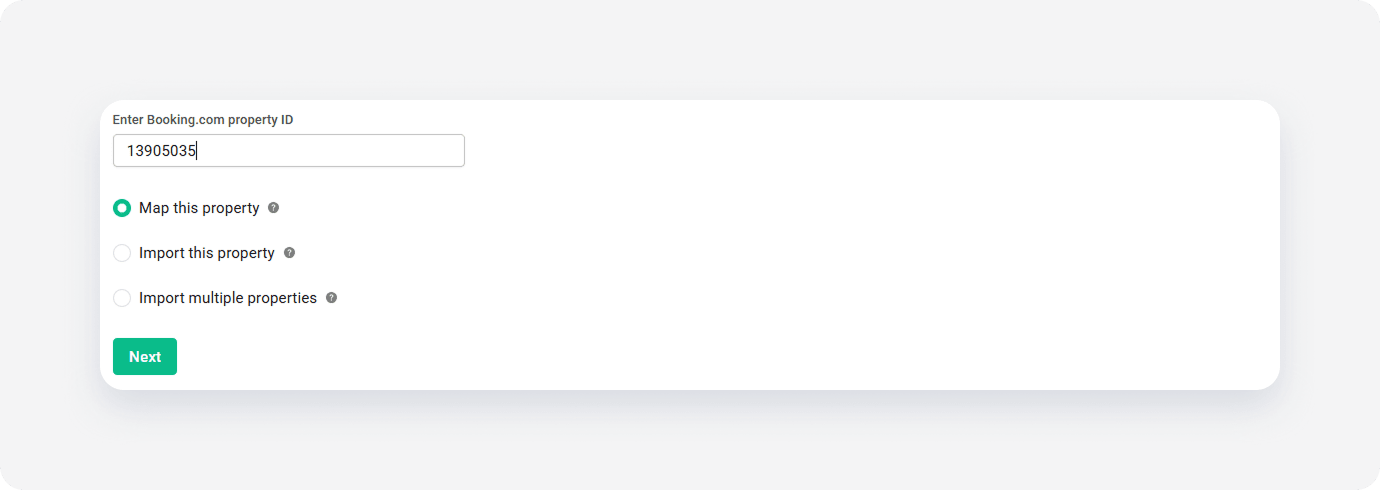
-
Select the rate plan to activate on the channel.
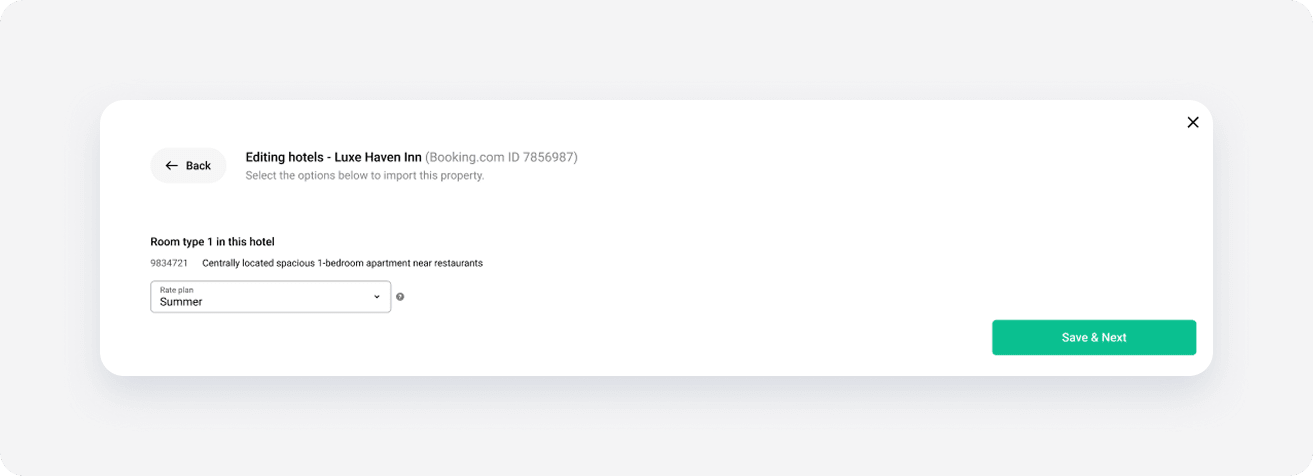
Note: This step appears only if there are multiple rate plans assigned to imported Property ID. The system imports remaining rate plans, but doesn't activate them. If the Property ID has only one rate plan, this step is skipped.
- The import process starts. The system creates properties and they appear in the Edit property page with the Pending status. The processing time depends on the number of imported properties. It should not be longer than 30 minutes. Then, the system maps these properties to the hotels in Booking.com.
You receive an email notification when import is completed, together with details which properties fail to import.
We recommend setting up the markup and activating the remaining rate plans. You can see how to do it here.
Import scope
After import, the property in Rentals United is created according to the data available in Booking.com. Check the below table for the property information that will be imported from Booking.com.
| Data | Imported / Set by default |
|---|---|
|
Property name Property name consists of hotel name and room type name |
✔ |
|
Property type Imported according to the mapping here |
✔ |
| Maximum number of guests | ✔ |
| Floor number | ✔ |
| Max. number of floors | ✔ |
| Property size | ✔ |
|
Address Street, Zip code |
✔ |
|
Geo-coordinates Longitude, latitude |
✔ |
| Licence number | ✖ |
| Legal information | ✖ |
| Points of interest | ✖ |
| Number of bedrooms | ✔ |
| Number of bathrooms | ✔ |
| Number of toilets | ✖ |
| Kitchen | ✔ |
|
Amenities According to the mappings here |
✔ |
| Amenities and beds distribution across rooms | ✔ |
| Description | ✖ |
| Description - House rules | ✔ |
| Photos | ✖ |
| Photos' captions |
✖
|
| Photos' tags | ✖ |
| Discounts (last-minute) | ✖ |
| Discounts (LOS) | ✖ |
|
Fee / Tax According to the mappings here |
✔ |
| PTBA | ✖ |
|
Down payment By default set to no deposit |
✖ |
|
Security deposit Always imported as a flat amount |
✔ |
| Currency | ✔ |
|
Arrival information Landlord, email address, phone number Days before arrival is by default set to 0 |
✔ |
| Arrival instructions | ✖ |
| Pick-up service | ✖ |
| Check-in from | ✔ |
| Check-in to | ✔ |
| Check-out | ✔ |
|
Place of check-in By default set to “At the apartment” |
✔ |
| Late check-in and early check-out fees | ✖ |
| Payment methods | ✔ |
| Cancellation Policy | ✔ |
| Terms and Conditions | ✖ |
| Availability / Calendar | ✔ |
|
Pricing Standard pricing, Occupancy Based Pricing LOS Pricing is not imported |
✔ |
|
Standard number of guests By default set to 1 |
✔ |
|
Minimum stay By default set to stay-through |
✔ |
|
Maximum stay By default set to stay-through |
✔ |
| Changeovers | ✔ |
Restricted access
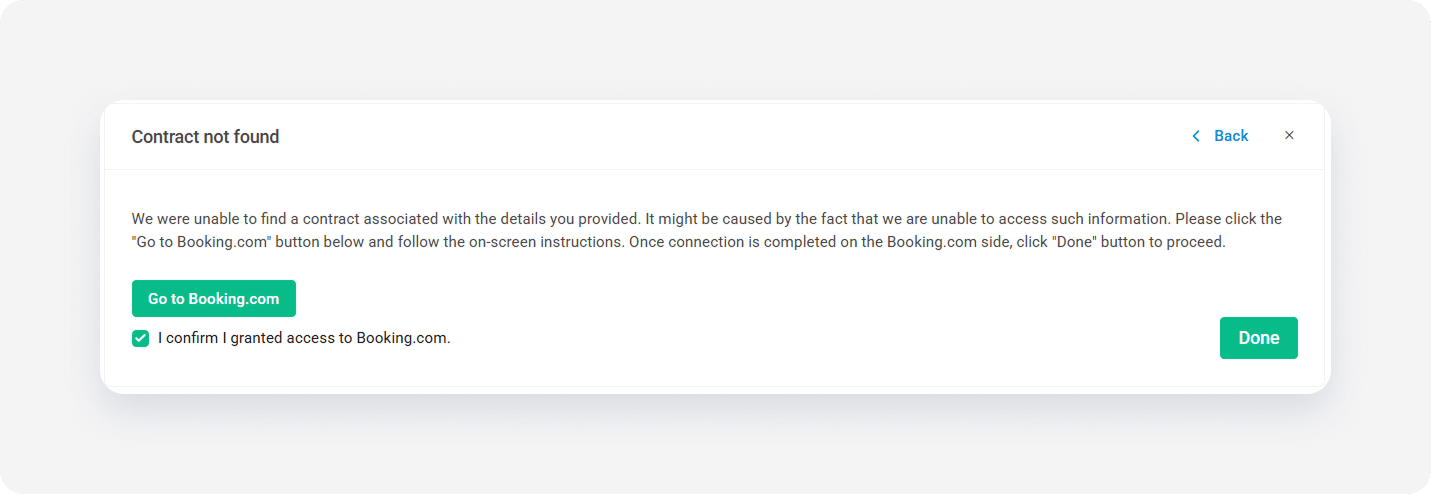
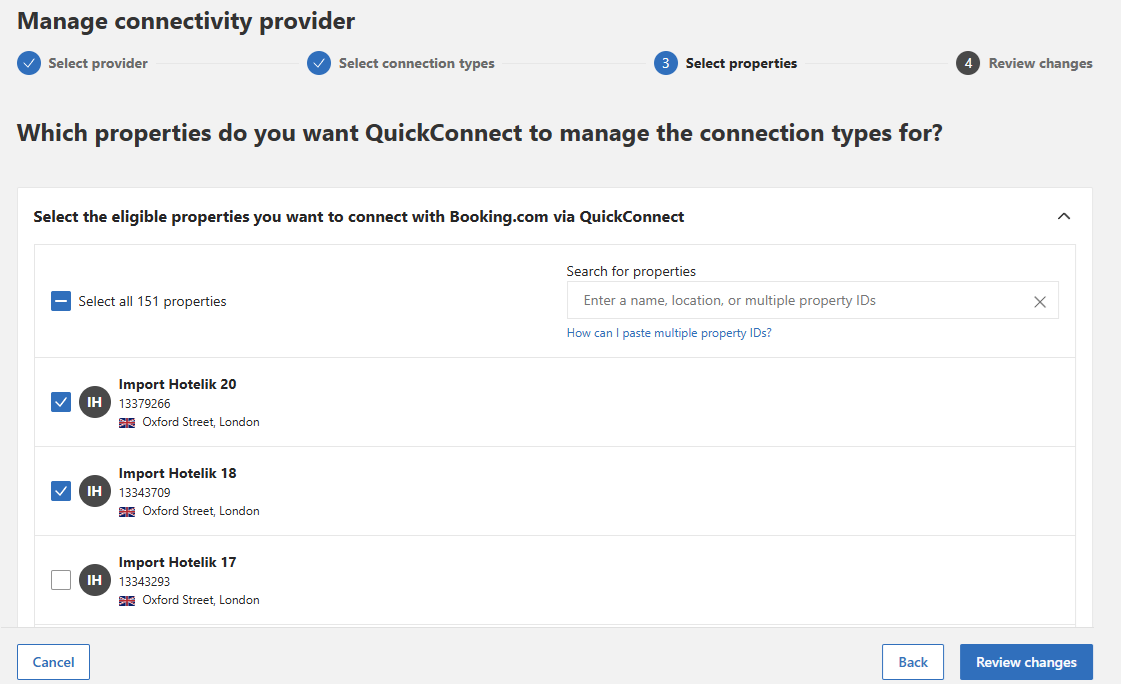
While importing properties, the system may ask you to give us access to your properties in Booking.com.
If you plan to import multiple properties, you can grant us access to all of them at once. Just check all relevant properties in the access step in Booking.com.
Important notes
-
Limitations to properties import: Importing properties from Booking.com is not possible if:
- Hotels have already been imported in the (even if you edited them on Booking.com, for example added additional room type). Instead, refresh the synchronization settings.
- Hotels that don't have any room types and rate plans in Booking.com
- Hotels that are already mapped to a Rentals United property
- Hotels that aren't ready to import, such as insufficient content
- Property names: Imported hotels follow the "Hotel name" + "Room type name" pattern. Change it later in Edit property.
- Main property: When the Booking.com hotel has room types with one property only, the system sets this property as main for the room type.
- Markup settings: Markup in imported properties is by default ‘0’. Change it on the rates page.