You can access the Booking.com dasboard from https://admin.booking.com/. Booking.com will provide you with a username, it is usually in this type of format “companyname1”.
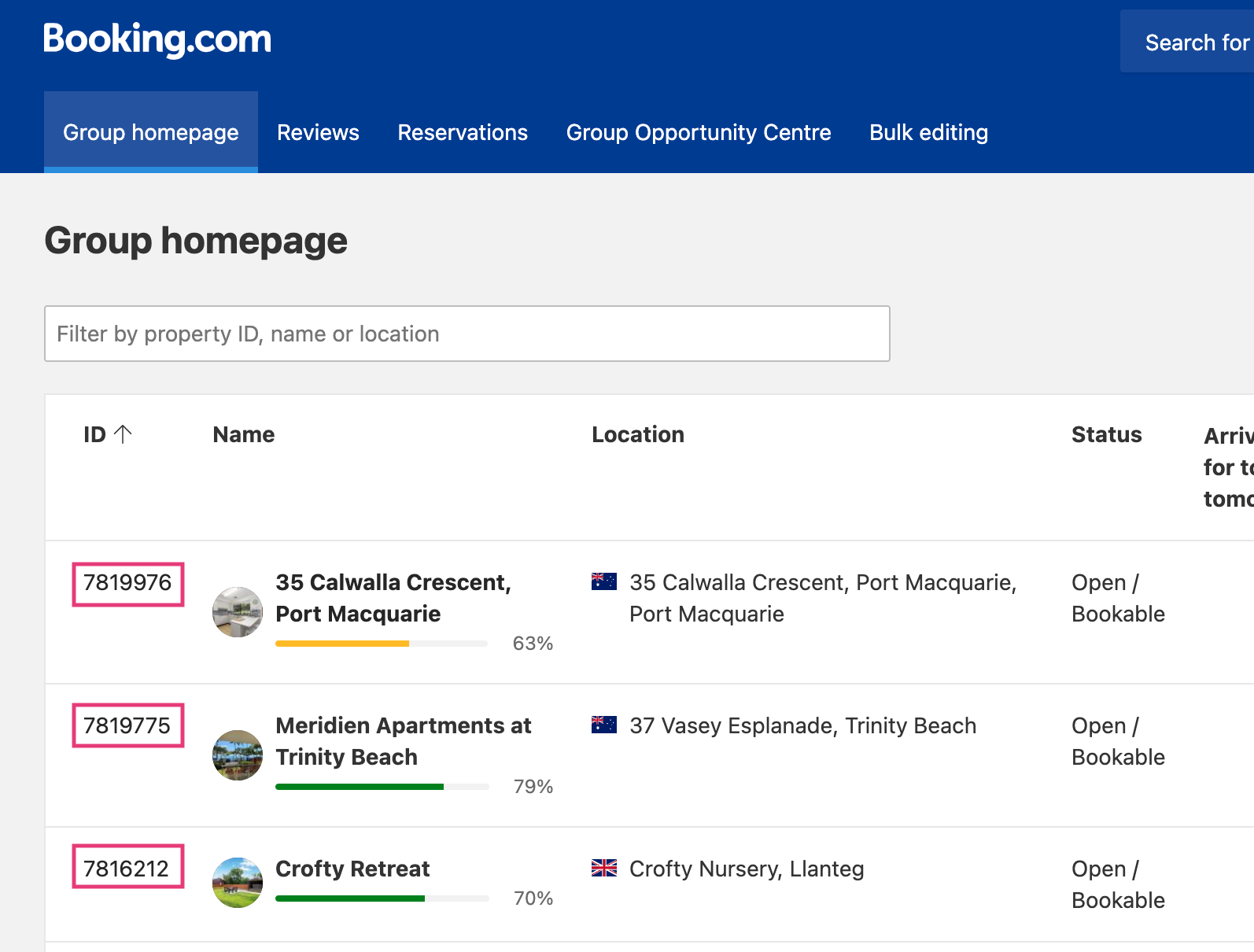
The Booking.com homepage will display all your properties in the account (Booking.com Hotel ID on the left). You can click on the property to review.
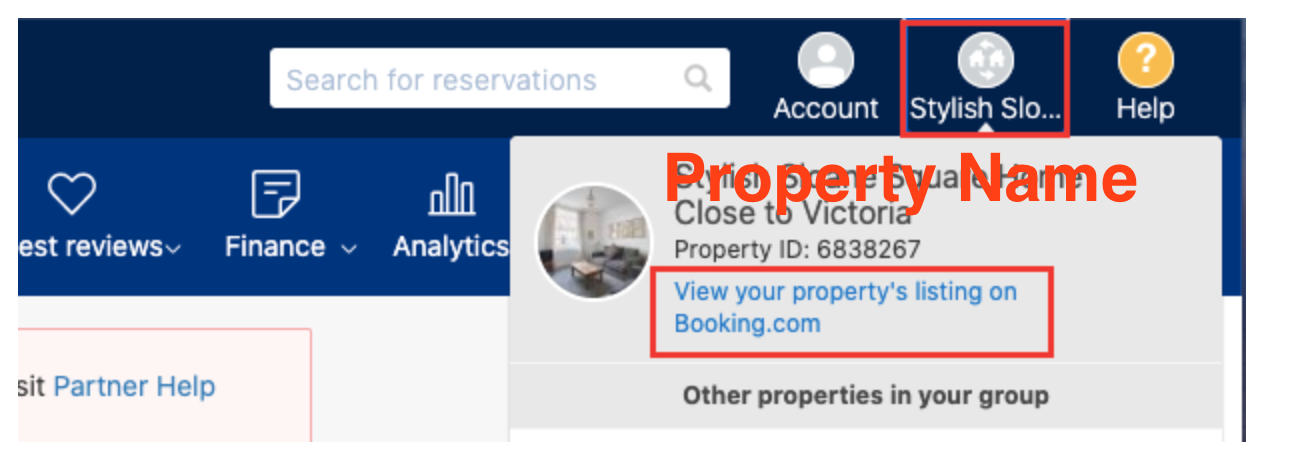
Click the property name at the top right hand corner and select View your property’s listing on Booking.com to see the listing from the guest's perspective. This is a good way to spot any potential issues.
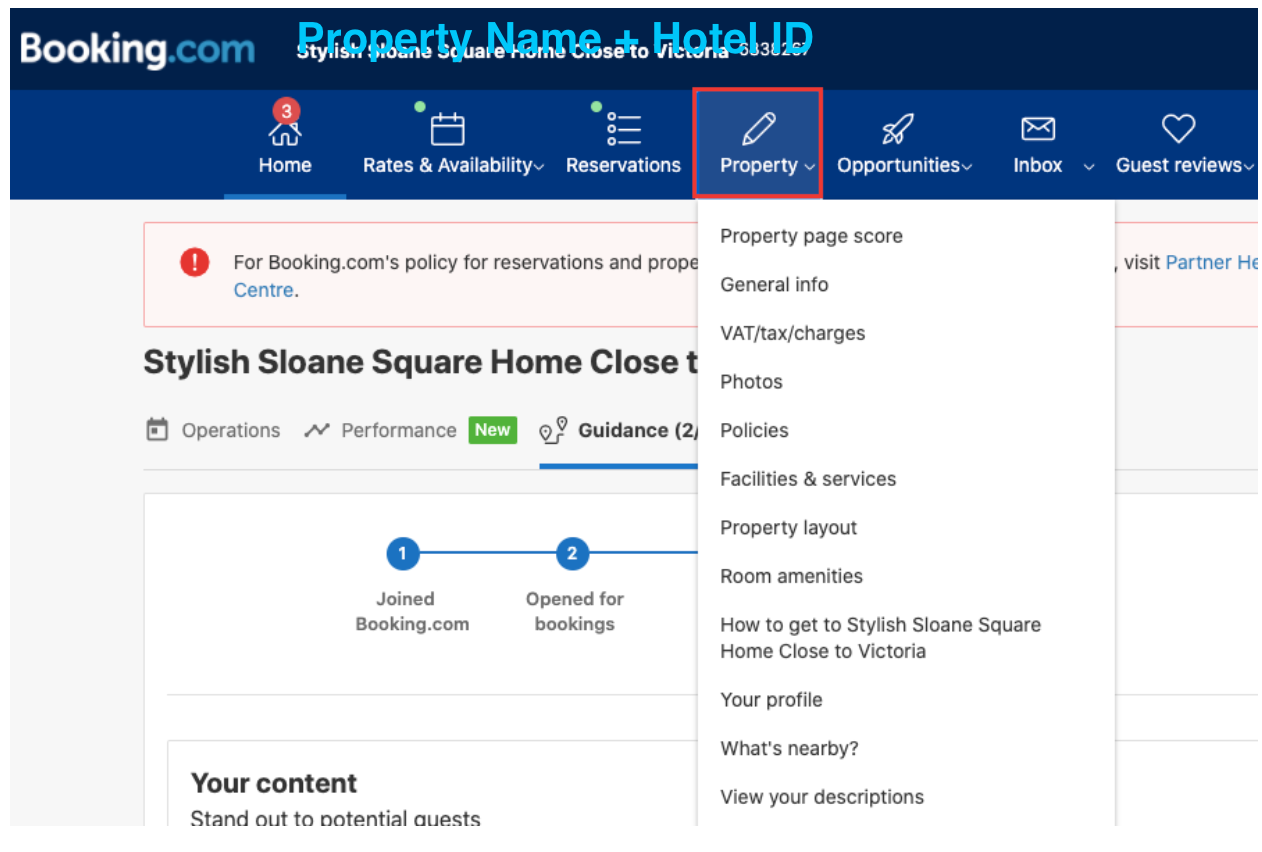
You can also review the property content from the edit view. Click on the Property tab to reveal the content fields. The property manager can make edits to the property content in Booking.com dashboard. Note however that it may be overwritten by the content you have in Rentals United if you trigger a content update via Rentals United.
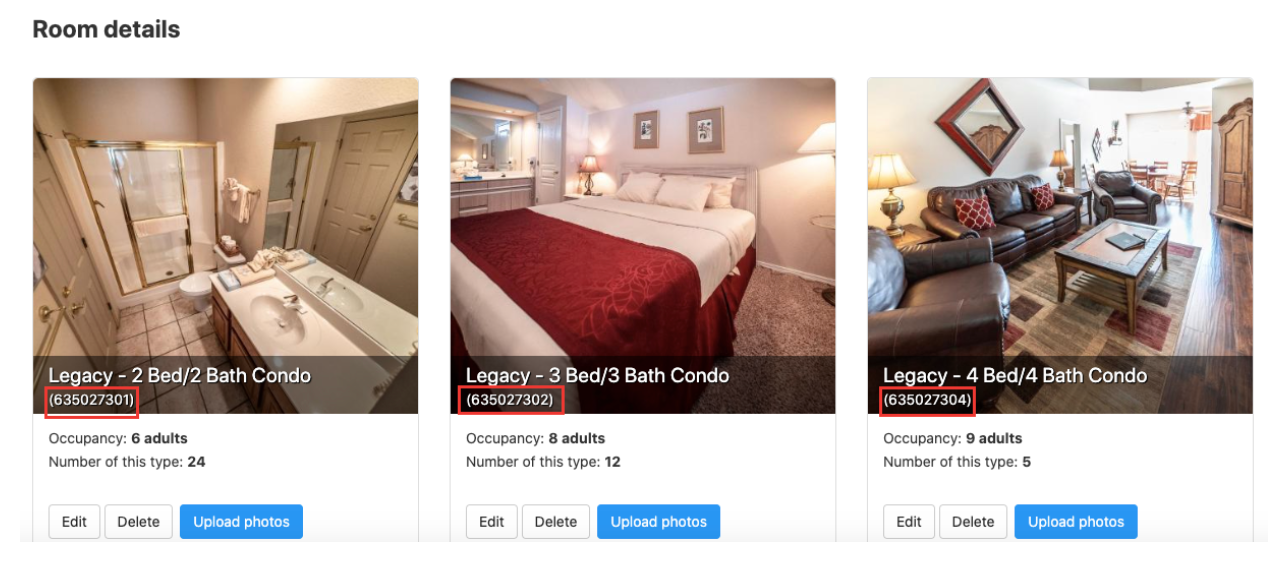
Booking.com is designed for the hotel inventory. This means that within 1 Booking.com Hotel ID there could be several room types and within those room types several units. To view the set-up in Booking.com, click on the Property tab and select Property Layout or Room details. The different room types will be identified by 2 numbers at the end of the Hotel ID.
Please note that Rentals United cannot create content for this type of inventory. For this set-up, the property manager needs to create the listing in Booking.com manually and it can then be mapped to Rentals United to synchronize prices and availability.
All properties created via Rentals United will be 1 property per Booking.com Hotel ID.