To start advertising on Booking.com, you must first establish a connection between your accounts. This process involves adding Booking.com to your services and configuring your account-level settings through the Connection Wizard.
Establish connection
Follow the steps below to add a specific channel to your account.
Step-by-step:
- Sign in to your Rentals United account.
- Go to the Services tab and select Find Services.
- Type the channel name in the search box.
- Click the
 to expand the channel section.
 - Click Get connected.
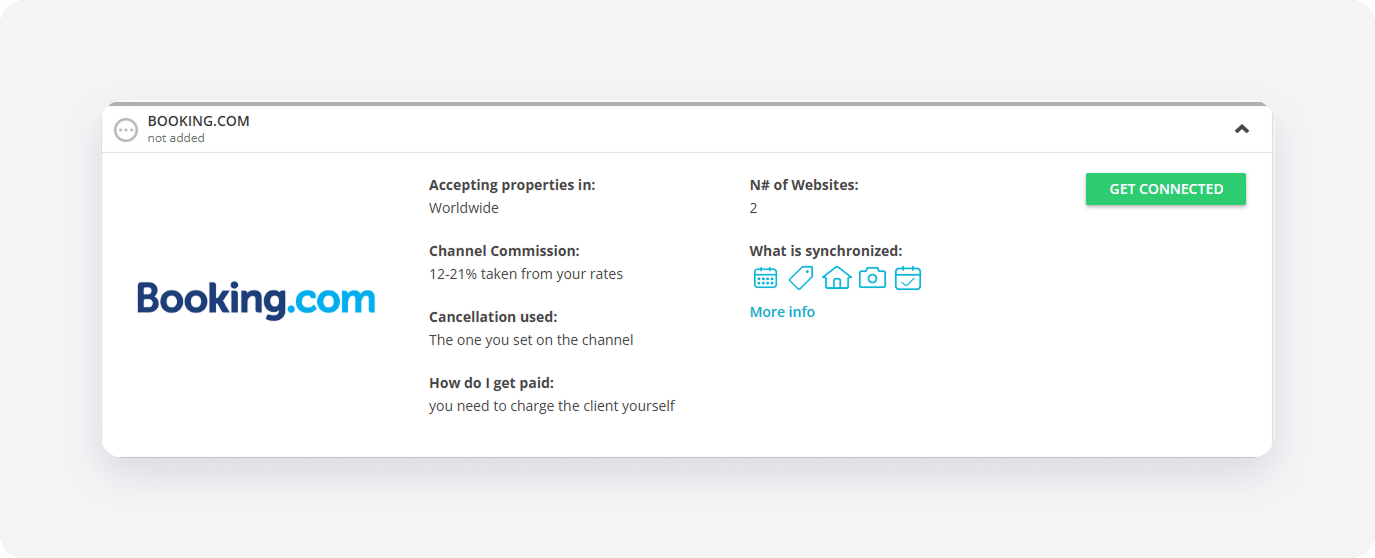
The system validates your connection in the background. If you meet the initial requirements, the Connection Wizard launches automatically. If an eligibility error appears, follow the on-screen instructions to resolve the specific requirement before proceeding.
Minimum requirements to connect
- Property name: At least 1 lower case letter and no special characters
- Property type: Required
- Maximum number of guests: Required
- Address (Post code, Country): Required
- Geo-coordinates: Required
- License number: Required in certain territories, see here
- Amenities: Each property must have "Kitchen" amenity selected, unless the property type "Vacation home"
- Number of beds: It must match the maximum number of guests
- Description: Required
- Photos: At least 10 photos 1024 px (width) x 683 px (height); main picture selected
- Prices and availability: Required
- Arrival information: Required
- Cancellation policy: Required
- Payment methods: Required
- Company profile: Mobile phone number required
Service configuration
The Connection Wizard guides you through the necessary settings for the new integration. You can track your progress at the top of the page.
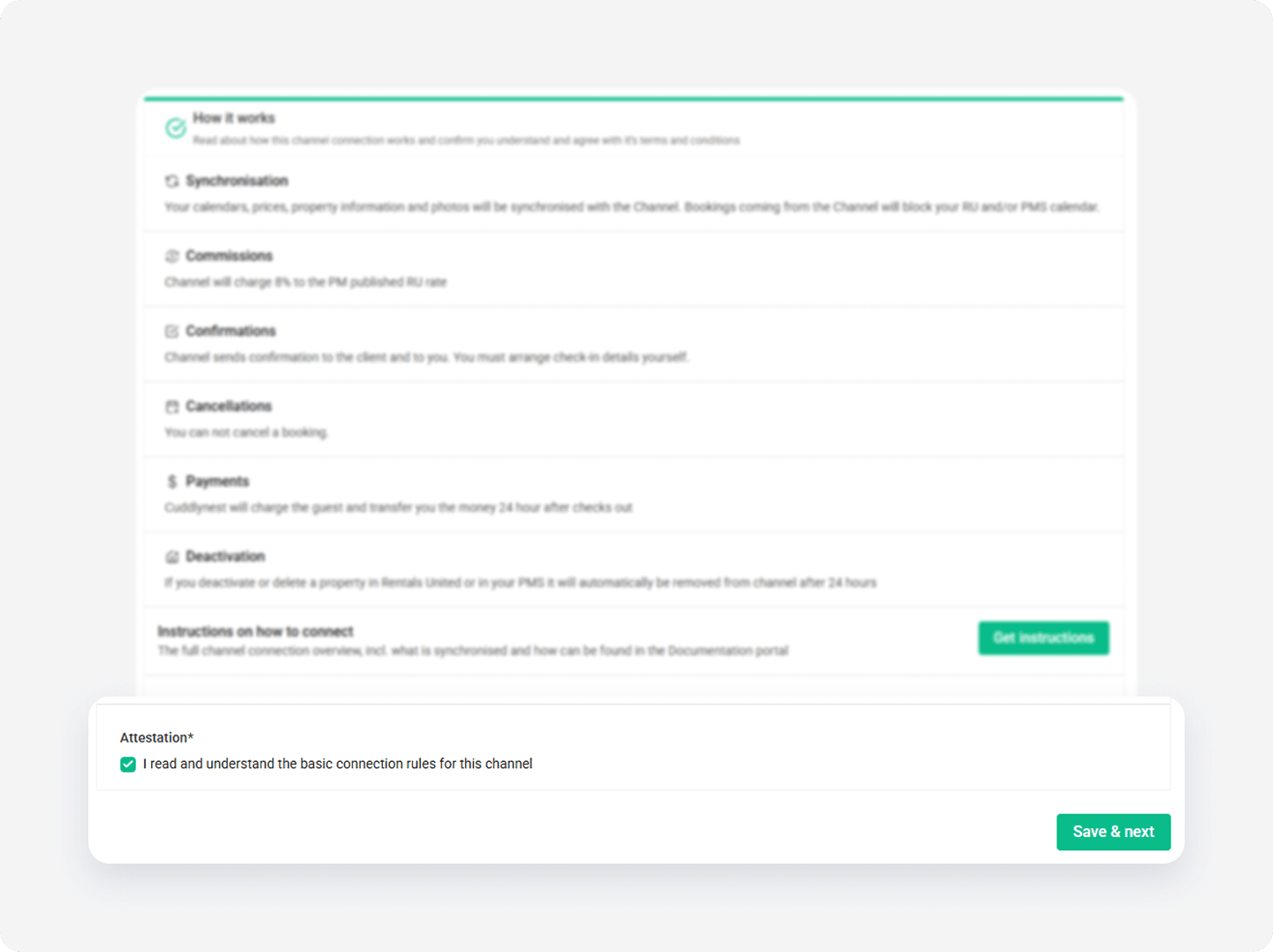
How it works
Read the basic information about the integration. Check the I read and understand the basic connection rules box and click Save & Next.
Channel Settings
The Connection Wizard guides you through the necessary settings for your Booking.com integration. You can track your progress at the top of the page. If you exit the wizard, you can resume from the last completed step later.
Tip: You can revisit the Channel Settings section and adjust these settings at any time from the channel's integration page after completing the setup.
Sign a contract
In case you do not have an active contract with Booking.com, you can skip the line and request it directly from your Rentals United account.
This procedure works only if you do not have any existing contract with Booking.com. If you already have a contract with Booking.com and you only want to add additional countries to your contract, you should add new listings.
Step by step:
In your Rentals United account, open Property Settings for Booking.com. Follow the steps here.
- Click Synchronize your first property button.
- When the question "Is your property already published in Booking.com?" appears, select No.
- Click the I don't have contract with Booking.com yet.
-
Fill in the form. Some data is already filled in based on info in Company profile.
Booking.com requires you to specify in the contract all countries where you have your properties. To avoid signing multiple contracts, we recommend adding all countries where you already have rentals as well as countries where you intend to rent.
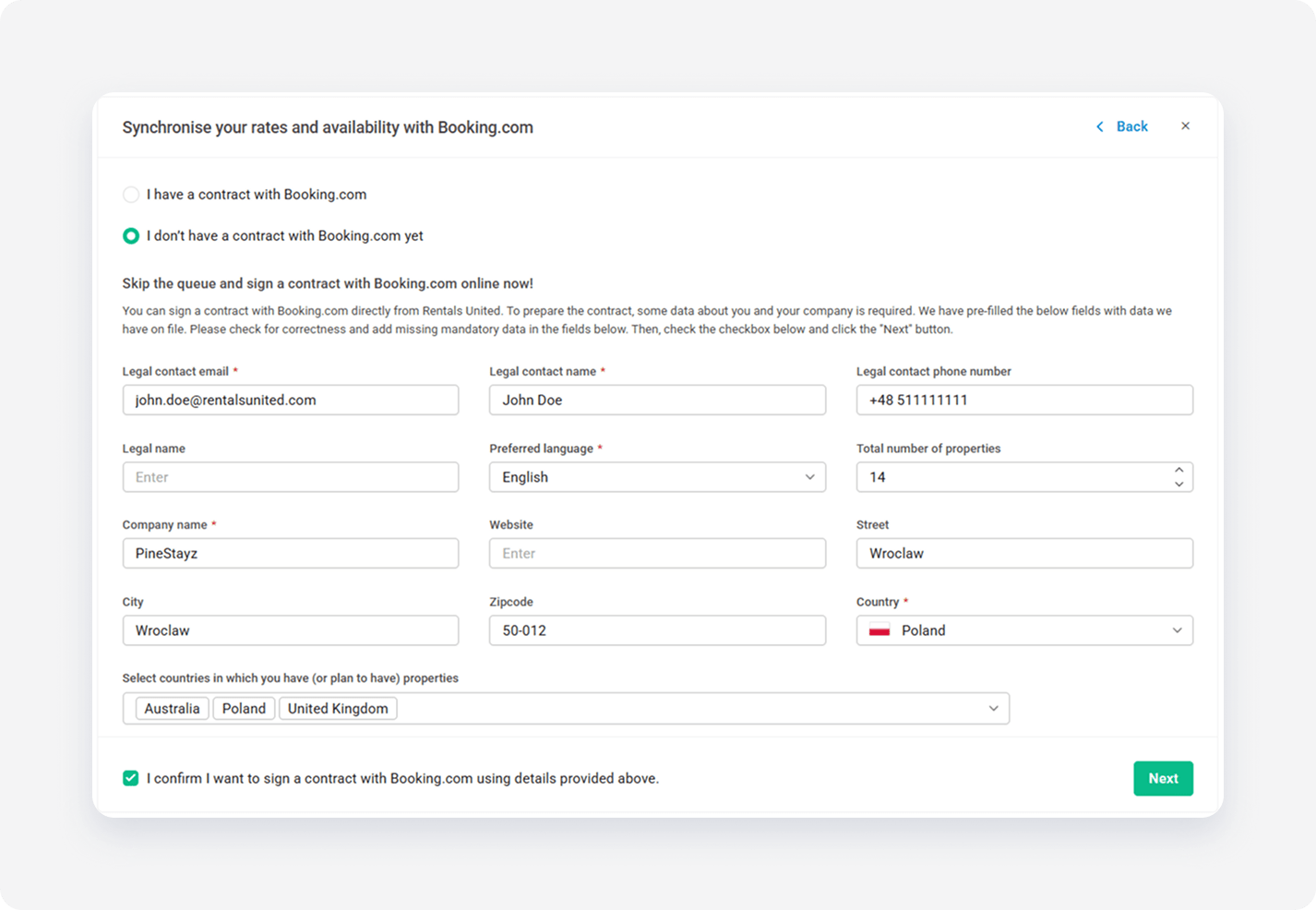
- Tick the checkbox to confirm signing the contract with Booking.com and click Next.
Booking.com generates a Legal Entity ID (LEID) for you. In the meantime, you can select properties that you want to add as new listings on Booking.com.
Booking.com sends instructions to complete the contract to your email. Follow the instructions and sign the contract online. Note that listings you selected for publishing don't go live until you complete the contract. Once you sign the contract, your properties publish on Booking.com within 24 hours.