Payment methods

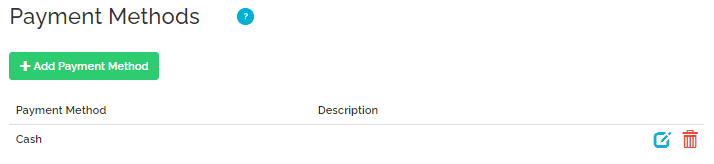
Payment methods indicate the types of payments guests can use at the property to pay for services. You must select at least one payment method to complete this setup; however, you can specify as many methods as you like to give your guests more flexibility and freedom of choice.
Note: Selecting payment methods in Rentals United doesn't cause the system to automatically charge your guests. These settings simply inform the guest of the options available to them.
API endpoint: Pull_ListSpecProp_RS/Property/PaymentMethods
The following payment methods are synchronized with Booking.com:
-
Credit card
Select the credit card option and provide the description. We'll try to match your description to a payment type in Booking.com. If you don't provide the description or we can't match it, we'll set it to Visa and Mastercard.
-
Specific credit card (e.g. American Express, Visa etc.)
Select a specific credit card and we'll try to match it to a payment type in Booking.com. Booking.com supports over 70 credit card types (see a detailed list here). If we can't match it, we'll set accepted payment methods to Visa and Mastercard.
-
Cash
Select the cash method and we'll set it in Booking.com. If you select both cash and credit card, we'll set accepted payment methods according to the credit card selection . Cash will be skipped.
Cancellation Policy 
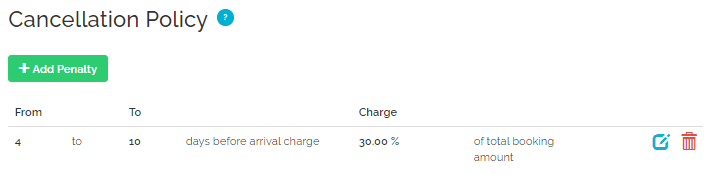
Cancellation policy defines the charges applied if a guest cancels their reservation within a specific timeframe. Establishing a clear policy helps protect your revenue against last-minute cancellations while setting transparent expectations for your guests.
API endpoint: Pull_ListSpecProp_RS/Property/CancellationPolicies
Cancellation policy edited in Step 7: Payments creates the first rate plan (called 'Standard') when adding a new hotel to Booking.com. We'll match your settings to the closest cancellation policy available in Booking.com. The list of Booking.com policies is available here.
Terms and Conditions (N/A)
