Managing channel promotions (Booking.com)

Promotions are special offers you can set for your listings on Booking.com. Strategically prepared promotions help you stand out in the search results and attract more guests. You can increase your visibility, attract more guests, and boost your revenue. Promotions management has never been so easy - you can manage it now directly in Rentals United.

According to the Booking.com data:

  • 75% of bookings are made on a mobile device.
  • Using Mobile Rates can increase your visibility by up to 28%.
  • 62% of travellers look for promotions when planning a trip, and 55% are more likely to book when they see a special deal.

To keep your listings competitive, it is best to run promotions all year round. Tto make the best of promotions, it is also suggested to increase the mark-up for your Booking.com rate plans to ensure your promotional rates never go below the desired margin.

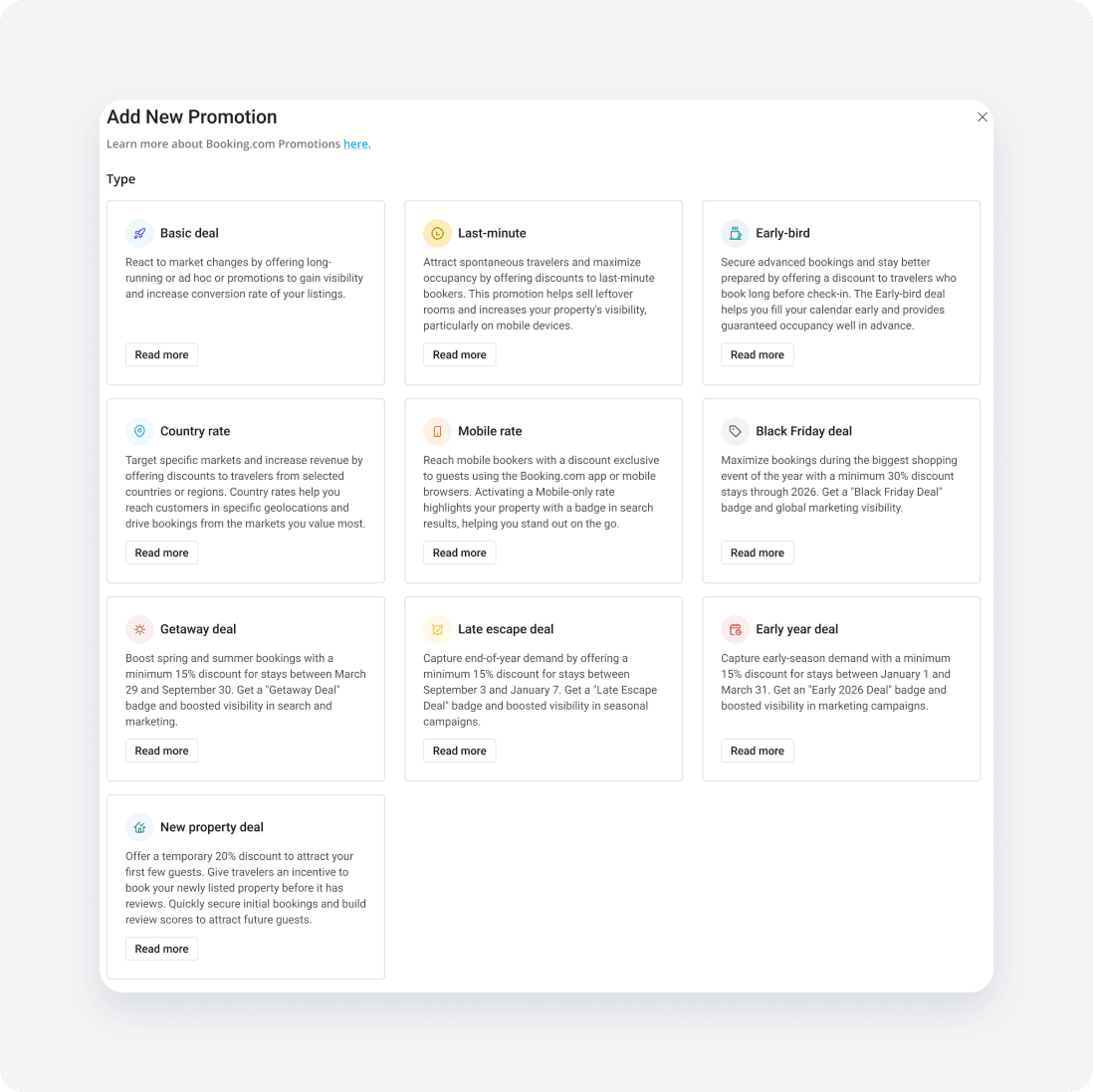
Available types of promotions

Available types of promotions

  • Basic Deal: Basic Deals are flexible offers that can be tailored to your pricing strategy and business goals. You decide the discount, travel dates, booking window, and length of stay. They’re always available and can be set up any time.
  • Last-Minute: Fill more rooms by appealing to travellers who book spontaneously. Last-Minute Deals help boost occupancy throughout the season.
  • Early Booker: Encourage guests who like to plan ahead by offering an Early Booker Deal. This lets you secure reservations well before peak travel seasons.
  • Country Rate: Country rates can help you unlock domestic and international demand by offering great prices to travellers in countries you specifically want to target.
  • Mobile Rate: A mobile rate is a special discounted rate that is only visible when travellers use the Booking.com app or access the website via a mobile browser. You can use mobile rates to increase bookings from mobile devices by up to 30%.


Synchronisation

If you cannot access your Booking.com promotions from Rentals United, you will be prompted to grant us access to your Booking.com promotions. Use your Booking.com credentials to log in and grant Rentals United access to your account.

Synchronisation access prompt

  • Promotions created in Booking.com appear in Rentals United.
  • Promotions created in Rentals United are sent immediately to Booking.com.
  • Promotions created in Booking.com update in Rentals United once per day.
  • You can fetch the data from Booking.com and update promotions in Rentals United.

Requirements & Limits

  • Promotions are only available for properties connected to Booking.com.
  • Some promotions have limits:
    • Only one Country Rate per hotel.
    • Only one Mobile Rate per hotel.
  • If you apply these to all hotels, existing promotions of the same type may be overridden.
Example: Hotel A has a Country Rate of 15% promotion assigned. Hotel B has another Country Rate of 17% promotion assigned. If you attempt to edit the Country Rate of 17% and apply this promotion to all hotels, then the Country Rate of 15% will be removed. Both hotels A and B will be grouped under Country Rate of 17%.

Access promotions in Rentals United

  1. Log in to your Rentals United account
  2. Go to Property Settings. Follow the steps here
  3. Switch the tab to Promotions.

    Booking.com Promotions

Create a new promotion

  1. Go to the Promotions Panel and click the Create new promotion button.

    Create new promotion button

  2. Provide the Promotion name.

    The name is available for your reference only. It will not be visible to the guests on Booking.com.
  3. Select the Promotion type.

    Select promotion type

  4. Complete the promotion details. Note that promotions differ between themselves, so follow the steps in the platform.

    Promotion form

  5. Select the properties (hotels, room types and rate plans) to which the promotion will apply.
    • Add promotion to all hotels
      1. Choose the Apply this promotion to all my hotels, rooms and rates option.

        Apply to all

        • Depending on the promotion type, it may be restricted to apply to Hotel IDs only
      2. The promotion applies for all hotels, rooms and rates.
    • Add promotion to selected rate plans.
      1. Choose the Manually select hotels, rooms and rates for this promotion to apply to option.
      2. Click the Add another Hotel ID button to add one and more hotels.

        Manually select hotels

      3. Select the correct Hotel ID from the dropdown list.

        Hotel ID dropdown

      4. Check the boxes next to the rate plans for which the promotion will be switched on.

        Rate plan checkboxes

      5. The promotion is switched on for selected hotels, rooms and rates.
  6. Click Create promotion.

Add or remove promotion

In this section you will learn how to:

  • Add new hotels to an existing promotion
  • Remove hotels from an existing promotions
  1. Go to the Promotions Panel and find the promotion that you want to edit.
  2. Unfold the three-dot menu on the main promotion tab. Select the Add hotels to this promotion option.

    Add hotels menu

  3. Update the promotion's details.

    Updating promotion’s details (for example, name, who will see this promotion, minimum stay, discount) in fact results in deletion of old promotion and creation of a new one. On the other hand, if you decide to update the assigned hotels, then the number of hotels, rooms and rates will be updated within the existing promotion.
  4. Click Update promotion.

Edit promotion details & scope (individual hotels)

In this section you will learn how to edit:

  • Promotion’s details
  • Rooms and rates the promotion applies to (within hotel)
  1. Go to the Promotions Panel and find the relevant promotion.
  2. Unfold the three-dot menu on the Hotel ID tab. Select the Edit promotion for this hotel option.

    Edit individual hotel

  3. Update the promotion's details.
  4. Click Update promotion.

Edit promotion details (all hotels)

In this section you will learn how to edit:

  • Promotion’s details
  1. Go to the Promotions Panel and find the relevant promotion.
  2. Unfold the three-dot menu on the main promotion tab. Select the Edit details option.

    Edit all hotels menu

  3. Update the promotion's details.
  4. Click Update promotion.

Deactivate the promotion (individual hotel)

  1. Go to the Promotions Panel and find the relevant promotion.
  2. Unfold the three-dot menu on the Hotel ID tab. Select the Deactivate for this hotel option.

    Deactivate for individual hotel

  3. Confirm the operation after a window pops up.

    Deactivation confirmation

  4. The hotel is removed from the promotion.

Deactivate the promotion (all hotels)

  1. Go to the Promotions Panel and find the relevant promotion.
  2. Unfold the three-dot menu on the main promotion tab. Select the Deactivate option.

    Deactivate all hotels

  3. Confirm the operation after a window pops up.

    Bulk deactivation confirmation

  4. The promotion gets inactive for all the hotels assigned to it and gets the status Deactivated.

Stacking promotions together

Promotion stacking lets you combine discounts to make your property more appealing and boost your visibility in the search results. Discounts can only stack if they come from different categories, Mobile Rates and a Last-Minute Deal for example. You can stack up to three discounts, but not two from the same category.

Discounts are applied one at a time to the base rate. Each discount is calculated on the rate left after the previous discount has been applied, rather than all discounts being applied to the original base rate at once. Only guests who qualify for all discounts in the stack will see the combined rate. If multiple discounts from the same category are active, only the highest discount applies.

Mobile Rate: target traffic for domestic trips and young travellers

Mobile Rate stacking
  • Stacks with: Genius, Basic Deal, Last-Minute, Early Booker, Free Nights Deal and Secret Deal. Discounts from all promotions will be applied.
  • Does not stack with: Country Rate and Limited-time Deal. Only the largest discount will be applied to the price.

Early Booker: especially effective during uncertain times with flexible cancellation policy

Early Booker stacking
  • Stacks with: Genius, Country Rate, Mobile Rate. Discounts from all promotions will be applied.
  • Does not stack with: Business Bookers, Campaign, Last Minute, Deal of the Day, Secret Deal, Free Nights Deal. Only the largest discount will be applied to the price.

Last Minute: especially effective as lockdown restrictions are lifted

Last Minute stacking
  • Stacks with: Genius, Country Rate, Mobile Rate. Discounts from all promotions will be applied.
  • Does not stack with: Business Bookers, Campaign, Early Booker, Deal of the Day, Secret Deal, Free Nights Deal. Only the largest discount will be applied to the price.

Below, you can find examples that better describe how the promotions stacking works.

Example 1

The net rate per night is 100 USD; the Booking.com commission is 15%; the Mobile Rate discount is 10%; the Last Minute discount is 10%. Last Minute and Mobile Rate stack with each other.

100 USD - 10 % (Mobile Rate) = 90 USD

90 USD - 10 % (Last Minute) = 81 USD.

81 USD - 15% (commission) = 68 USD.

Hence, the final price is 81% of the original room rate, resulting in approximately 19% of potential discount stacking. The revenue in this case is 68 USD.

In such a case, we recommend setting a mark-up of 50% for the parent rate plan, which is linked to the promotions.

Example 2

The room rate per night is 100 USD; the mark-up is 50%; the Booking.com commission is 15%; the Mobile Rate discount is 10%; the Last Minute discount is 10%.

Room rate: 100 USD + 50% (mark-up) = 150 USD

Guest rate: 150 USD - 10% (Mobile Rate) = 135 USD

135 USD - 10% (Last Minute) = 121.5 USD

Net rate = 121.5 USD - 15% (commission) = 103 USD

In case a guest is to get a 19% discount because of booking on a mobile and last minute, then the final price per night will be 121.5 USD. After paying Booking.com the 15% commission, that will leave you with 103 USD net rate per night.

With this mark-up strategy, you are ensuring:

  • Small profit margin on your net rate
  • Increased visibility and conversion

Grouping hotels by promotions

Promotions with the same details have hotels, rooms and rates combined and listed within the cluster.

Grouped hotels folded

You can expand expands the list to see all hotels, rooms and rates the promotion applies to.

Grouped hotels expanded

The Mobile and Country Rates differ from a regular promotion. With these types of rates, you will not see the same promotion details and the indicator in the bottom left corner counts hotels only.

Promotion information in reservation

If a guest books a stay overlapping both promotional and non-promotional periods, then the promotion will be applied only to the nights covered in the promotion. The price for the nights outside the promotional period will be calculated using the best available rate plan.

Details on how promotions are applied

When a promotion is created, you will be asked to specify the hotel, room type and rate plan to assign the promotion to.

A promotional child rate is then created. Sometimes, however, it is possible that promotions conflict with each other. In such cases:

  • For the price, policy, meal plan and derived price details, promotions inherit values from the parent rates.
  • For restrictions, channels, and closed/open dates, the most restrictive value takes precedence. Here are examples to illustrate the above:
    • If the parent rate has a minimum stay of 3 and the promotion has a minimum stay of 5, then the minimum stay of 5 is required to trigger the promotion.
    • If the parent rate has a release time of 1 day and no release time is specified on the promotion, the promotion inherits the release time of the parent rate.
    • If the parent rate has a closed date, the promotion inherits that closed date.
    • If the promotion is active and the parent rate is open, the promotion is open for that date.
Was this article helpful?
0 out of 0 found this helpful