Setting up and manage Booking.com promotions directly in Rentals United increases listing visibility, boosts occupancy, and drives conversion. This article explains how Booking.com promotions work and guides you through setting up portfolio, seasonal, and targeted deals.
Note:
This feature isn't available to everyone yet. To join the pilot program, contact your Account Manager.
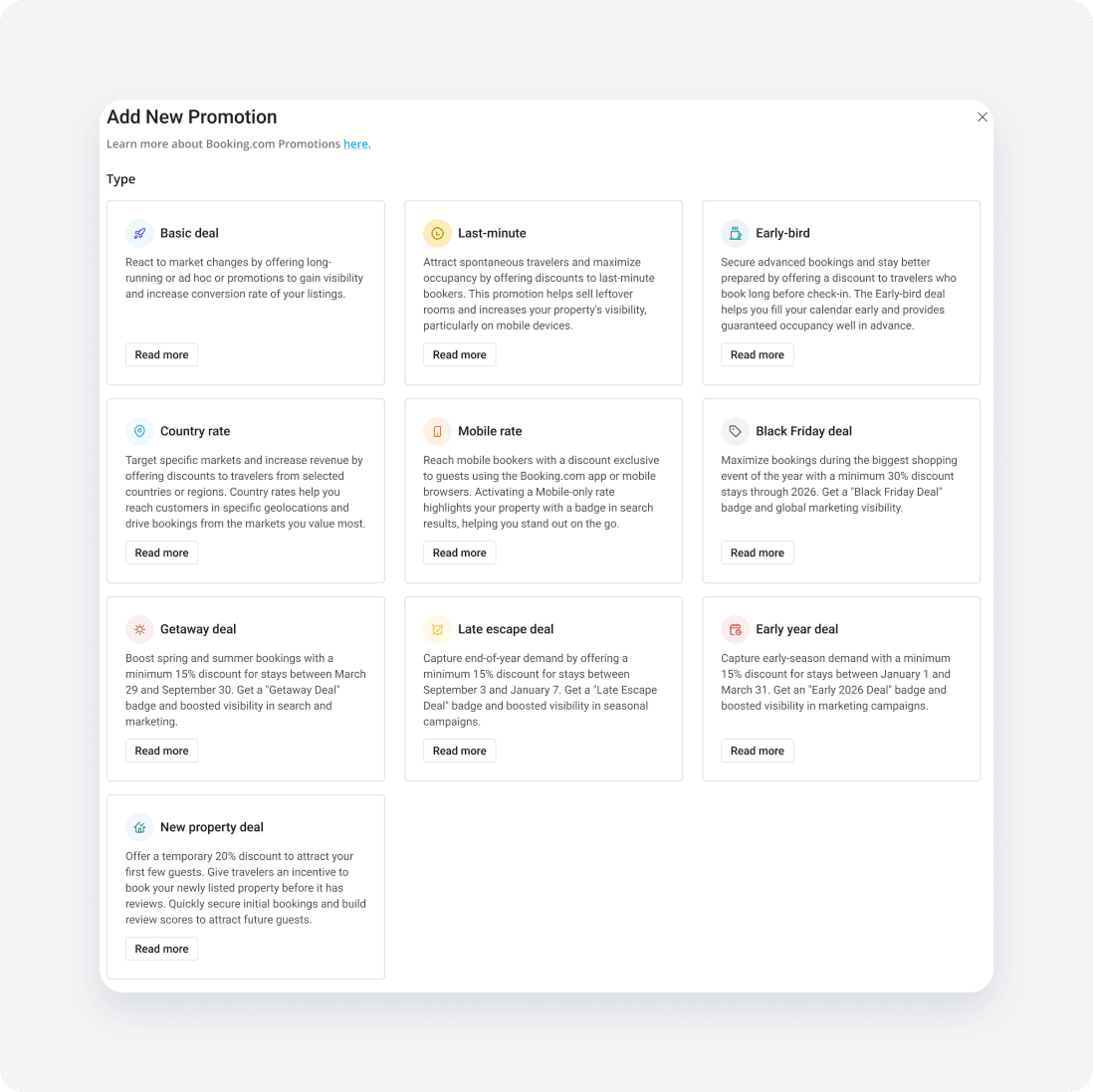
Booking.com promotion types
Booking.com offers portfolio deals, seasonal campaign deals, and targeted rate promotions to help capture traveler demand across different booking windows.
Portfolio deals
| Name | Description | Discount range | Booking window | Stay dates | Visibility boost |
|---|---|---|---|---|---|
| Basic deal | Flexible, general-purpose discount to quickly adjust to market changes | Public: 1% to 99% Subscribers: 10% to 99% | Custom | Custom | Standard |
| Last-minute | Targeted discount for guests booking close to arrival to fill remaining inventory | Public: 1% to 99% Subscribers: 10% to 99% | Up to 7 days before check-in | Custom date range | Increased ranking and mobile visibility |
| Early-bird | Offer for travelers planning ahead to secure early bookings and steady occupancy | Public: 1% to 99% Subscribers: 10% to 99% | Custom date range based on minimum advance booking days | Custom date range | Standard listing visibility |
Campaign deals
Seasonal deals align with Booking.com global marketing campaigns. Properties participating in active campaign deals receive dedicated badges in search results and additional platform exposure.
| Name | Description | Discount range | Booking window | Stay dates | Visibility boost |
|---|---|---|---|---|---|
| Black Friday Deal | Capture surge traveler demand for end-of-year stays | Minimum 30% | November 20 to December 3 | November 20 to December 31 | "Black Friday Deal" badge and global marketing campaigns |
| Early Year Deal | Secure bookings for the beginning of the year | Asia: Minimum 20% Other regions: Minimum 15% | December 6 to April 1 | January 1 to April 1 | "Early Deal" badge and seasonal marketing support |
| Getaway Deal | Spring and summer campaign to capture peak warm-weather travel demand | Minimum 15% | March 26 to September 30 | March 12 to September 30 | "Getaway Deal" badge and global marketing exposure |
| Late Escape Deal | End-of-year campaign to target holiday planners and late-season travelers | Asia: Minimum 20% Other regions: Minimum 15% | October 1 to January 7 | September 4 to January 7 | "Late Escape Deal" badge and seasonal marketing campaigns |
Note:
Seasonal deals become active based on current campaign availability retrieved directly from Booking.com. Inactive seasonal deals can't be selected until their respective campaign window opens.
Targeted rates and New Property Deal
| Name | Description | Discount range | Booking window | Stay dates | Visibility boost |
|---|---|---|---|---|---|
| Country Rate | Targeted discount offered exclusively to travelers in selected countries or regions | 5% to 30% | Custom | Custom | Targeted market exposure |
| Mobile-only | Exclusive discount for guests using the Booking.com app or mobile browser | 10% to 80% | Custom | Custom | Mobile badge and ranking boost |
| New Property Deal | Temporary discount for newly listed hotels with no previous reservations | Minimum 20% | Available for hotels listed less than 12 months | Custom | Increased initial listing conversion |
Note:
The New Property Deal applies for entire hotels listed on Booking.com for less than 12 months without any prior reservations.
Configuration fields
Find the explanation of configuration fields below. Configuration fields differ depending on the selected promotion type.
- Internal name: Enter a name to identify the promotion within your Rentals United account. Use up to 255 characters.
- Who will see this promotion: Choose the target audience for the promotion:
- Public: Select to show the offer to all guests.
- Subscribers: Select to limit visibility to guests subscribed to the Booking.com newsletter.
- Minimum booking length: Choose the minimum number of nights required to receive the promotion:
- Same as rate plan: Inherits the minimum stay length requirement from the rate plan the guest selects while booking.
- No minimum required: Applies the promotion to any stay length.
- Custom (2 to 7 nights): Requires guests to stay at least the specified number of nights.
- This promotion is non-refundable: Toggle on to stop offering refunds if guests cancel.
- Available to travel: Select the stay date range when guests must stay at the property to receive the promotion. You can set up multiple stay date ranges.
- Book date: Select the date range when the promotion appears on Booking.com.
- Book time: Select the time when the promotion appears on Booking.com in the property's time zone. Leave blank to keep the offer active all day.
- Weekday setup: Select specific days of the week within the “Available to travel” window when the discount applies.
- Excluded dates: Select specific date ranges within the “Available to travel” window when the promotion is unavailable.
- Days/hours before arrival: Select the maximum lead time before check-in when a guest can book a last-minute deal.
- Days before arrival: Select the lead time required before check-in.
- Countries: Select the locations where travelers must be located to view and book the country rate.