To start advertising on Despegar, you must first establish a connection between your accounts. This process involves adding Despegar to your services and configuring your account-level settings through the Connection Wizard.
Establish connection
Follow the steps below to add a specific channel to your account.
Step-by-step:
- Sign in to your Rentals United account.
- Go to the Services tab and select Find Services.
- Type the channel name in the search box.
- Click the
 to expand the channel section.
 - Click Get connected.
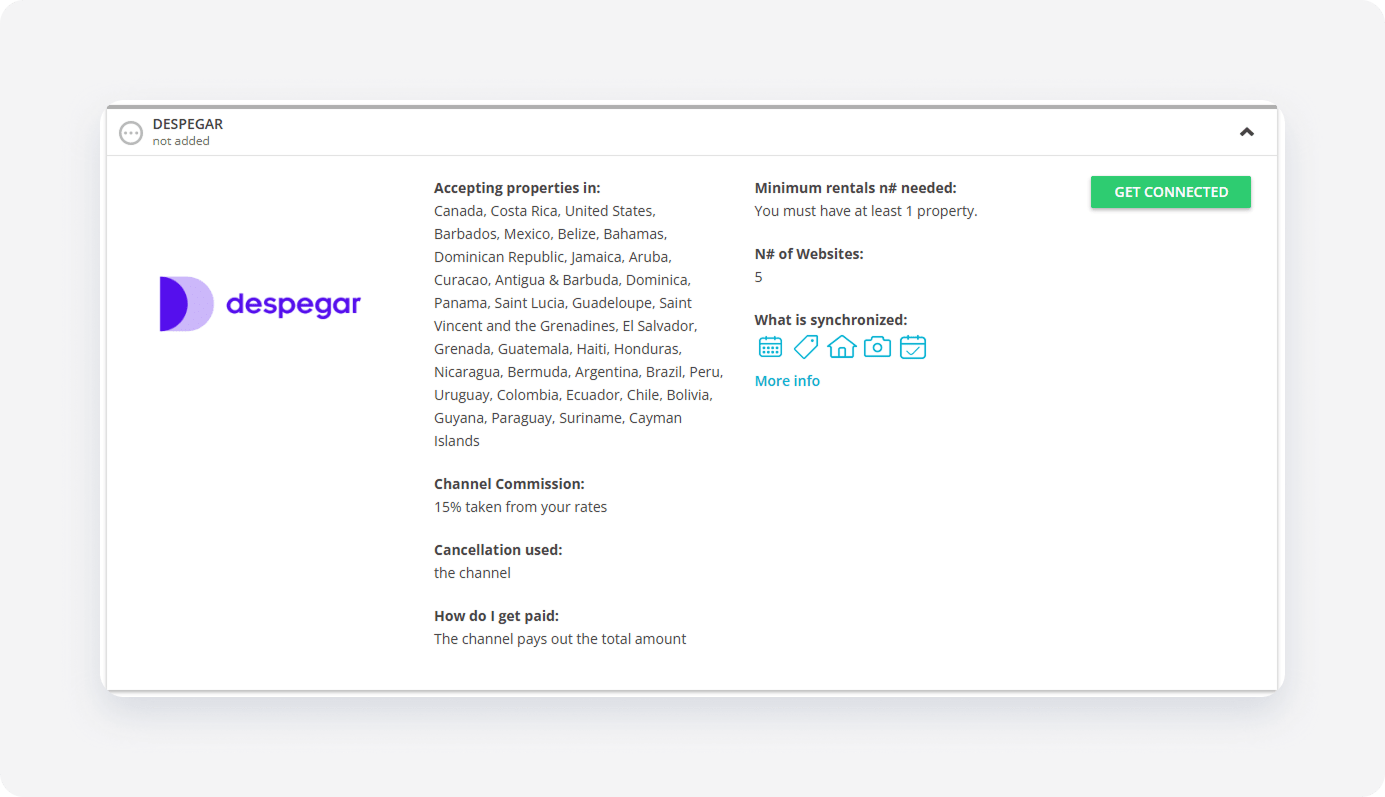
The system validates your connection in the background. If you meet the initial requirements, the Connection Wizard launches automatically. If an eligibility error appears, follow the on-screen instructions to resolve the specific requirement before proceeding.
Minimum requirements to connect
- PMS: Despegar accepts only property managers using a PMS
- Accepted location: Antigua and Barbuda, Argentina, Aruba, Bahamas, Barbados, Belize, Bermuda, Bolivia, Brazil, Canada, Cayman Islands, Chile, Colombia, Costa Rica, Curaçao, Dominica, Dominican Republic, Ecuador, El Salvador, Grenada, Guatemala, Guadeloupe, Guyana, Haiti, Honduras, Jamaica, Mexico, Nicaragua, Panama, Paraguay, Peru, Saint Kitts and Nevis, Saint Lucia, Saint Vincent and the Grenadines, Suriname, Uruguay, USA
- Property name: At least 1 letter
- Property type: Despegar doesn't accept "Shared room"
- Maximum number of guests: Required
- Amenities:
- At least 1 property-level amenity e.g. Private pool, Towels, Bed linen, Kitchenette, Garden, Breakfast
- At least 1 listing-level amenity e.g. Private pool, Towels, Bed linen, Internet connection, Air-conditioning, Smoke detectors, Smart TV
- Address (country, city, street number, post code): Required
- Geo-coordinates: Required
- Description: It must be in English, Spanish or Portuguese
- Photos: At least 5 photos, minimum size 400px (width) x 400px (height), main picture is selected
- Number of beds: It must match the maximum number of guests
- Arrival information (contact person, phone number, email): Required
Service configuration
The Connection Wizard guides you through the necessary settings for the new integration. You can track your progress at the top of the page.
How it works
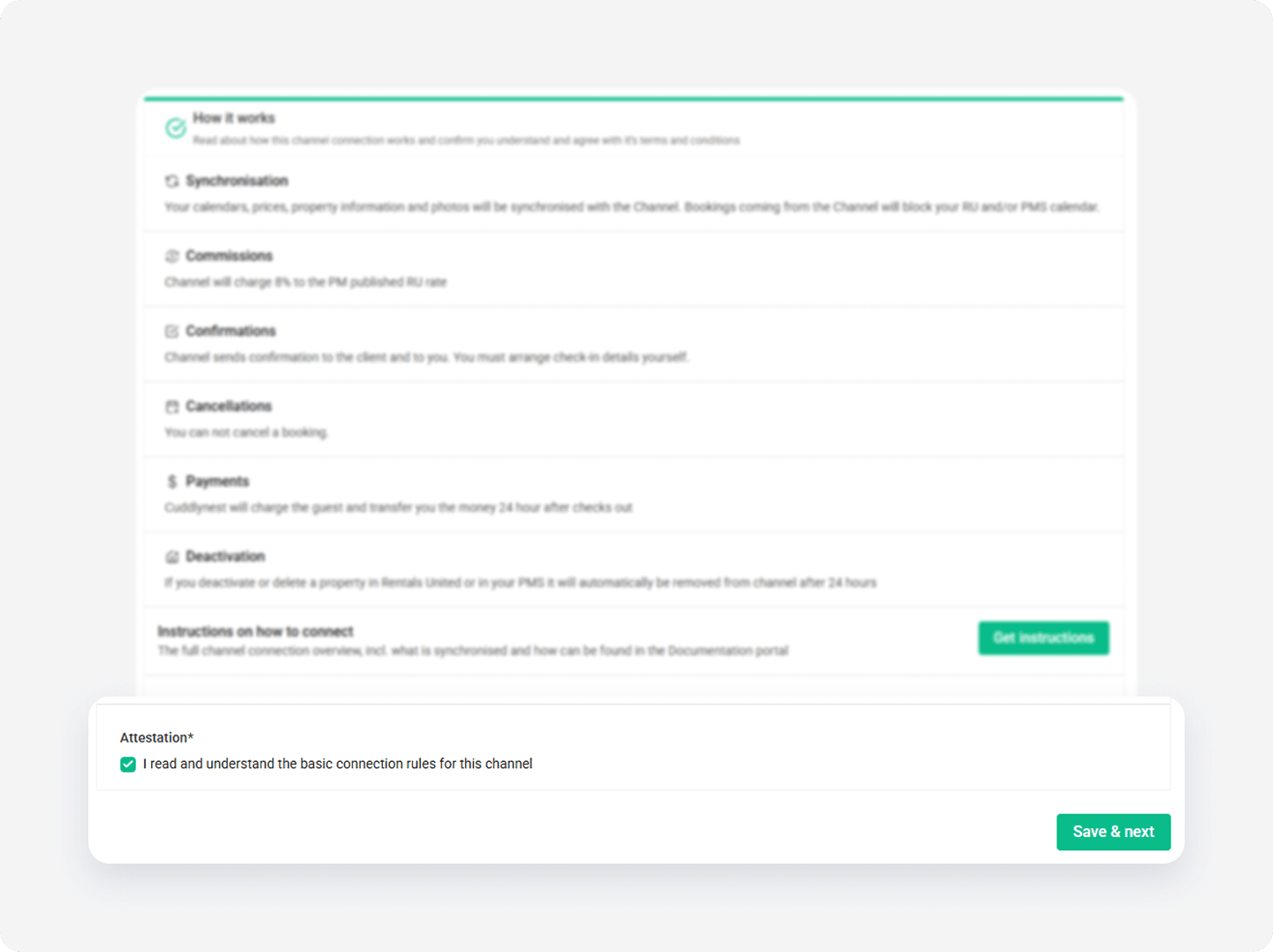
Read the basic information about the integration. Check the I read and understand the basic connection rules box and click Save & Next.
Channel Settings
The Connection Wizard guides you through the necessary settings for your Despegar integration. You can track your progress at the top of the page. If you exit the wizard, you can resume from the last completed step later.
Tip: You can revisit the Channel Settings section and adjust these settings at any time from the channel's integration page after completing the setup.
Sign a contract
To complete the account setup, sign a contract with Despegar. Currently, Despegar accepts only new clients. If you already have an account in Despegar, you can't connect to it through Rentals United.
Step by step:
-
In the Connection Wizzard, fill in the contract form.
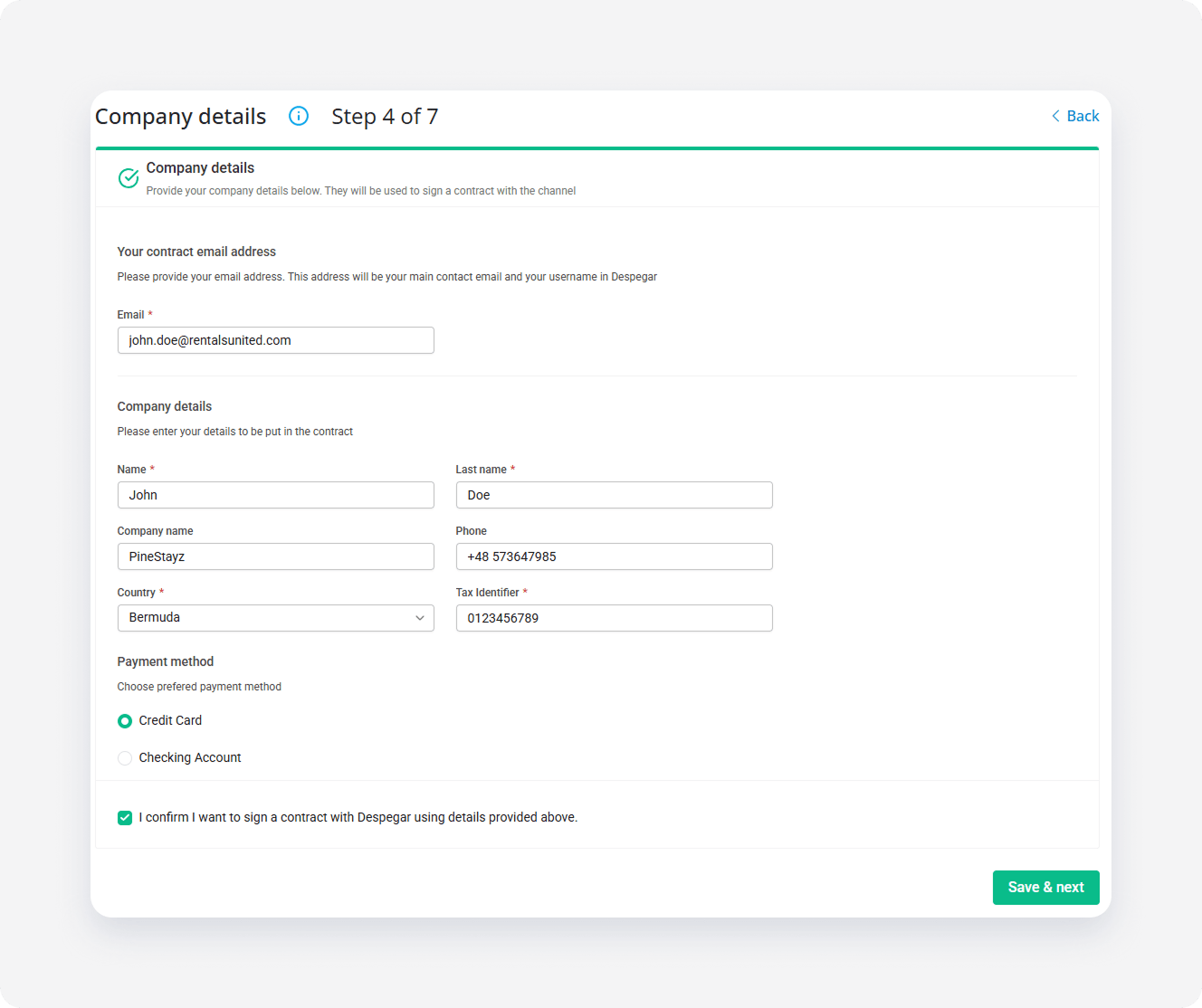
- Provide your email address. This email will be your username in Despegar. It will be also used to email you the details of the contract.
- Fill out the company details. Some details are filled in based on your Company Profile and My Profile in Rentals United.
- Provide the Tax Identification Type (TAT) and Tax Identifier. Information about required tax types and formats can be found here.
- Choose the payment method you would like to use to receive payments from Despegar.
- Credit card - you will be provided with the VCC details that you need to charge yourself for each booking
- Checking account - Despegar will transfer the booking amount to your banking account
- Check in the confirmation checkbox and click Save & Next.
- Choose the properties to add to the channel. These properties don't get live in Despegar until you sign the contract.
-
Despegar now prepares the contract for you. Once the contract is ready, you can access it through the link. Additionally, you receive an email with the link to the email address you have provided before. Click the Please review the contract and accept its terms and conditions here link to open the contract.
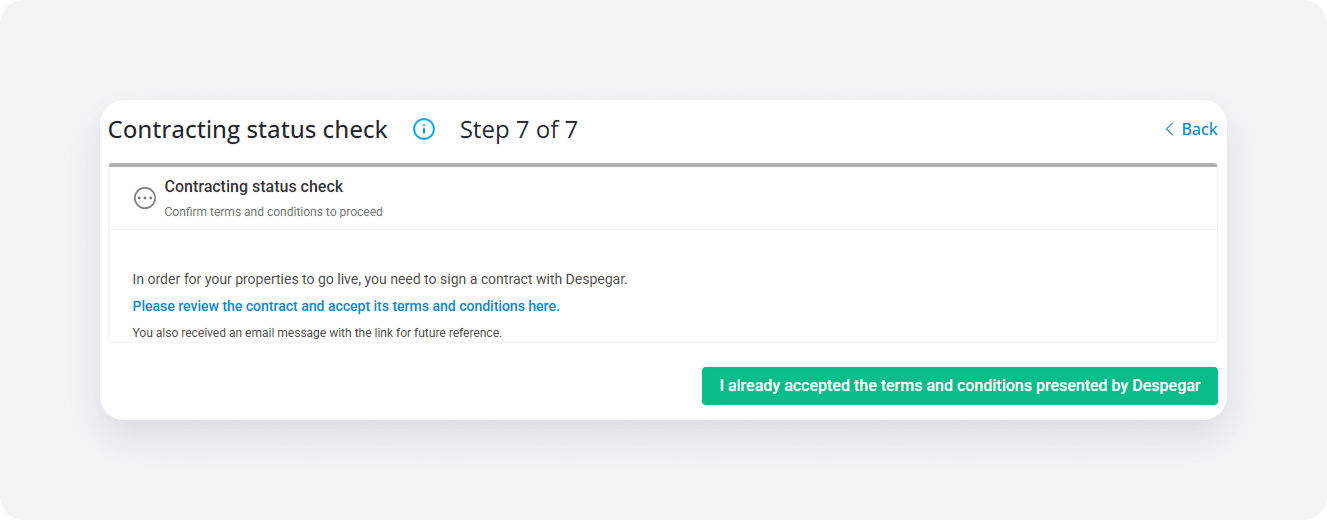
The link displays every time you visit the Despegar Property Settings until you sign it.
-
You are redirected to the Despegar contracting website. Provide the same email address that you have used in Rentals United and accept the Terms and Conditions.
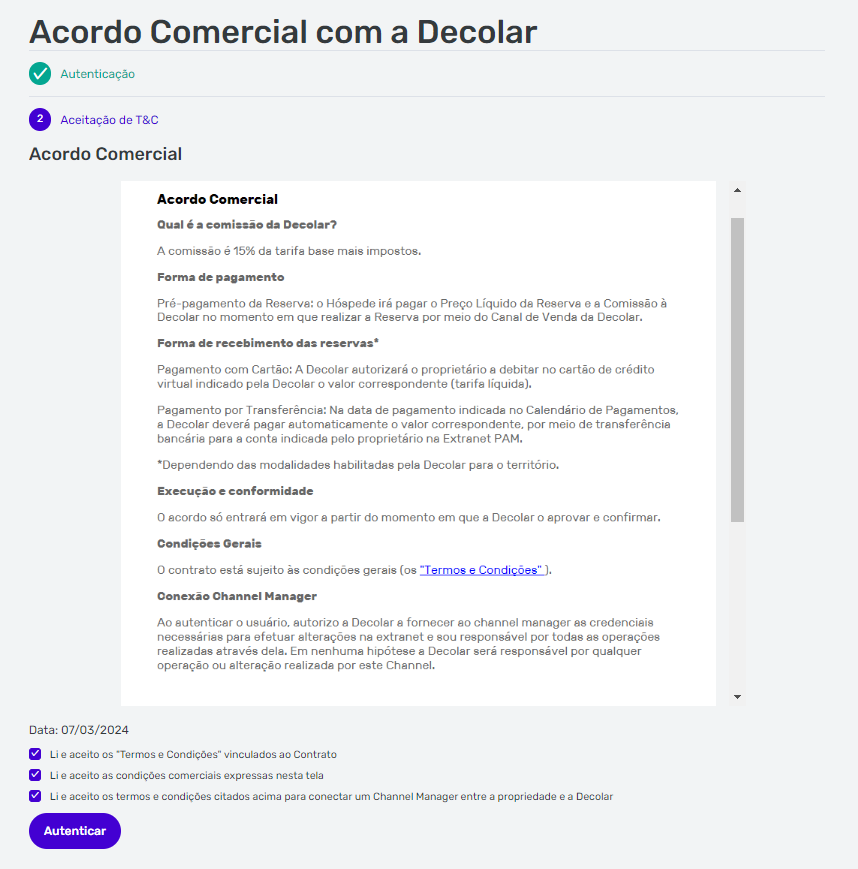
-
Click I already accepted the terms and conditions presented by Despegar to confirm that you have signed the contract with Despegar.
If you click the I already accepted the terms and conditions presented by button, but you didn't sign the contract, you will see an error: Your contract status is PENDING_INTEGRATION. You need to sign the contract with Despegar first.
Configure account in Despegar
To complete the connection, set up your provider account, create properties, and assign properties to the relevant company names directly in the Despegar Extranet. Follow the steps in the Despegar Extranet:
Step by step:
Create a provider account in Despegar Extranet. A provider represents the entity that owns and manages properties. For detailed steps and more information, see the Despegar tutorial.
Add the properties under the provider account and assign extranet user access.
Create your company name in Despegar and associate it with the relevant properties. You can create multiple company names under a single provider.