In the User management panel, you can control access to your account for other members of your team or company. Note that this feature is free of charge. In the user management panel, you can do the following:
- View the list of all users
- Add and remove users
Only account owners see the User management section in the main menu. If you can't see the User management section, contact the Rentals United Support Team.
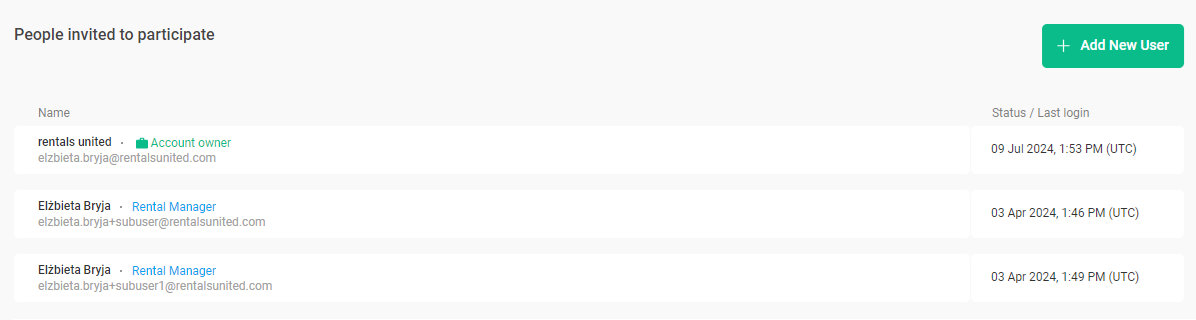
Add a new user
Follow the steps to invite a new subuser to the company account. Each subuser has own individual account and uses individual credentials to log in to the company account.
Step by step:
-
Click Add new user.

-
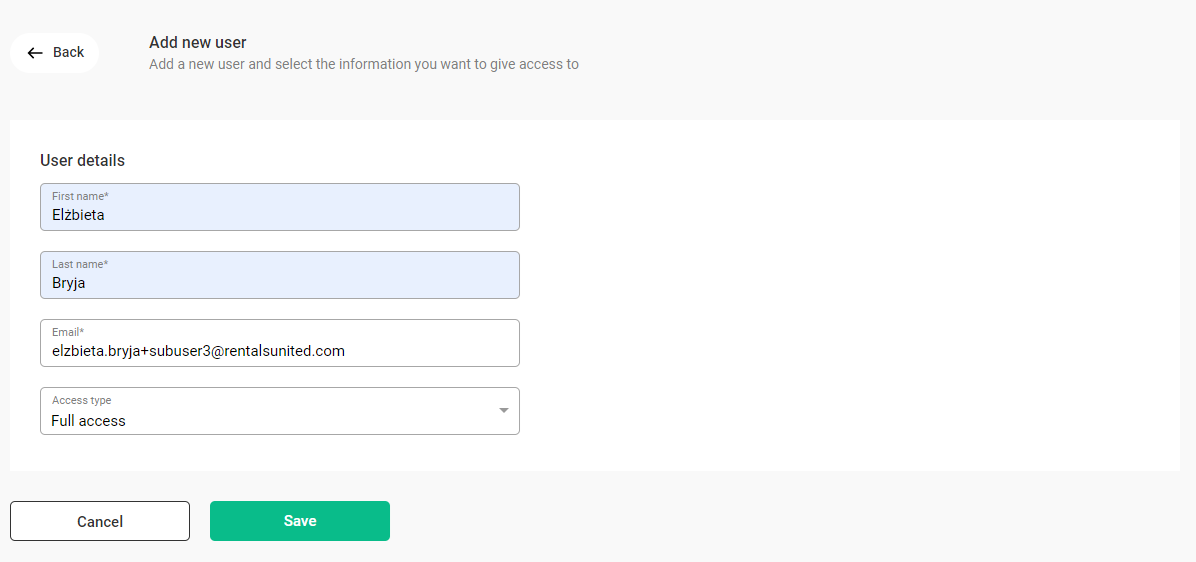
Provide user details.
-
Select user role from the Access type dropdown.
The account owner is assigned the "Full access" type. Other subusers have the "Rental Manager" role. If you use Operations Management, you can choose other access roles.
- Click Save.
Rentals United sends an invitation email with an activation link valid for the next 48 hours. Instruct the subusers to follow the guidelines in the email and complete the account setup.
User details
In the user management panel, you have access to the user details:
- Username
- Name
- Role (colored tag next to the username)
- Last login date or account status (in UTC)
The user statuses:
- Active - the user is active when the last login date is displayed
- Invited - the user has been added, but has not yet accepted the invitation
- Locked - the user has temporarily restricted access to the company account
Access level
Subusers don't have access to some areas of the Rentals United where there may be sensitive company details (such as administrative or financial data). These areas are not available to view or edit for any subusers:
- My Profile
- Company Profile
- PMS Settings
- My invoices
- Payment settings
- Security settings
- Big Card > credit card details
Edit a user
You can edit the user details, such as name, surname, phone number and access type. To edit user details, select the username from the list of users and make edits.
If you edit the username while the invitation is still pending, the previous invitation link expires, and the system sends a new invitation link. You can't edit username after the subuser completes the account setup.
User removal and user lock
Locking the user account temporarily restricts this user from accessing the company account. The access can always be reinstated by clicking the Unlock account. It can be used for the user's prolonged absence or unavailability in order to restrict the access and secure the company data. It does not remove any settings or historical usage data.
Removing the user account permanently deletes the user account and it is not possible to reinstate this user’s access to the company account. The user account data will be lost. To reinstate access for this user, you can create a new account for this user.
Delete a user
Follow the steps to permanently delete the user account.
Step by step:
- Select the user from the list of users by clicking on the row.
-
Click Delete user.
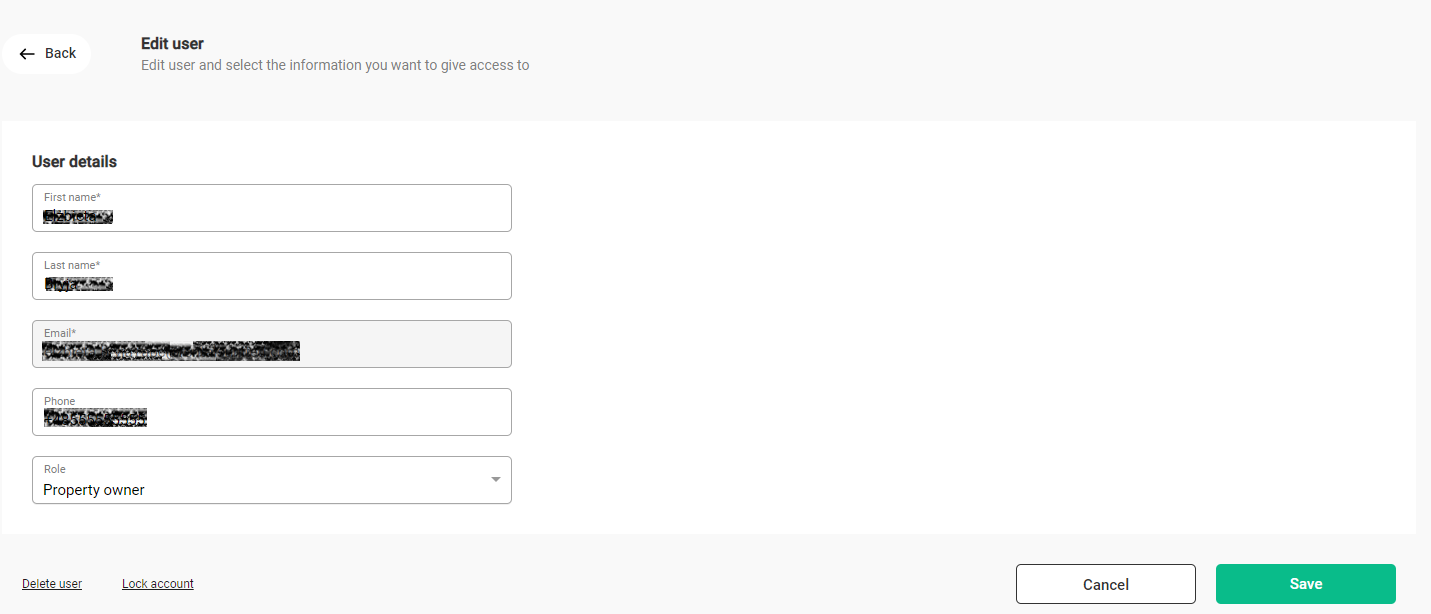
- Confirm removal.
Troubleshooting user login issues
The invited user needs complete the account setup through a link sent to the email address. Make sure that:
- the email provided while setting up the account is correct
- the user received the invitation (remember to check the SPAM folder)
- the user completed the account setup
The link in the invitation is valid for 48 hours since generates (UTC). To resend the invitation to the user, click the Resend button next to the relevant username. If the user still can't log in, delete the user and recreate it again.