The default booking policy mode is Instant bookings, but you can switch to On-Request Only. You can change the booking mode for each individual property.
When the booking policy is set to On-Request Only, no instant bookings are possible. Instead, guests can create a request to book while browsing your property on Airbnb. You have 24 hours to confirm or decline a booking request. You can use this time for the guest verification purposes, for example.
Request to book flow
While booking a property, the guest initially sees the Reserve button, as shown in the first picture. After they click it, they will see the Request to book option on the bottom of the page.
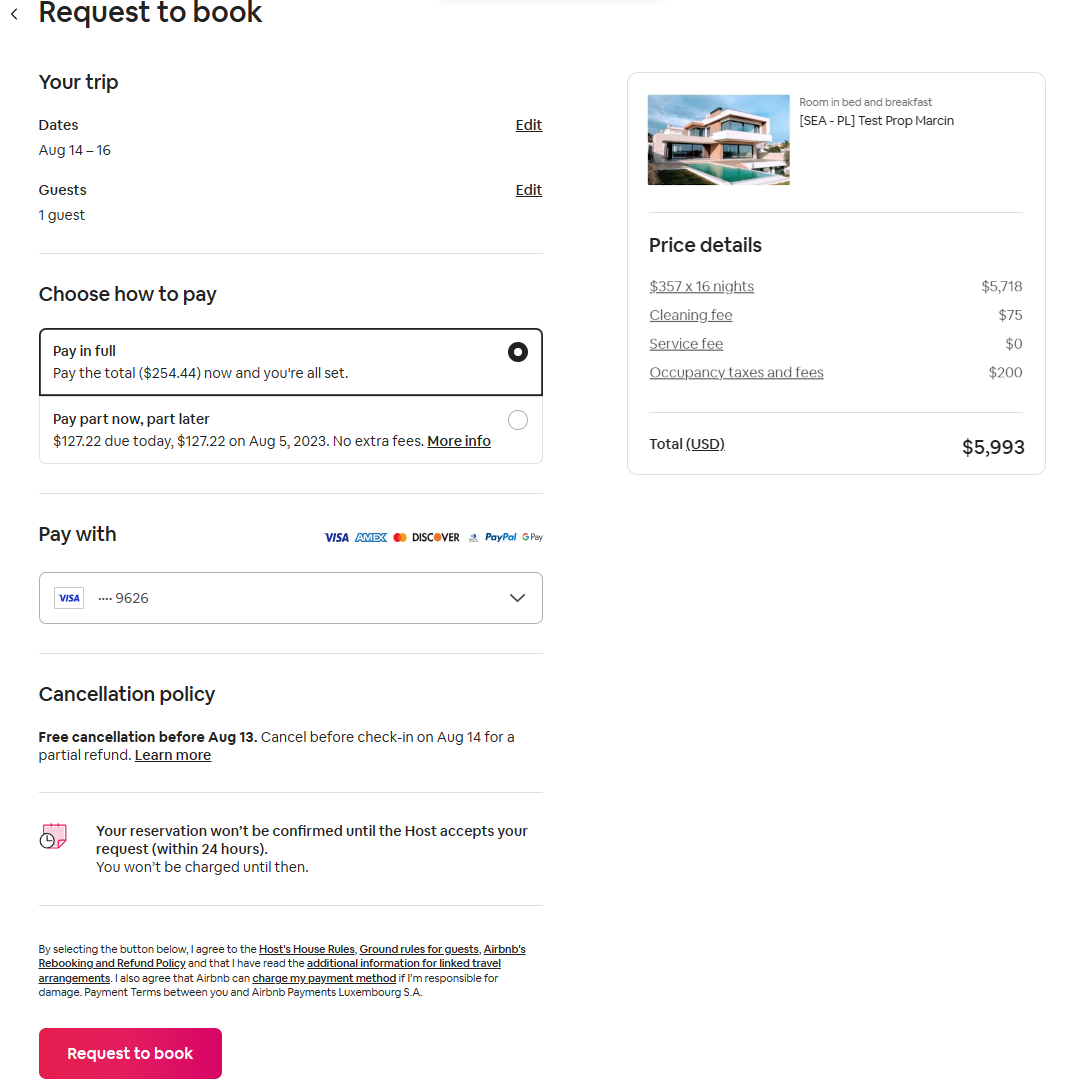
You will receive a booking request in Rentals United (it will be marked in a blue color). This booking will not block your calendar’s availability yet.
Enable requests to book
When you add a new listing to Airbnb, it will be set to the "Instant booking" mode by default. You can change this setting and enable requests to book. Follow the steps here.
Manage requests to book
Booking requests can be confirmed or declined in the Rentals United platform and via API. You can see the step-by-step instructions on how to confirm and decline requests in the platform and via API here.
- If you confirm the request, the booking request will be changed to a regular reservation (the confirmed reservation will be indicated by the green color). The status changes to Confirmed and soon your guest will be charged automatically by Airbnb. The availability will also be blocked.
- If you reject the request to book, you need to provide a reason for the rejection. The status changes to Rejected.
- If you do not take any action about the request within 24 hours, Airbnb will change the request status to Expired.
Confirm a request
- Open Guest Planner and find the request you wish to confirm. Requests have a blue label and are in the Request status.
-
Click the Accept this request button. The status changes now to Confirmed. The availability is blocked now and Airbnb has 24 hours to process the payment from the guest. In case the processing is not successful, this booking will be cancelled and the availability will be released.
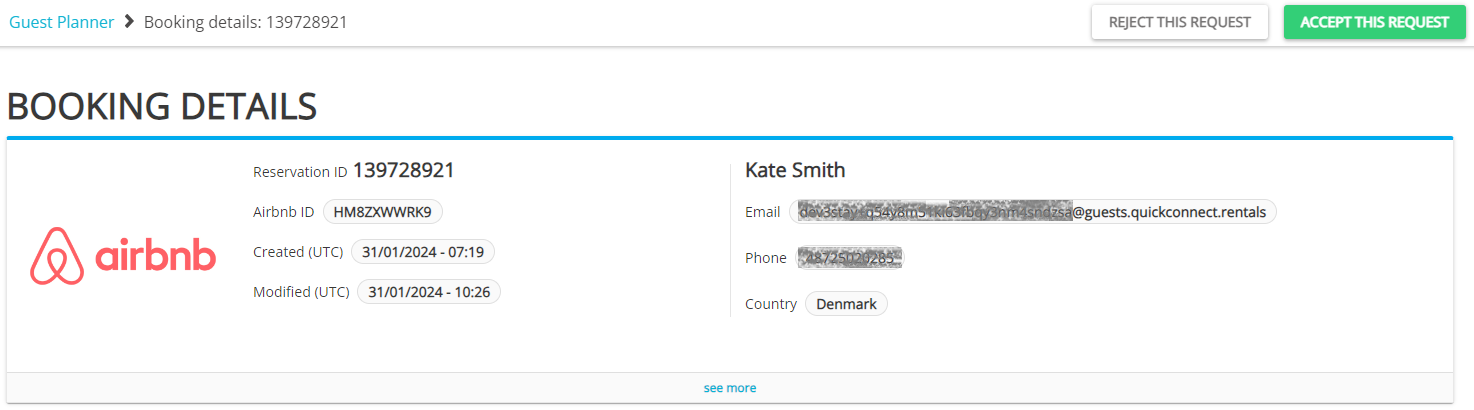
- The request becomes a Confirmed reservation.
Reject a request
- Open Guest Planner and find the request you wish to confirm. Requests have a blue label and are in the Request status.
-
Click the Reject this request button.
-
3. A pop-up displays. From the dropdown, select the reason for rejection. You need to provide an explanation in the Add a note textbox. Confirm by clicking Reject this request.
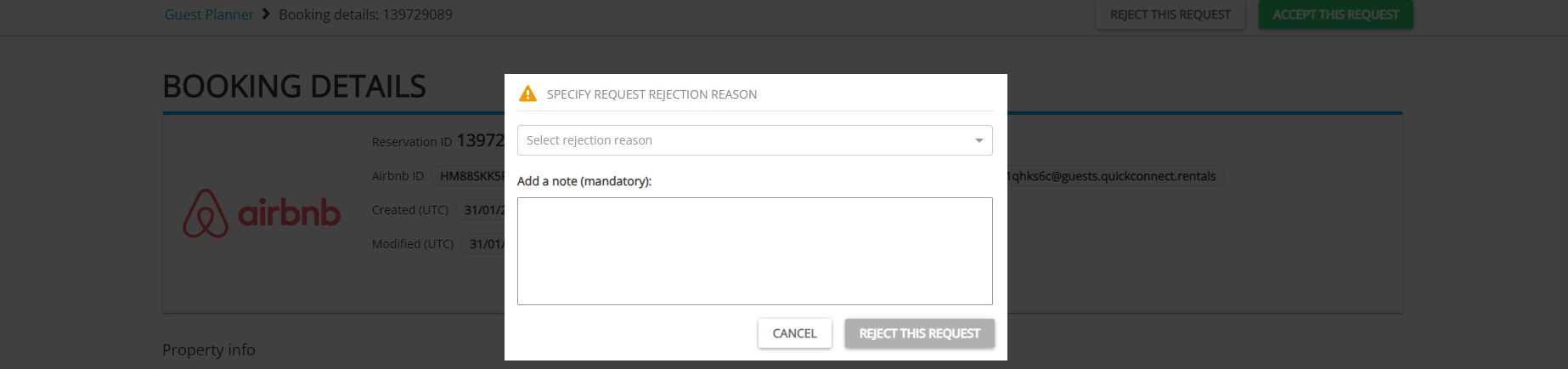
- The request will change its status to Rejected.
Other reasons for requests to book
You receive booking requests in the following cases:
- Your property’s booking policy is On-Request Only
- The reservation dates are shorter than the minimum stay requirements for this property and the host allows for booking requests in such a case;
- The guest does not meet the requirements for instant book, which were set by the host;
- There are specific restrictions on the listing or guest party, for example the property is not suitable for children, but the reservation includes children;
Contact host flow
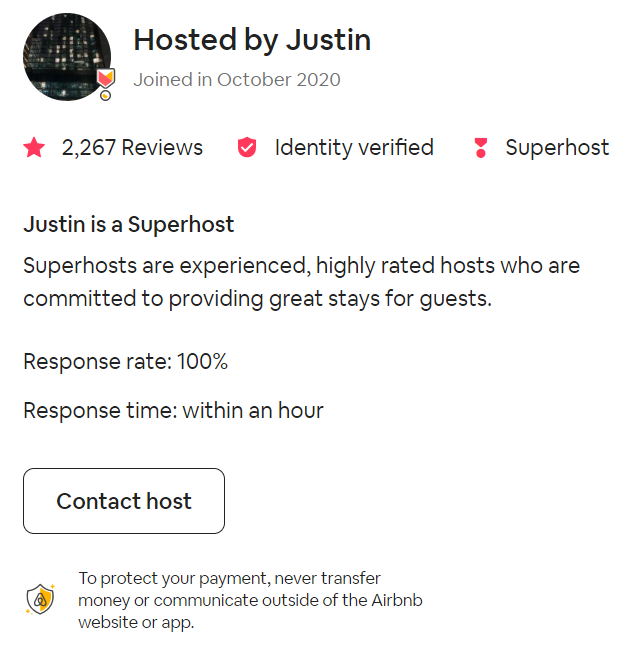
While booking a property, the guest will see the Contact host option in Airbnb. You will receive a lead in Rentals United (it is marked in a blue color). This booking will not block your calendar’s availability, but contain less information than a booking request. For Airbnb, leads can be differentiated from requests by their external reservation ID. For Airbnb, their external reservation ID starts with “T”.
Leads cannot be confirmed or declined by the host. Their purpose is to let you know that the guest has tried to contact you. You can reach out to the guest via Guest Communication or the chat on the Airbnb website and ask them to make a booking through Airbnb.