Request-to-book
With Rentals United you can set the booking policy for your listings. You can select the booking mode for each individual hotel when creating a listing in Booking.com or change the booking mode later.
You can choose between "Instant book" and "Request to book". "Request to book" flow is available globally by Booking.com.
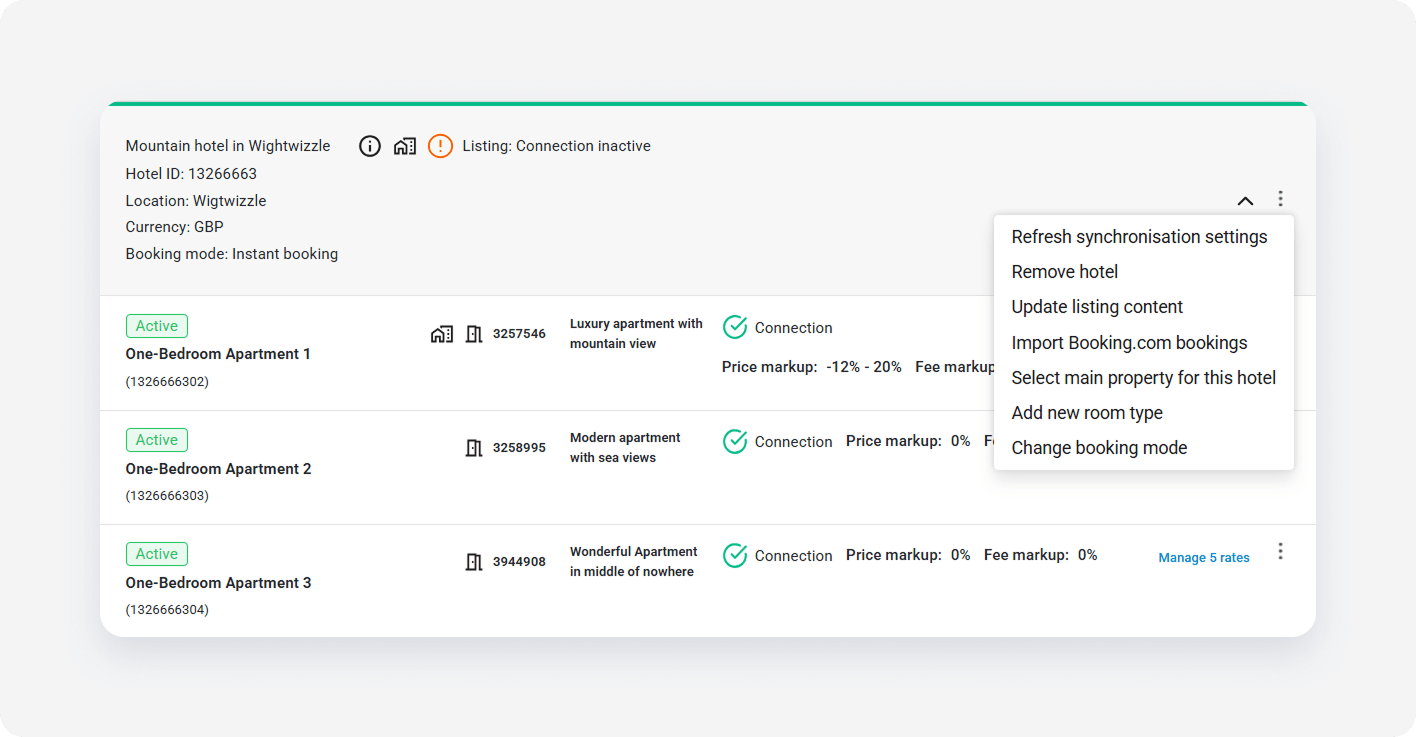
When the booking mode is set to "Request to book", no instant bookings are possible. The guest will see the "Request to book" option in Booking.com.
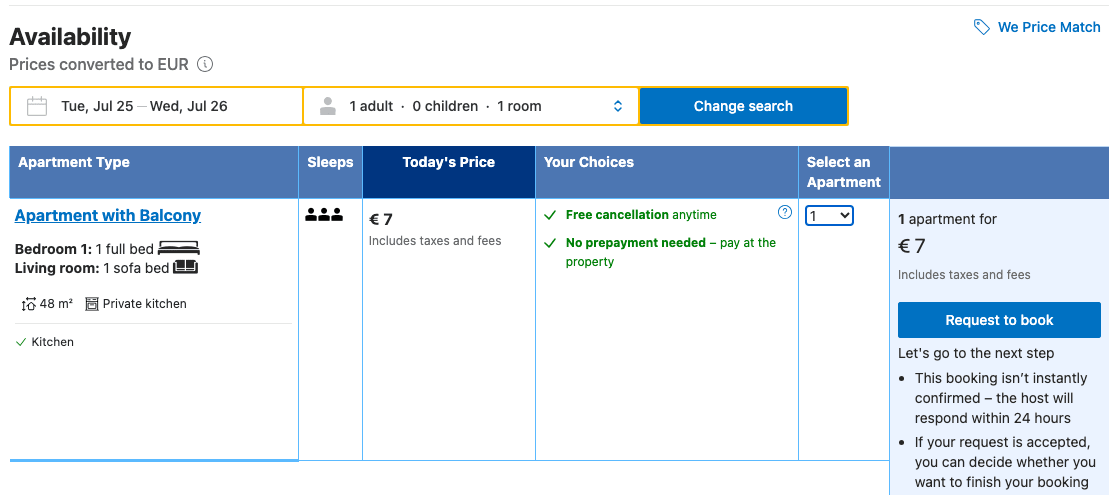
Manage requests to book
When guests book your property via request to book, you will receive a reservation in Rentals United (it will be marked in a blue color). We sync booking requests from Booking.com every 5 minutes. This booking request will not block your calendar’s availability yet.
You have 24 hours to confirm or decline a booking request. You can use this time for the guest verification purposes, for example. Booking requests can be confirmed or declined in the Rentals United platform and via API.
You can see the step-by-step instructions on how to confirm and decline requests via API here.
Confirm a request
-
Open Guest Planner and find the request you wish to confirm. Requests have a blue label and are in the Request status.

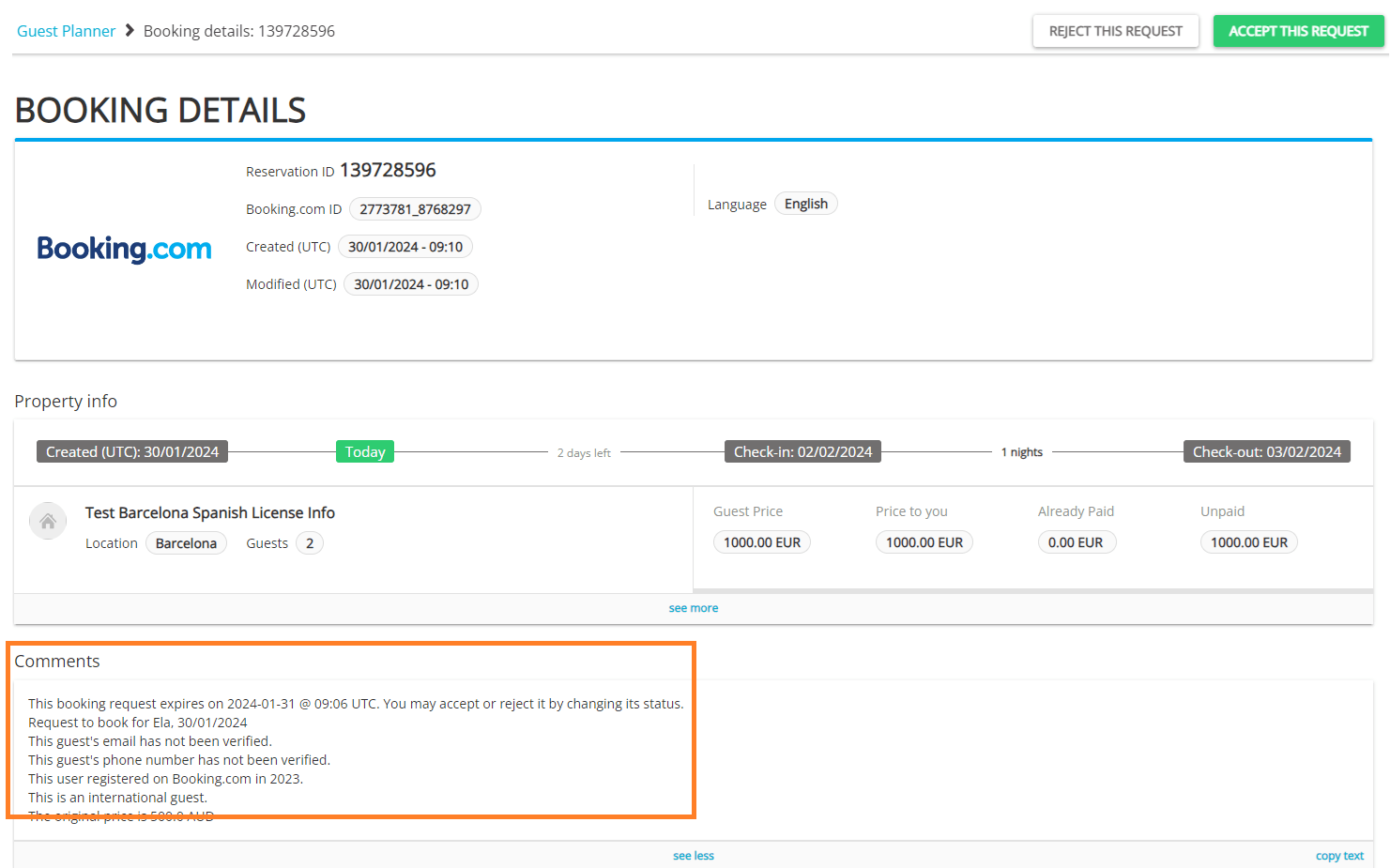
Booking.com requests do not include guest details. This is due to the Booking.com policy to avoid bookings made outside the platform. Instead, in the reservation comments they provide additional details, which may help you verify the guest, such as time the guest joined Booking.com or whether it is a verified user. Reservation comments include important information about the reservation status and actions taken.
-
Click the Accept this request button. The status changes now to Approved.
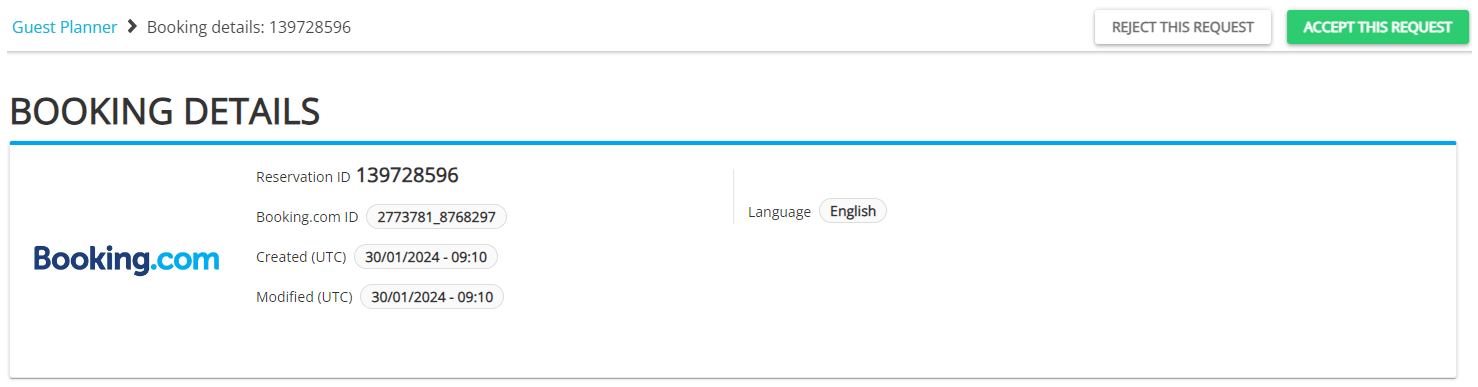
If you don't accept the request within 24 hours, the status in Rentals United changes to Expired.
- Wait for the guest's action. The guest has 24 hours to confirm the booking.
- If the guest completes the booking within the indicated time, the request will become a Confirmed reservation.
-
If the guest does not complete the booking process, the request remains Approved, but receives a comment "Request set as expired by Booking.com".
Requests to book from Booking.com additionally have an expiry date on top of the comments section. It means the request cannot be confirmed or rejected after the indicated time passes.
Note: If 24 hours pass and the status doesn't update, it is due to a sync delay. Wait until the status updates.
Reject a request
-
Open Guest Planner and find the request you wish to confirm. Requests have a blue label and are in the Request status.
-
Click the Reject this request button.
-
A pop-up displays. From the dropdown, select the reason for rejection. In some cases, you need to provide an additional explanation. Confirm by clicking Reject this request.
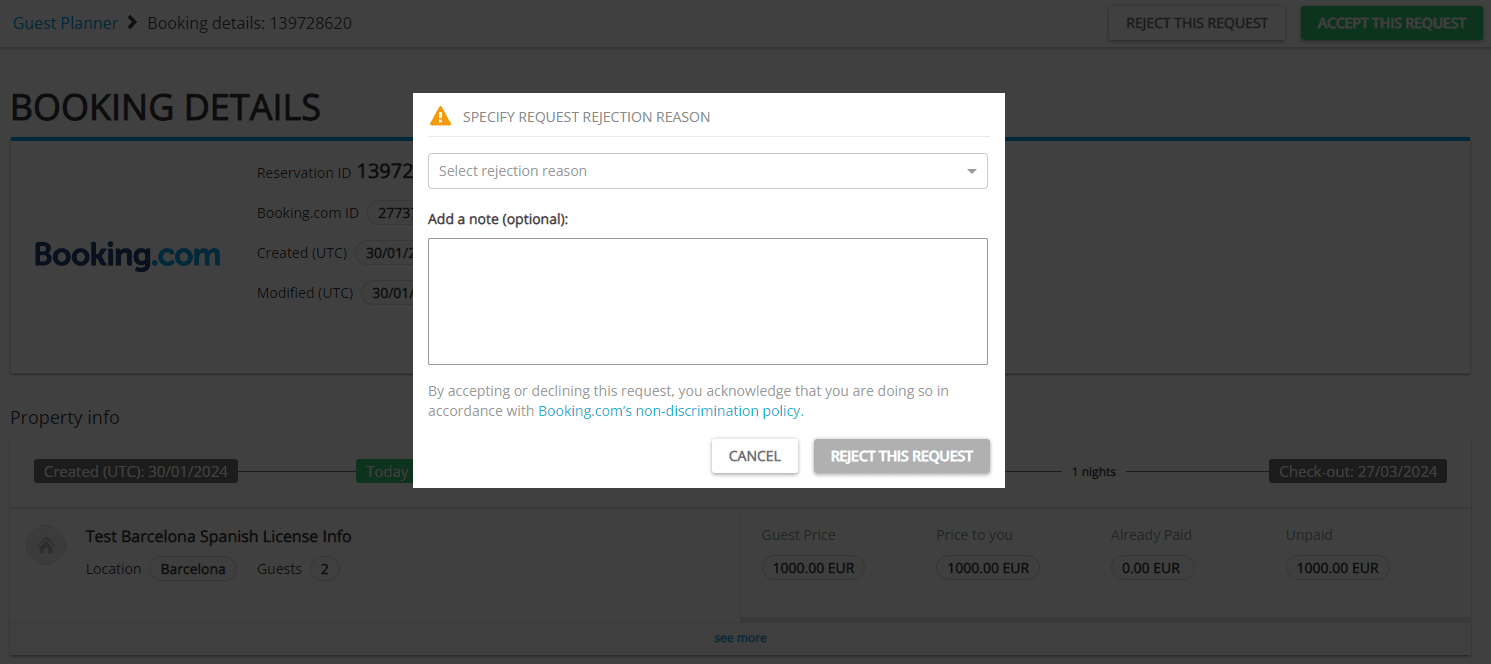
- The request will change its status to Rejected.