Speed up your onboarding process by importing existing Airbnb listing content directly into your system. Importing Airbnb listings eliminates the need to manually recreate descriptions, photos, and amenities in your PMS.
Before you start
- Importing Airbnb listing is a paid feature. If you want to have it enabled, contact partners@rentalsunited.com.
- You must first add Airbnb to services in your account. Follow the steps here.
- Ensure your properties are active on Airbnb before importing them.
Import listings for the first time
Follow the steps below in the following cases:
- You just added Airbnb to services in your account and want to import first listings
- You added a new Airbnb account and want to add listings to this account in Channel Manager
Step by step:
- Sign in to your PMS account and go to Channel Manager.
- From the list of services, select Airbnb.
- Click Synchronize your first account or Add another account.
- A pop-up informs you that Rentals United needs to access your Airbnb account. Click Ok, let's go.
-
Log in to your Airbnb account in the pop-up window and authorize access.

-
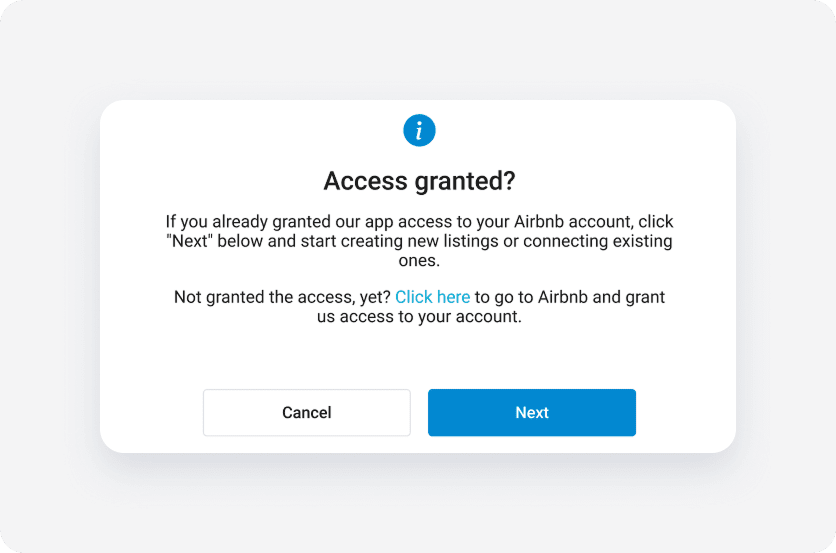
Come back to Channel Manager. Click Next to confirm that you granted access to your Airbnb account.
- Click Yes when asked if you have properties on the connected account.
- Choose your method for finding listings and click Next.
- I know my listing ID: Enter a single listing ID.
- I want to retrieve all listings from my Airbnb: Import all listings.
-
Review the list of retrieved Airbnb listings. Click Confirm.

Note: If you already synced some properties with Channel Manager, first select the Import this property option and click Next.
- The system triggers the import.
Import additional listings
Follow the steps if you already added Airbnb listings to your Channel Manager and want to create more.
Steep by step:
- Sign in to your PMS account and go to White Label Channel Manager.
- From the list of services, select Airbnb..
- Click Add properties.
- Click Yes when asked if you have properties on the connected account.
- Choose your method for finding listings and click Next.
- I know my listing ID: Enter a single listing ID.
- I want to retrieve all listings from my Airbnb: Import all listings.
- Review the list of retrieved Airbnb listings.
-
Select the Import this property option and click Next.
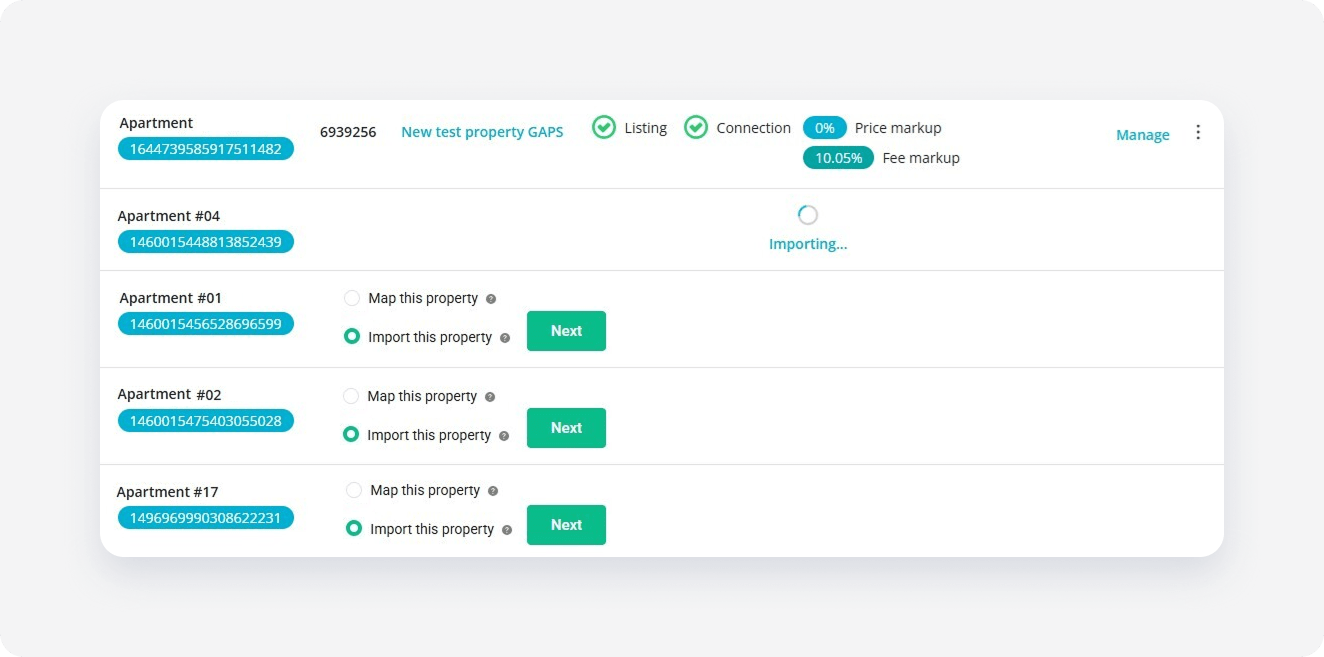
- Click Confirm.
- The system triggers the import.
Monitor import status
The system creates a new property in a few minutes using the data from Airbnb. This includes the property title, descriptions, high-resolution photos, amenities list and more. After the import is complete, the listing shows up in the active connection status.
After you initiate the import, you can track the progress of each listing.
- Importing: This status appears with a loader while the system syncs property content.
- Connection active: This status indicates the import is successful.
- Import failed: If an error occurs, this status will appear along with a specific reason for the failure.
Note: Do not refresh the page while the import is running. If you refresh the page, properties where the import failed won’t be marked on your Property Settings page.