Updating content across a large portfolio is now faster and more efficient. Instead of manually editing each room, use bulk actions to select multiple room types across various properties and send those updates directly to your connected channel. This ensures your listing information remains consistent and up to date with minimal effort.
Before you start
- Updating content for multiple room types is only available for channels that support updates at the room level (such as Booking.com, Expedia).
- You can choose to perform a full content update or partial content update. This flexibility allows you to push only the necessary changes to your channels, such as updated descriptions, amenities, or photos.
- Partial content options differ across the channels. You can look up what's being updated in each option here.
Update content in bulk
Step by step:
Follow the steps below to update content for selected room types.
In Rentals United platform, go to Property Settings.
- In the top-right corner of the page, click Bulk actions.
-
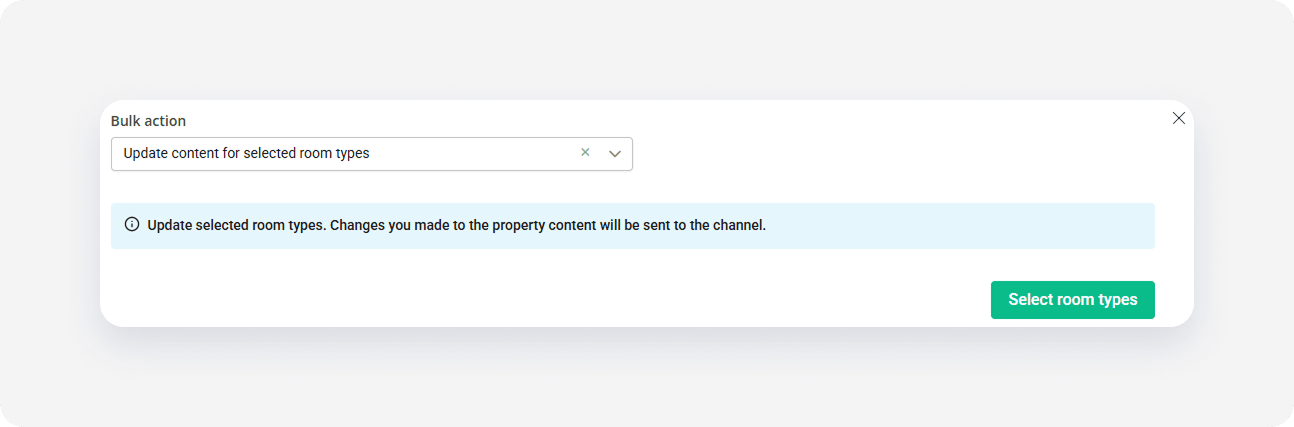
Select Update content for selected room types from the dropdown. Click Select room types.
-
Choose the room types that you want to update. You can filter the list by ID, hotel name or location or other. Alternatively, click Enter multiple room type IDs to paste a list of specific property IDs. After selecting the rooms, click Continue.
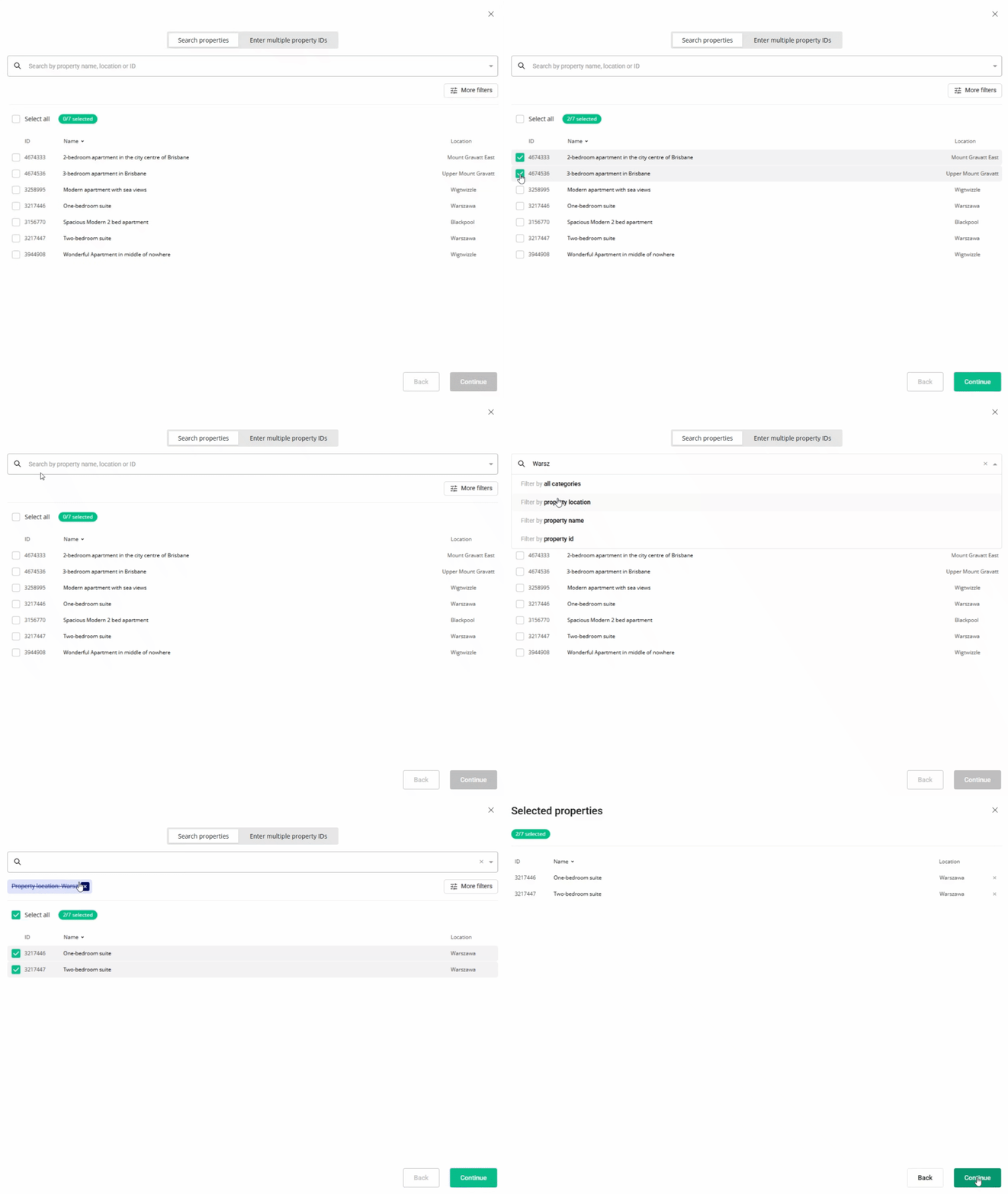
- Review the list of selected room types. Click Update to continue.
- In the Update listing content section, select whether you want to update the entire listing content or specific content parts. If you choose Update only selected content areas option, select which content parts you want to update. Click Update selected.
- Monitor the progress bar as the content is sent to the channel.
Once finished, the content is updated in the channel. Review the summary page to see the success or failure details for each room type. Click Copy details  if you need to save the summary for your records.