This bulk action allows you to create a new rate plan and add it to the selected room types. Use it when you create a new offer and want to add it to all or multiple room types across all hotels at once!
- Time efficiency - save time and add new rate plans to all room types at once, within seconds
- Quickly meet your guests needs - introduce new offers faster and without unnecessary delay
- Improve quality and avoid errors - create one rate plan and add it to selected rate plans at once, without the need to copy the details and risk of making mistakes
Before you start
- Bear in mind that creating a new rate plan through the bulk actions functionality allows you to create standalone rate plans only. If you want to create other rate plans (e.g. derived), you need to create new rate plans one by one.
Create rate plans in bulk
In Rentals United platform, go to Property Settings.
- In the top-right corner of the page, click Bulk actions.
-
Select Create new rate plan for selected room types from the dropdown. Click Select room types.
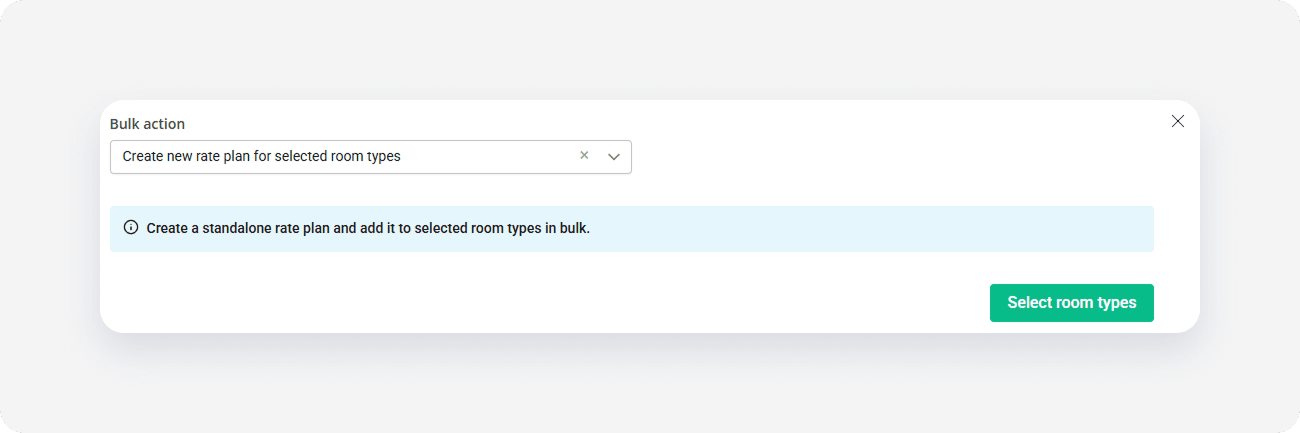
-
Choose the properties and click Continue.
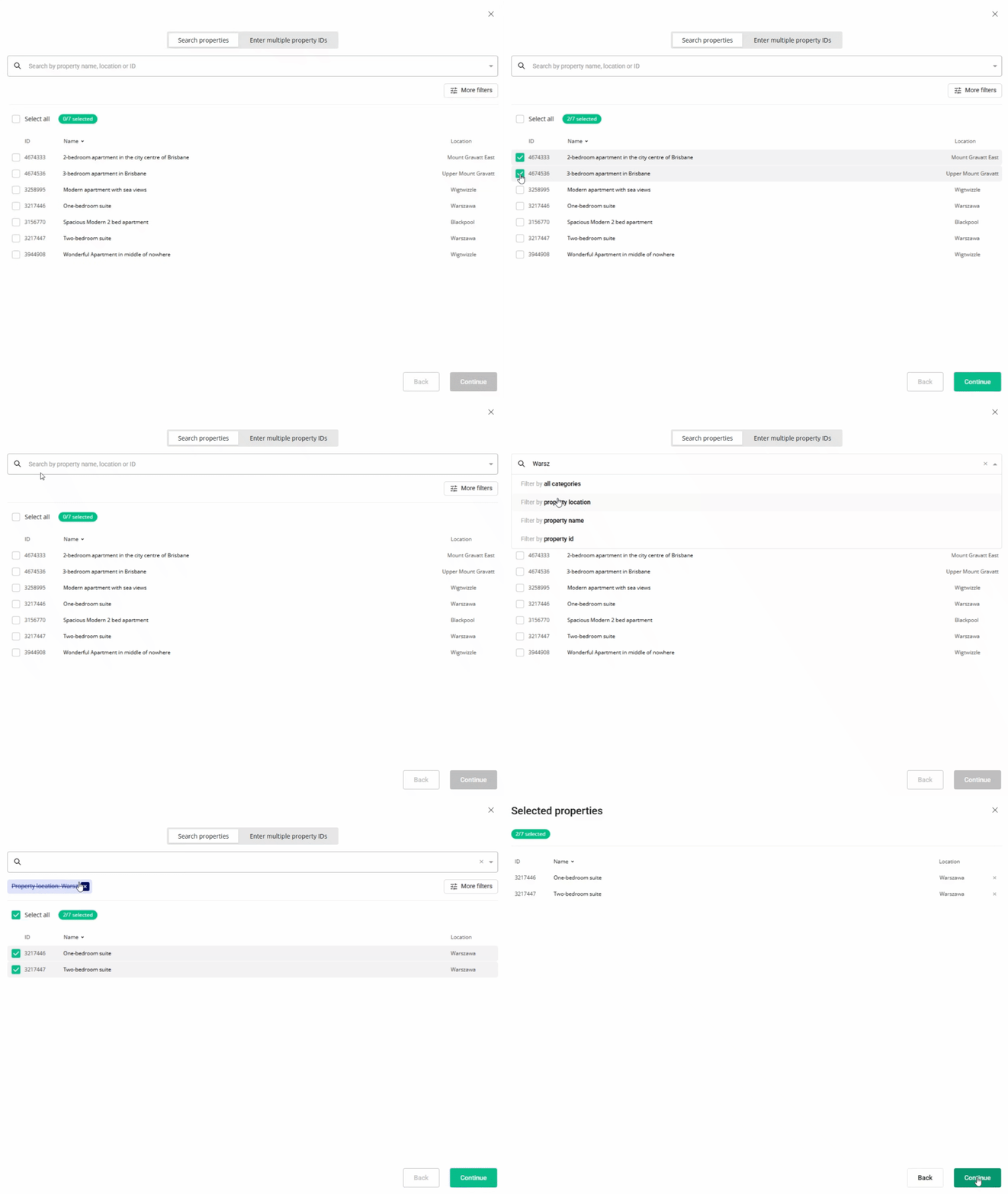
- You will see here the summary of all selected properties. Review the list and check if all properties are included and click Continue.
-
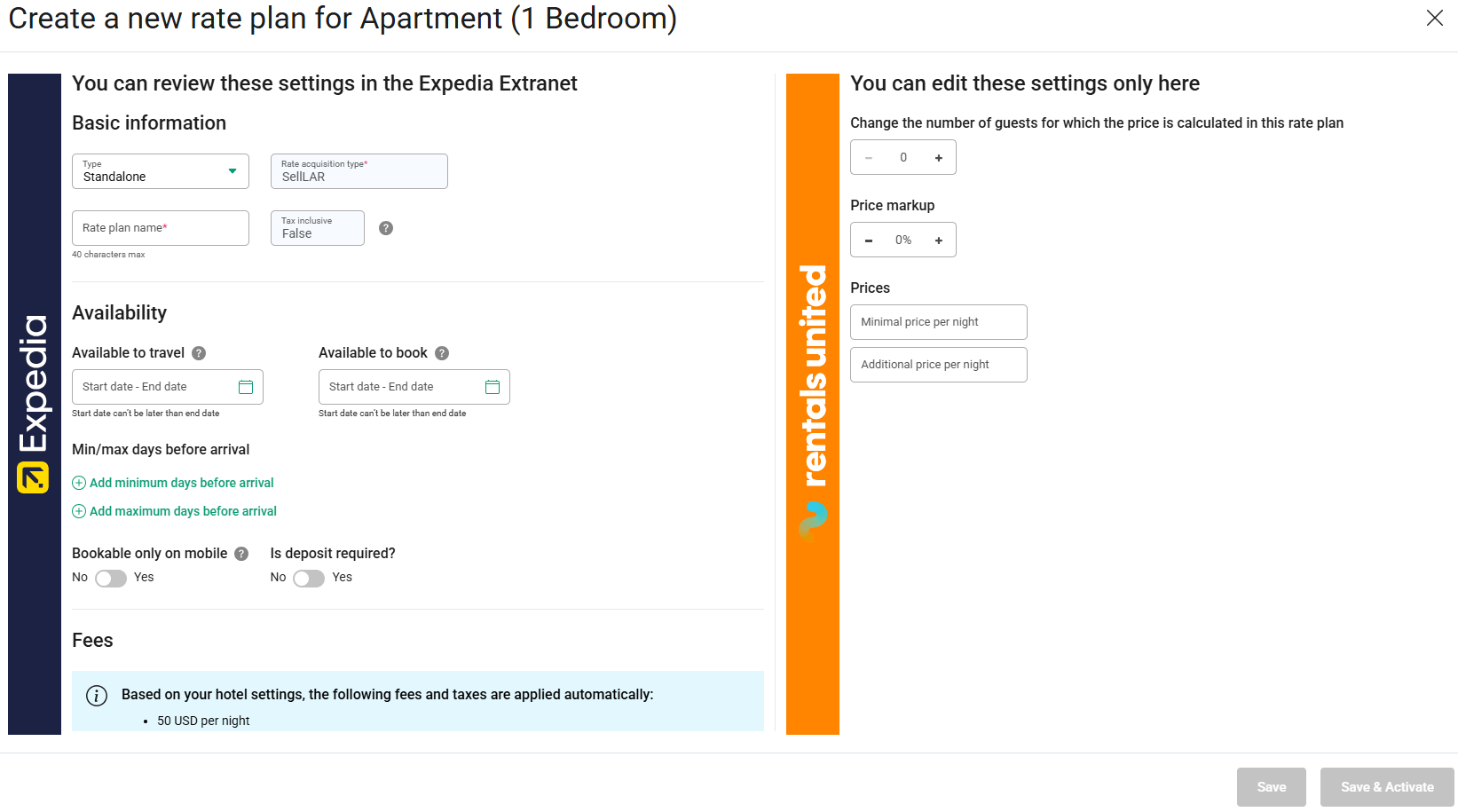
Create a new rate plan by filling out the details.
In case of Expedia, some fields may be greyed out if they have different values across the selected room types (e.g. different currency across rooms). After these rate plans are successfully created and you want to edit this particular information, you will need to edit those rate plans in each room one by one. -
Add the rate plan to the room types. Click Create (to add the rate plan without activating it) or Create and Activate.
- Once the process is complete, you will see the summary of actions. Click I understand to complete adding the new rate plan to the room types.
Bulk actions summary
Once you finish adding new rates plans to the room types, you can see the summary of actions. You can see an exemplary summary below:
- Number of rate plans created successfully - informs you whether the new rate was added to all selected room types or not. If not all rate plans were added, you can check the details in 'Actions failed'.
- Actions completed successfully - gives you detailed information on the room types which have the new rate plan added. You can click the 'Copy' button and verify if the new rate plan is available in these room types.
- Actions failed - gives you detailed information on the room types which received an error. You can read more about the error and fix it. In this case, the error did not prevent the creation of the rate plan. If some errors prevent it, you will be able to tell this by looking at the 'Number of rate plans created successfully'. You can copy the room types IDs that failed by clicking the 'Copy' button, save them for later and try adding the new rate plan to them in bulk again.
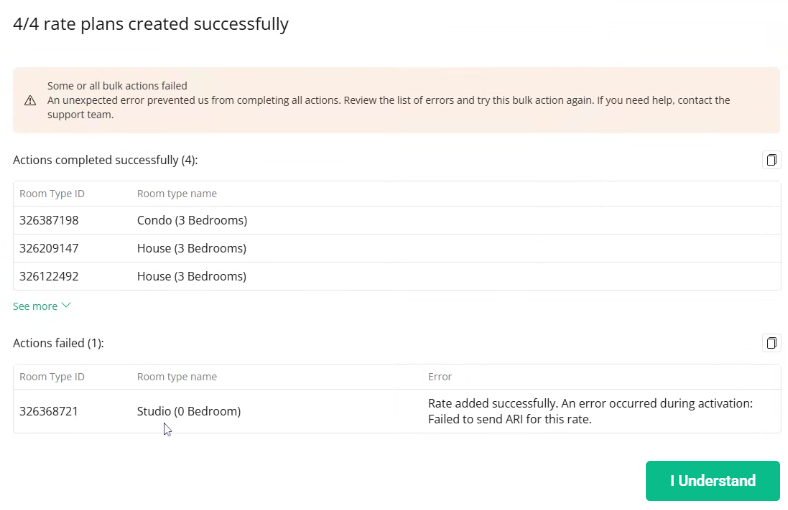
If the Back button is visible, this button allows you to go back and fix the indicated errors. Follow the instructions in the error message. If it is not visible, it means the errors are minor and do not prevent the rate plan from being created. In this case, you can proceed by clicking the I understand button. The new rate plans will be added to the room types.