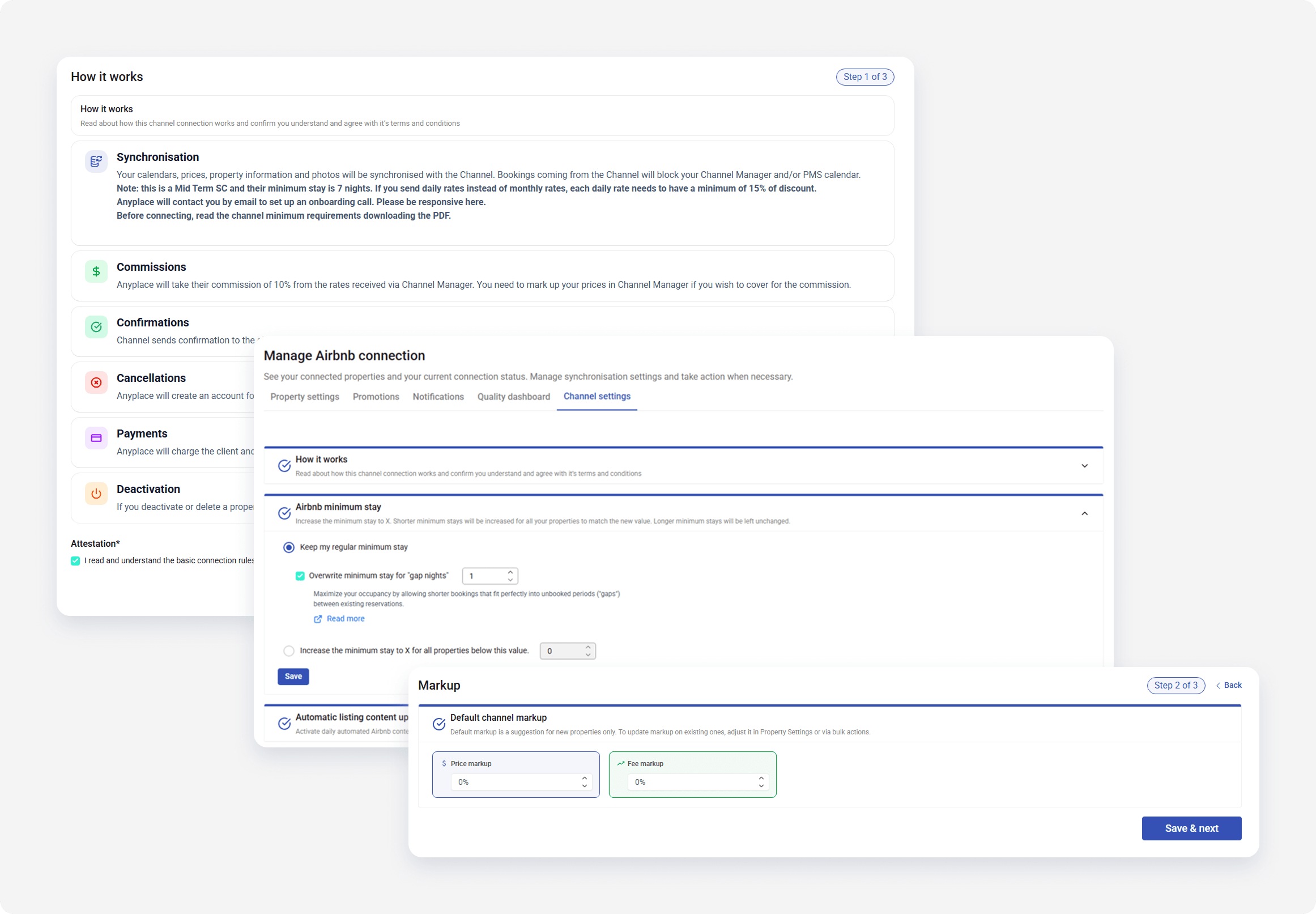
White Label Channel Manager is fully customizable and completely transparent to your clients (subusers). You can fully adopt it to your software visually.
Branded look and feel
CSS injection allows you to add custom CSS code to the White Label Channel Manager by attaching an additional CSS file to the HTML page’s header. It lets you create multiple design rules that can apply to the whole page or specific sections of White Label Channel Manager.
How it works
The fundamental way the CSS injection works is overriding existing styles. The CSS file targets specific elements in the White Label Channel Manager that can be customized. Then, with the use of CSS rules, these elements can be styled according to your own software design.
Angular components' CSS classes
The White Label Channel Manager uses CSS style encapsulation. This means that the same CSS classes can have different meanings for different components. That is why every style override rule should start with the main component’s class.
We have two main component’s branches:
- Components shared between modules: Main component’s class starting with “sh-”, for example
.sh-extended-input
- Component that belong to a certain module:
- Property Settings - classes starting with “ps-“, for example
.ps-clusters-list-unit-details - Rates page - classes starting with “rp-”, for example
.rp-rate-tile
- Property Settings - classes starting with “ps-“, for example
Components list
Please note that the list below is not exhaustive and may be extended during White Label Channel Manager development.
Clusters list
ps-clusters-listps-clusters-list-add-not-existing-propertyps-clusters-list-add-propertyps-clusters-list-cluster-tileps-clusters-list-unit-mappingps-cluster-unit-connectionsps-cluster-unit-connections-property-name
Advanced settings
ps-advanced-settings-dropdownps-advanced-settings-currencyps-advanced-settings-sync-modelps-advanced-settings-itemps-advanced-settings-paymentps-advanced-settings-stringps-advanced-settings-plus-minusps-advanced-settings-panelps-advanced-settings-breadcrumbps-advanced-settings-breadcrumb-listps-advanced-settings-breadcrumb-dropdown-element-nameps-advanced-settings-breadcrumb-select
Manual options
ps-import-hotelps-manual-options-fsp-vectorps-manual-options-fsp-editorps-manual-options-activate-manual-optionsps-manual-options-batch-editps-manual-options-editorps-manual-options-tooltip-update-dataps-manual-optionsps-manual-options-vectorps-notifications-headerps-notifications-tileps-notifications
Rates page
rp-rate-tile-headerrp-rate-tile-headerrp-rate-tilerp-rate-tilerp-rates-pagerp-white-label-rates-page
Notifications
ps-sdu-notifications-headerps-sdu-notifications-tileps-sdu-notifications
Shared components
sh-availability-calendar-inputsh-availability-calendar-month-viewsh-availability-calendar-with-time-inputsh-availability-calendarsh-calendar-rowsh-channel-logosh-currency-inputsh-date-rangesh-date-with-timesh-days-checkbox-selectorsh-ellipsissh-empty-placeholdersh-error-modalsh-extended-inputsh-filter-bysh-flagsh-forceable-inputsh-generic-modalsh-header-with-listsh-hotel-room-rate-selectorsh-input-number-labelsh-with-edition-detectorsh-is-busysh-label-with-behavioursh-label-with-editionsh-labeled-checkboxsh-language-selectsh-manual-options-legendsh-message-box-titlesh-message-box-bodysh-message-box-footersh-number-of-guestsh-page-sizesh-progress-barsh-property-dropdown-with-citysh-property-dropdownsh-see-moresh-time-dropdownsh-unread-messages-count
Sample usage
For the purposes of this example, we will focus on changing the color of a sample text in White Label Channel Manager.
By default, the active apartment's name (3) is blue.

Create a new CSS rule. Use the .ps-clusters-list-unit-details .apartment-name-cell span element and set required attributes. In this case, the code should look like below:
.ps-clusters-list-unit-details .apartment-name-cell span {
color: red;
}The result is that the active apartment's name (3) changed to red.

!important in order to override some styles.