Manage your portfolio more efficiently by updating fees and taxes for multiple properties. Bulk edits reduce manual effort, allowing you to add new items or overwrite existing ones across your selected listings in just a few clicks.
Bulk update options
When you start a bulk update, you must choose how the system handles the information:
- Add as new: This option adds the new fees or taxes to the properties. If a property already has an identical fee or tax type, the new values will overwrite the old ones for that specific item.
- Overwrite existing: This option removes all current fees and taxes from the selected properties and replaces them entirely with the new items you define.
Update fees and taxes
Follow the steps below to add or edit fees and taxes for multiple properties.
Step by step:
- Sign in to your Rentals United account.
- In the main menu, click Properties.
- From the dropdown menu select All properties.
-
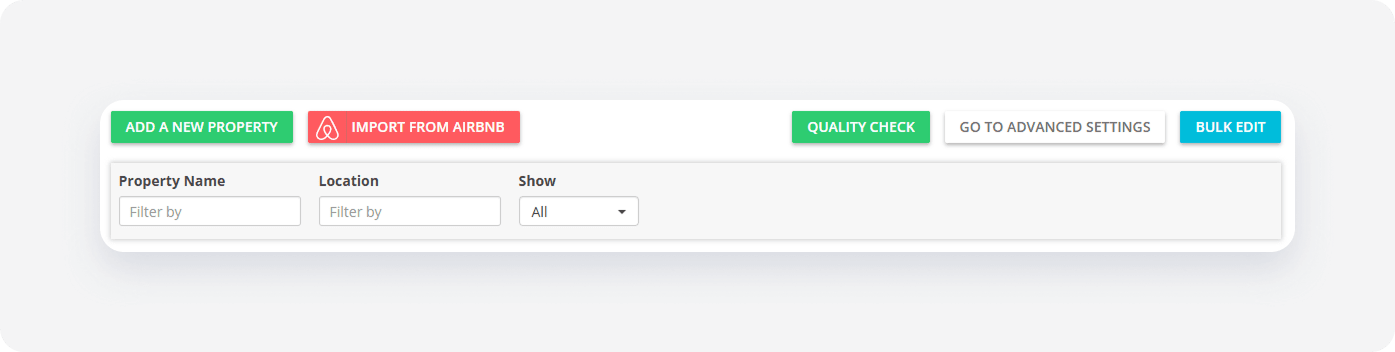
Click Bulk edit.
-
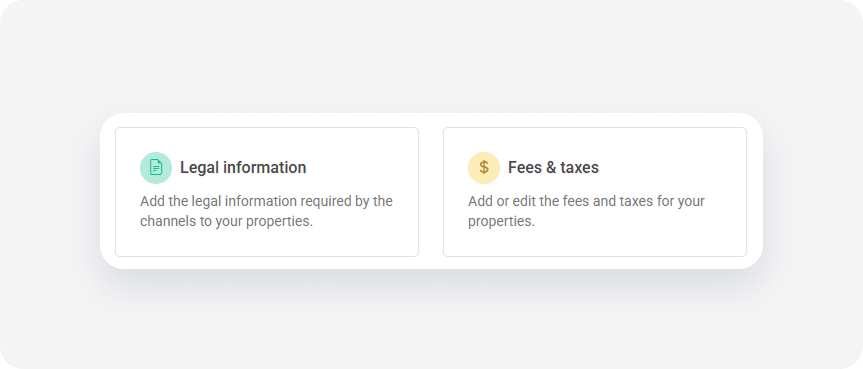
Select the Fees & taxes box.
- Choose to add new information or overwrite existing data and click Next.
- Click + Add line item.
- Fill in the following fields for the fee or tax:
- Kind: Select "Fee" or "Tax" from the dropdown menu.
- Extra charge type: Choose the specific category (for example, "Air conditioning fee" or "VAT").
- Name: Enter the display name for the charge.
-
Calculation type: Choose how the amount is calculated (for example, "Percentage per day").
Note: If you select a percentage-based calculation, the Applied to field appears. Select the items to which the percentage applies, for example "Total amount" or only "Rent".
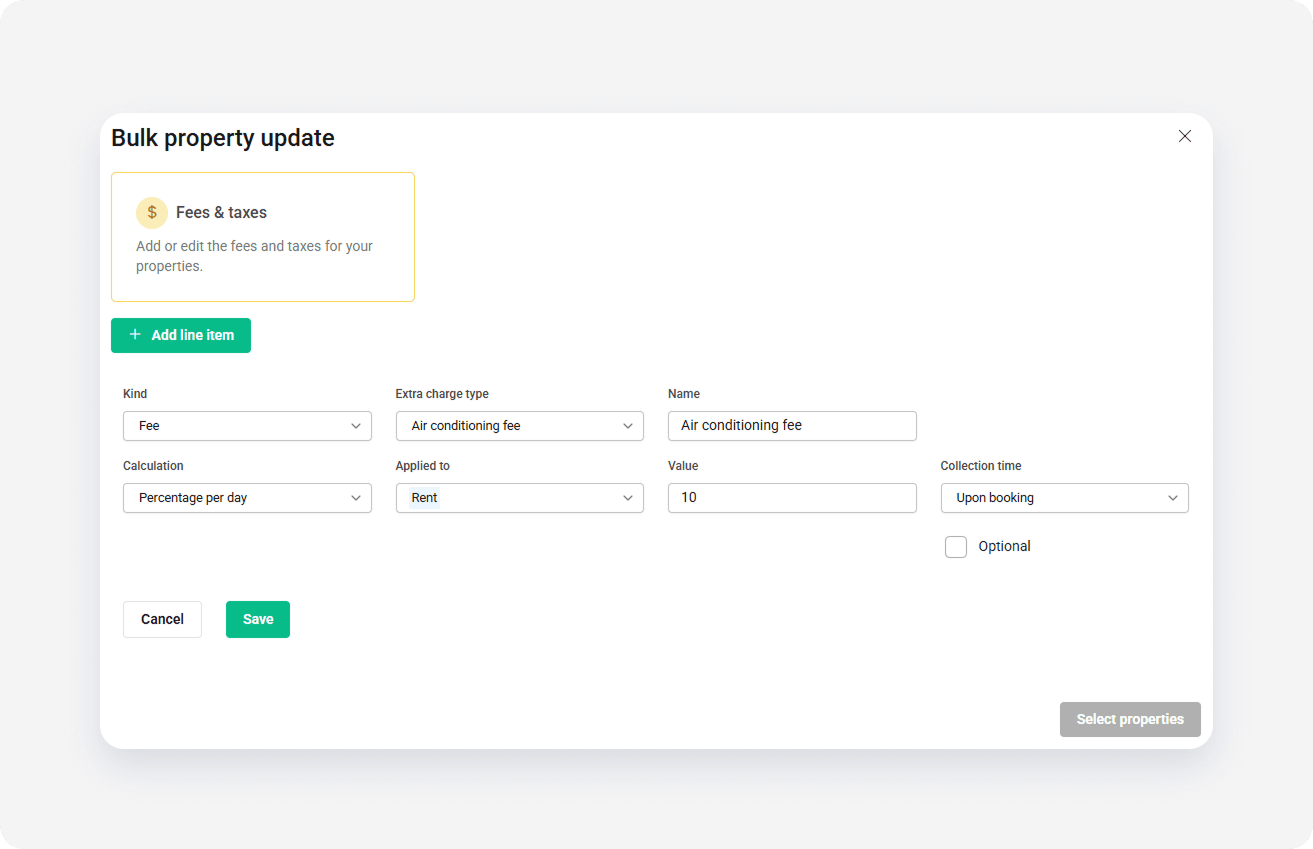
- Value: Enter the amount.
- Collection time: Select when the guest is charged.
- Optional: Check the box if the charge is not mandatory. Channel integrations treat this field differently, so first make sure you understand how the charge will be processed. Read more here.
-
Click Save.
Note: To add more items, click + Add line item again. You can also click
 to remove an item or
  to edit one.
 - Click Select properties.
-
From the list, select the properties you want to update. Click Continue.
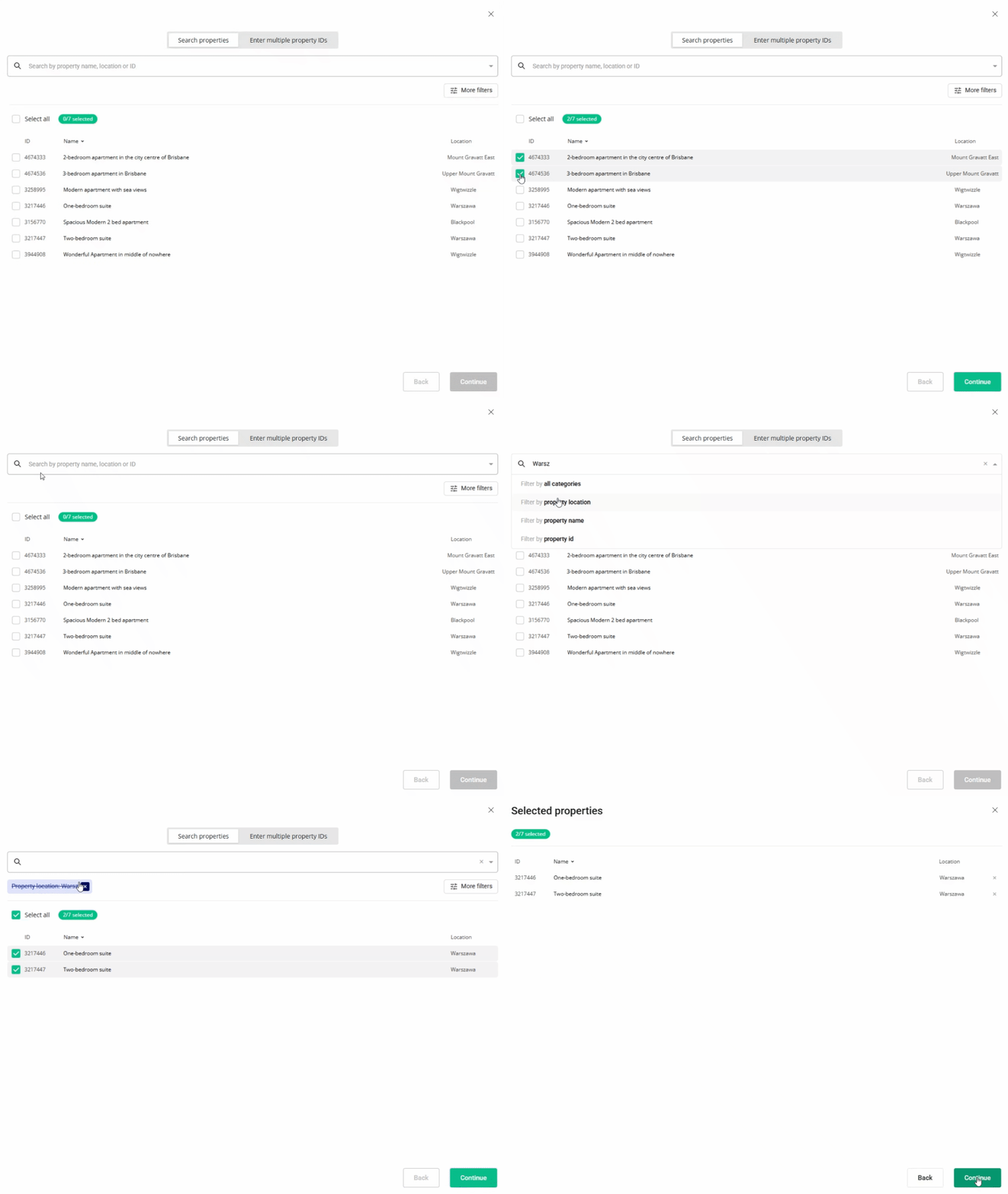
- Review the summary of selected properties and the fees or taxes. Click Continue to start the process.
- Once the process finishes, review the results.
- Added: The update was successful.
- Failed: Properties didn’t update. Click Retry next to a failed property to attempt the update again.
- Click I understand to return to the "All properties" page.