When a booking enters Rentals United, you can charge the full booking amount or charge it in instalments.
Before you start
- Make sure you connected your account to Stripe before you schedule a charge.
- You can charge confirmed bookings only. Make sure to confirm the booking requests that you need to charge.
Charge the booking
Follow the steps below to charge the booking now or schedule a payment.
Step by step:
Sign in to your Rentals United account.
From the main menu, go to Guest Planner.
Find the reservation to charge and open it.
-
Scroll down and switch to the Payments tab.
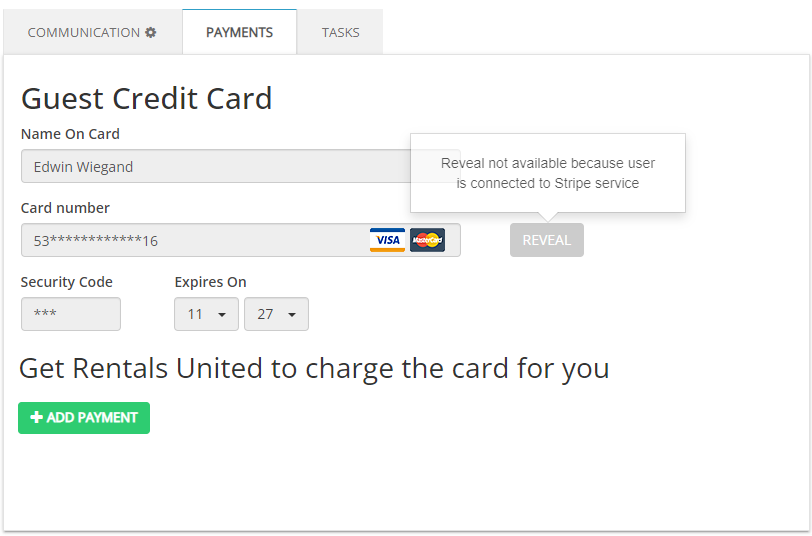
- Make sure that the credit card details are available. You don't have to reveal the credit card details.
- Click + Add payment.
-
Provide the amount to be charged in Payment amount. You can't charge more than the total booking amount.
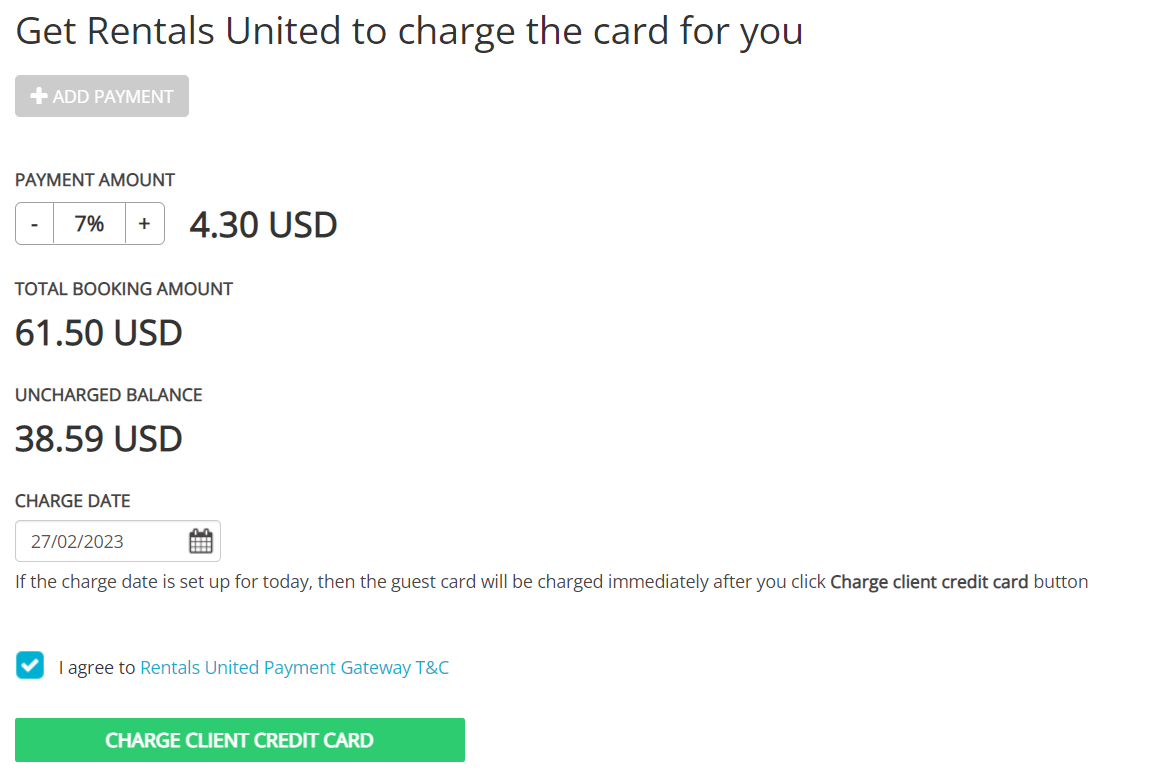
- In Charge date, choose the day when the the credit card will be charged. By default, the charge date always shows the current day, but you can select any date in the future.
- Check the terms and conditions box.
- Click the Charge client credit card button.
Additional details
Read below about additional details you should be aware of when charging or scheduling payments.
Email notifications
The system notifies you through email whenever there is a change you should be aware of, such as:
- New scheduled payment,
- Successful payment,
- Declined payment,
- Modified reservation with scheduled payment,
- Cancelled reservation with scheduled payment,
- Edited scheduled payment.
Not possible to add payments
If you can't see the + Add payment button, it means you can't charge the booking. Check if the following scenarios apply to you:
- You aren't connected to the payment provider. Make sure you connected your account to Stripe.
- You can't charge the guest's card more than 30 days after the check-out day (also applies for scheduling the payments).
- Your PMS uses Stripe for White Label Channel Manager and you have a dedicated payment solution in your PMS.
Transaction processing times
Rentals United processes the payments on the date you selected.
- If you select the current day, the payment is processed immediately.
- If you select a future date, then the system charges the credit card on the date and time you select (according to your local time).
Note that the transaction processing may take more time, depending on the payment provider and banking parties. Hence, some insignificant delays may occur.
Payments will be processed according to the time zone of the user. User’s local time is displayed in the payments list in Guest Planner. However, all notifications and the payments list in the Bookings tab will display the time in UTC.
API payments
At the moment, API payments are not possible.