Connect to channel
Follow the steps below to add a specific channel to your account.
Step by step:
- Sign in to your Rentals United account.
- Go to the Services tab and select Find Services.
- Type the channel name in the search box.
- Click the
 to expand the channel section.
 - Click Get connected.
Add listings
To add listings to the channel, follow the steps below.
Step by step:
- In Rentals United platform, open Property Settings. Follow the steps here.
- Click Connect your first property or Add more properties.
-
Choose the properties to add to this channel. Click Next.
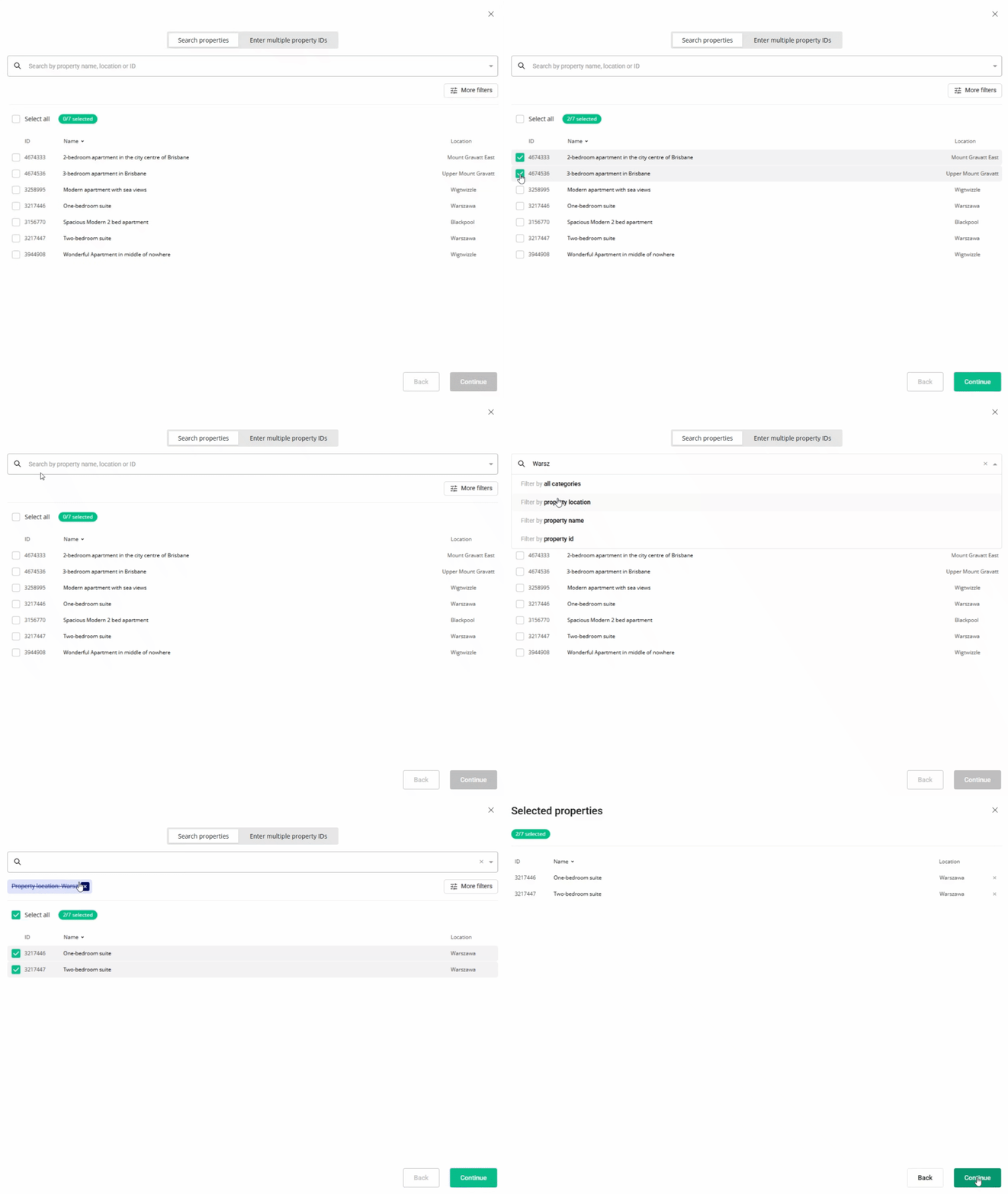
- Click Next. You will see here the summary of all selected properties. Review the list and check if all properties are included.
- We check the property against listing requirements and display the check summary for you. If some properties are not ready to publish, improve them.
- Adjust the markup and down payment settings.
- Click Publish properties.
- The published properties enter the
 status. Channel reviews the connections requests within next 48 hours and approves the listings. Once the property status changes to
  the listing gets live on the channel website.
If the listing doesn't go live, you will see an error. Follow the steps suggested in the error notification or contact the channel in the first place.
x
Update listings
After you update the property content in Rentals United, the channel retrieves the data at the set times.
Check the channel update times in the Integration overview - Sojourn.
Unlist listing from channel
To remove listings from the channel, follow the steps below.
Step by step:
- In Rentals United platform, open Property Settings. Follow the steps here.
- Search for the property you want to deactivate by scrolling down or filtering the property out.
- Click the Manage button.
- A property management page is opened.
- Click the Disconnect button.
- Confirm the action by clicking the Yes, disconnect button on the confirmation pop-up.
x