Adding new listing to the channel allows you to manage availability, rates, and content from Rentals United.
Step by step:
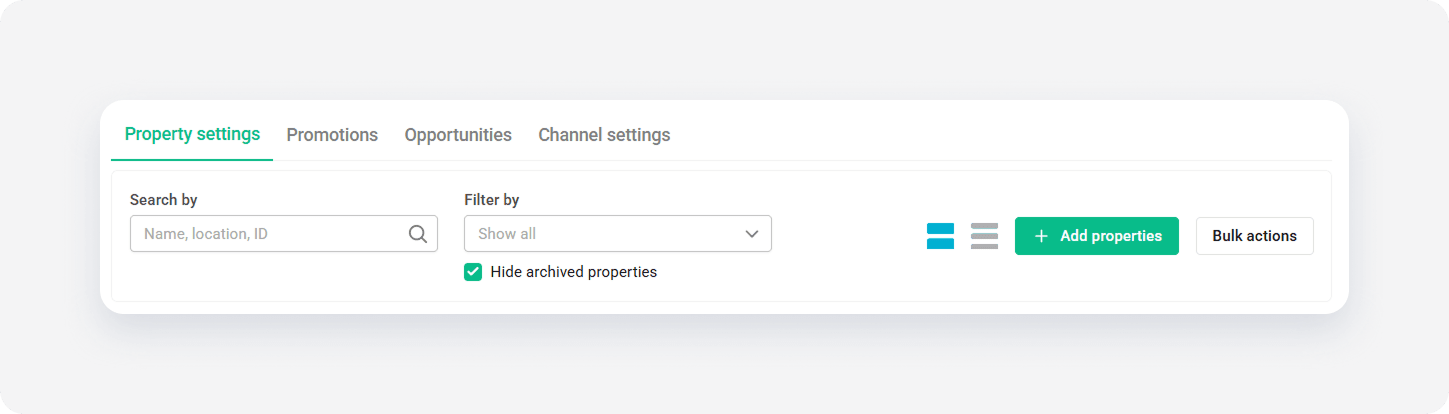
In your Rentals United account, open Property Settings for Booking.com. Follow the steps here.
-
Click + Add properties.
- When the question "Is your property already published in Booking.com?" appears, select No.
-
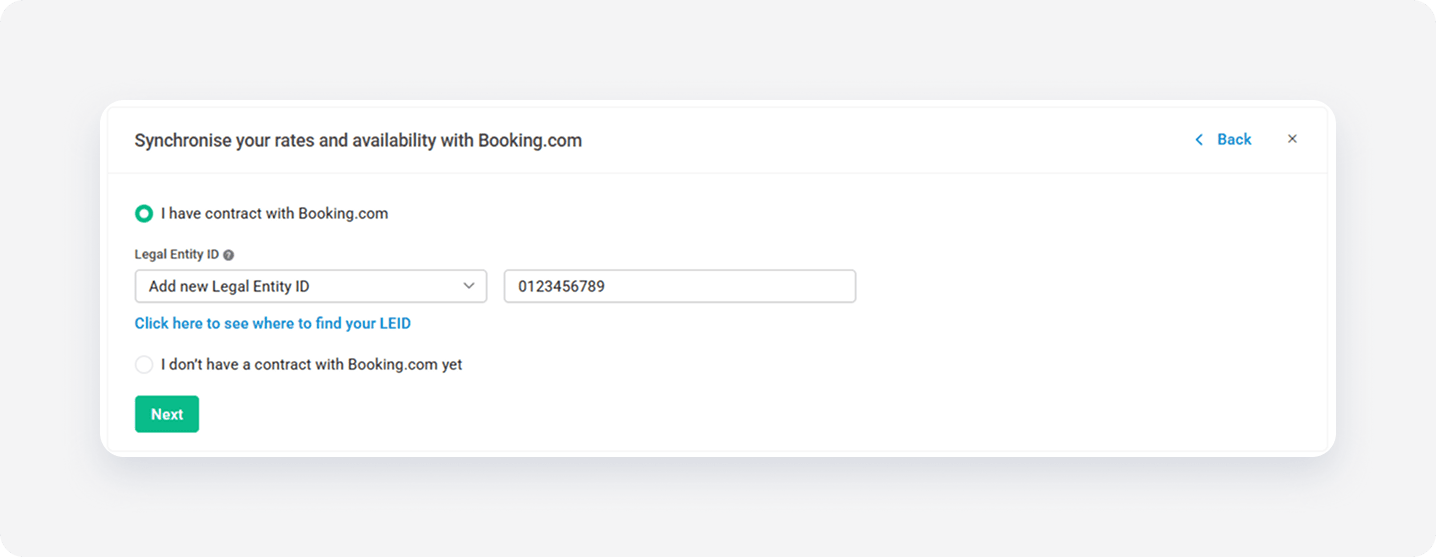
Choose I have a contract with Booking.com. Provide the Legal Entity ID and click Next.
Make sure the provided Legal Entity ID is exactly as in your contract. If you can't find Legal Entity ID, contact Booking.com directly.
Note: Sign a new contract
Booking.com requires signing a new contract when the properties you want to publish are in countries not specified in your initial contract.
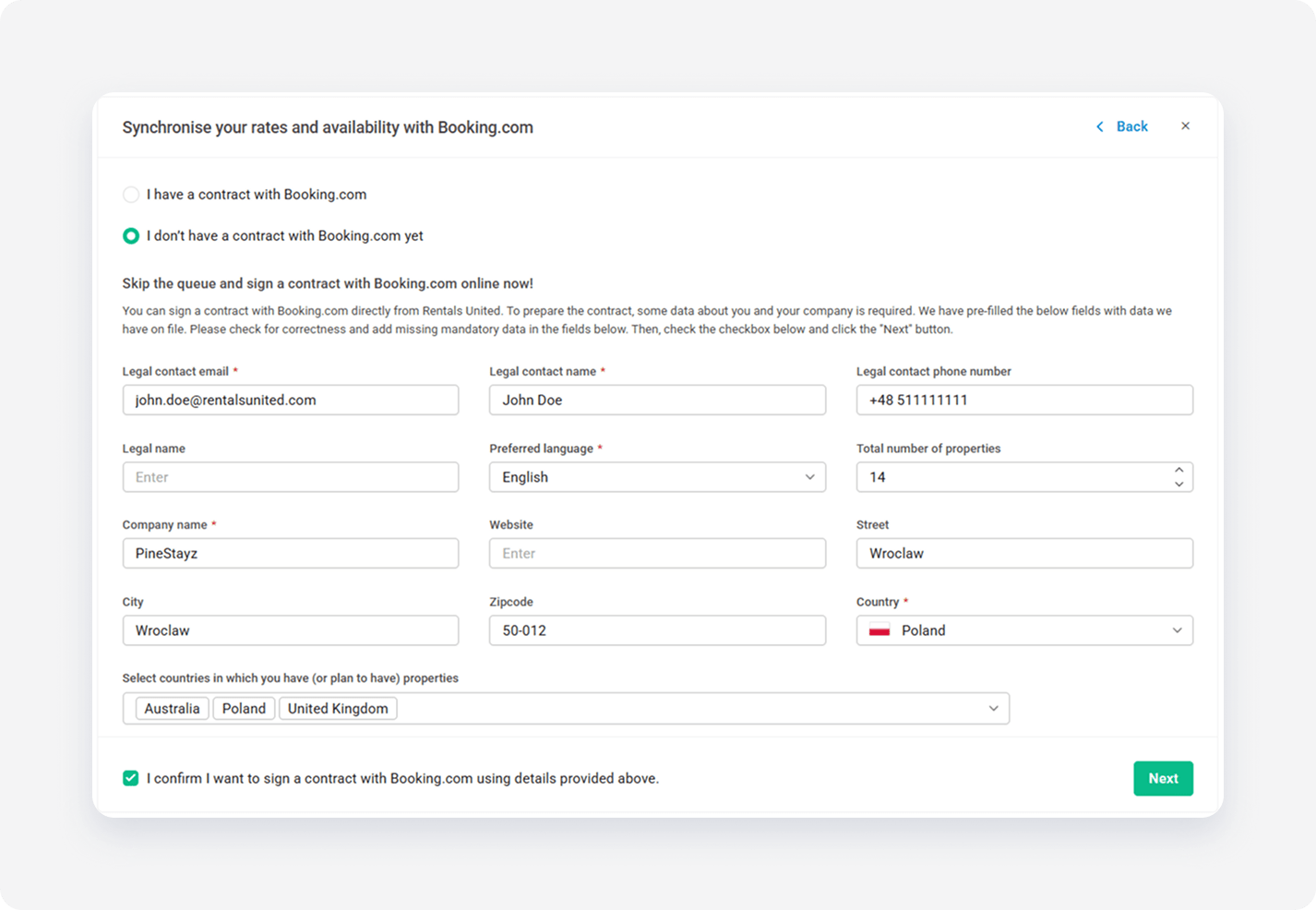
To sign a new contract with Booking.com, choose I don't have a contract with Booking.com and fill in the form.
Add all countries where you plan to have properties. The system automatically detects countries where you already have properties. These countries can't be removed.
-
Choose the properties to add to this channel. Click Continue.
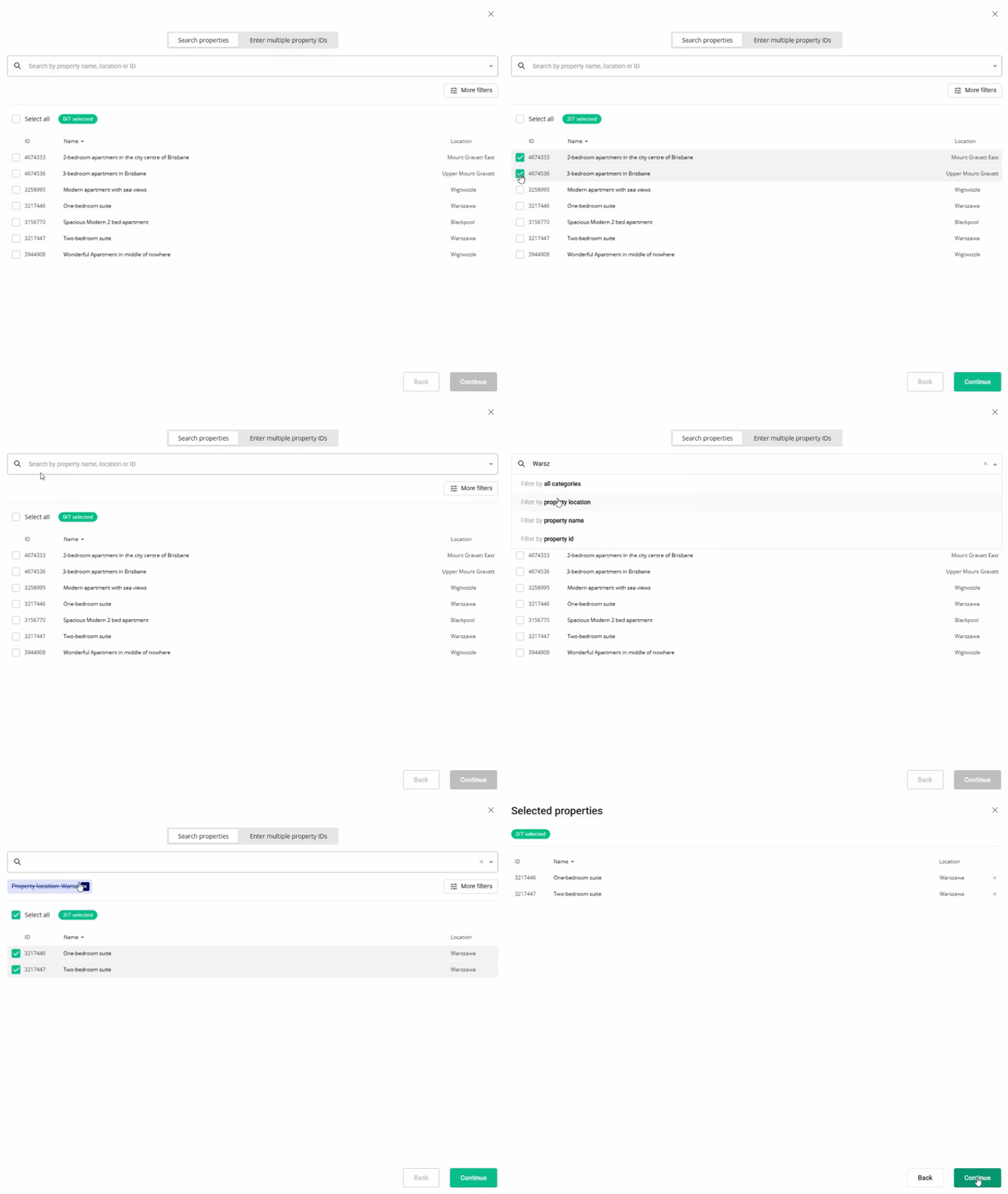
- Review the selected properties. Click Continue.
-
We check the property against listing requirements and display the check summary for you. If some properties are not ready to publish, improve them.
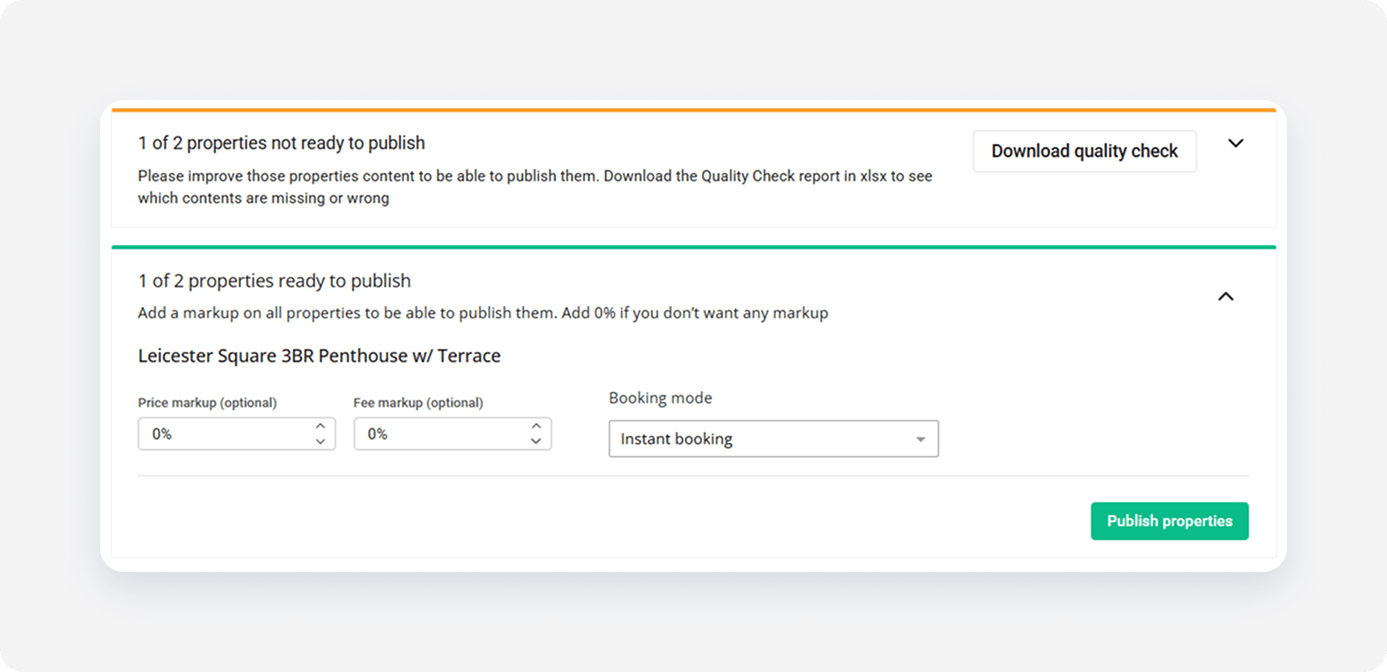
- Adjust the markup and set up the booking mode for each listing.
- Click Publish properties. The listings enter the
 Pending status. The channel reviews your listings and update their status automatically. Listings should appear in your Booking.com dashboard within 24 hours.
Each property added to Booking.com becomes a hotel with only one room type.
Countries outside contract
Adding properties located in a country not specified in your current contract isn't possible. You will see this notification in Property Settings:
"You need to sign an additional contract with Booking.com to push properties in this country. Check your email for the message from Booking.com and follow the instructions."
You receive an email from Booking.com with instructions to add a new country to your contract. Follow these instructions. Once you are done, come back to Property Settings and retry the error to complete publishing listings in the new location.