Mapping allows you to manage availability, rates, and content of a listing that already existed in the channel.
Step by step:
In your Rentals United account, open Property Settings for Booking.com. Follow the steps here.
- Click + Add properties button.
- When the question "Is your property already published in Booking.com?" appears, select Yes.
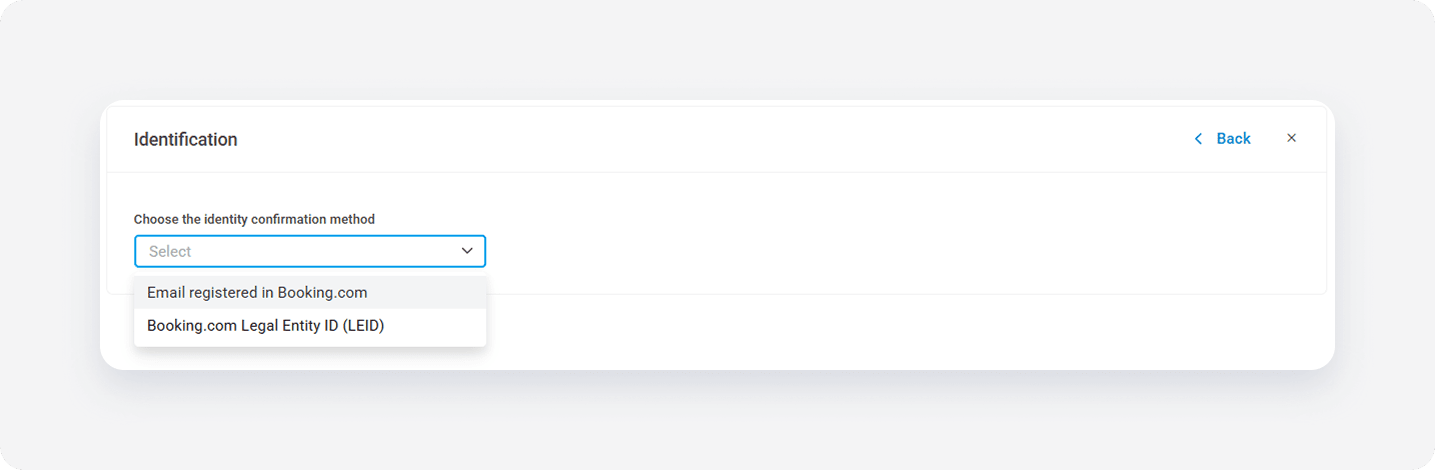
- Choose the identity confirmation method.
- Email registered in Booking.com
-
Booking.com Legal Entity ID (LEID) - you can use an entirely new LEID or select an LEID used in the past.
-
Provide the Property ID of the property you want to map and choose the Map this property option. Then, click Next.
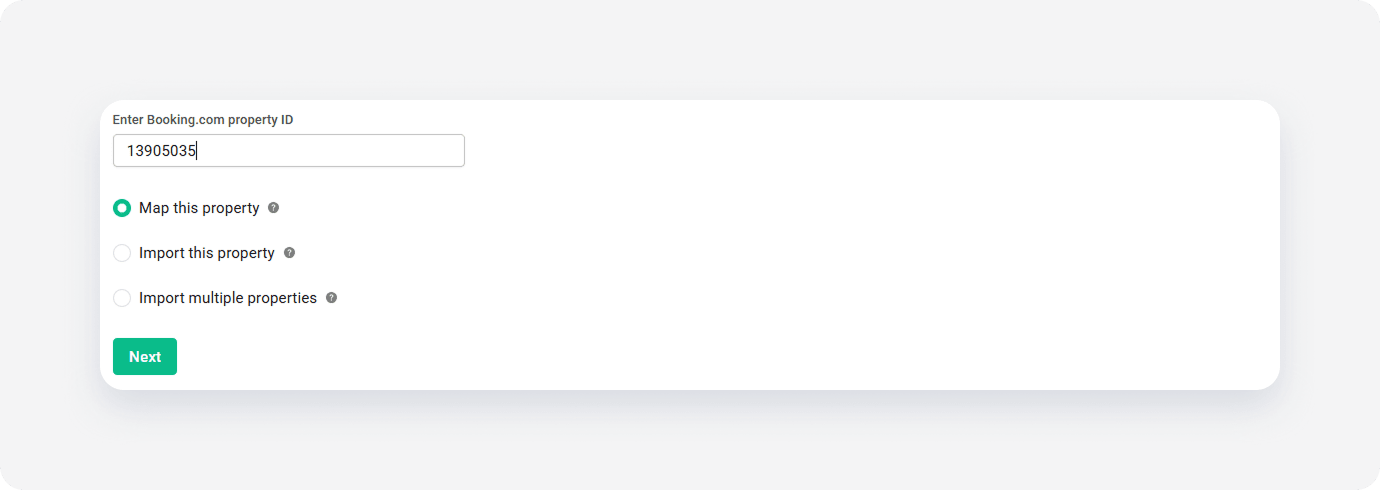
If you can see the Enter Booking.com property ID field only, it means that you're already in the mapping flow. This will happen for the PMS users who can't use the property import option.
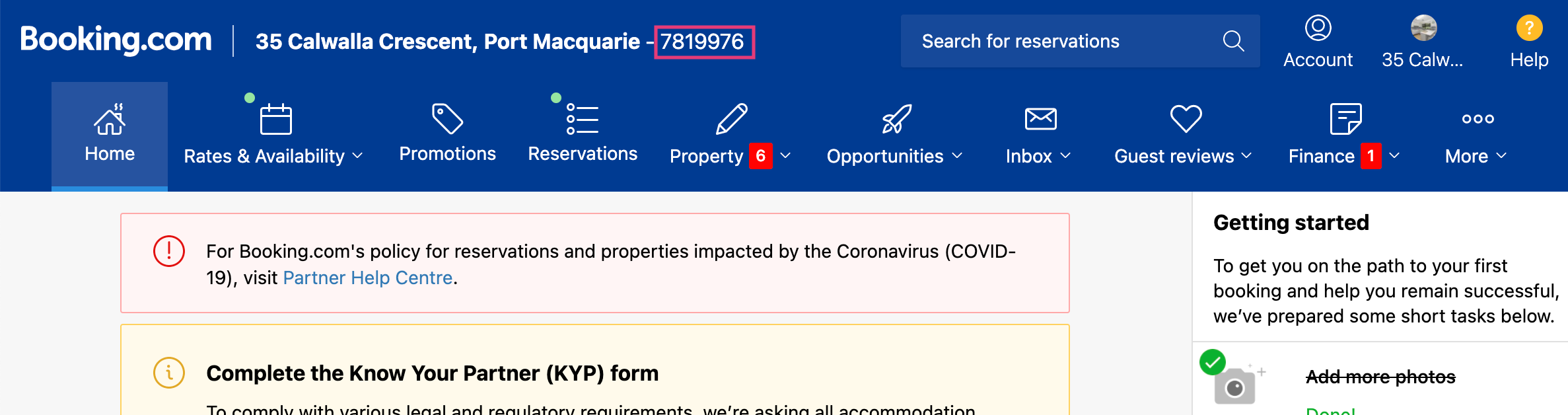
Property ID can be found in the Booking.com dashboard. If you can't find it, contact the Booking.com Support Team.
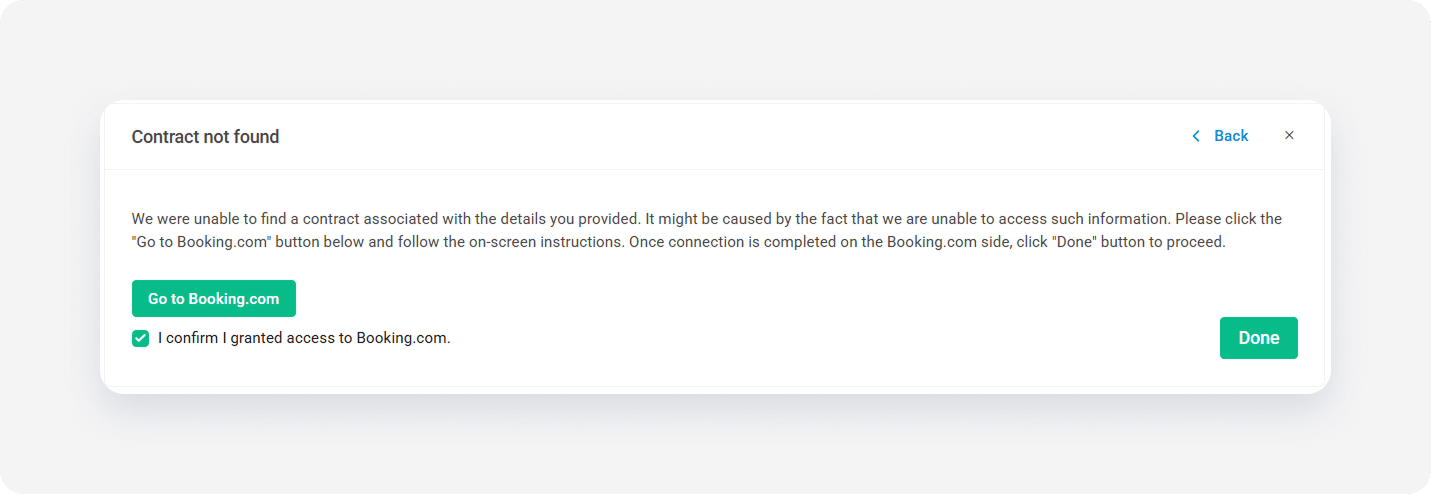
- Click Go to Booking.com button below.
-
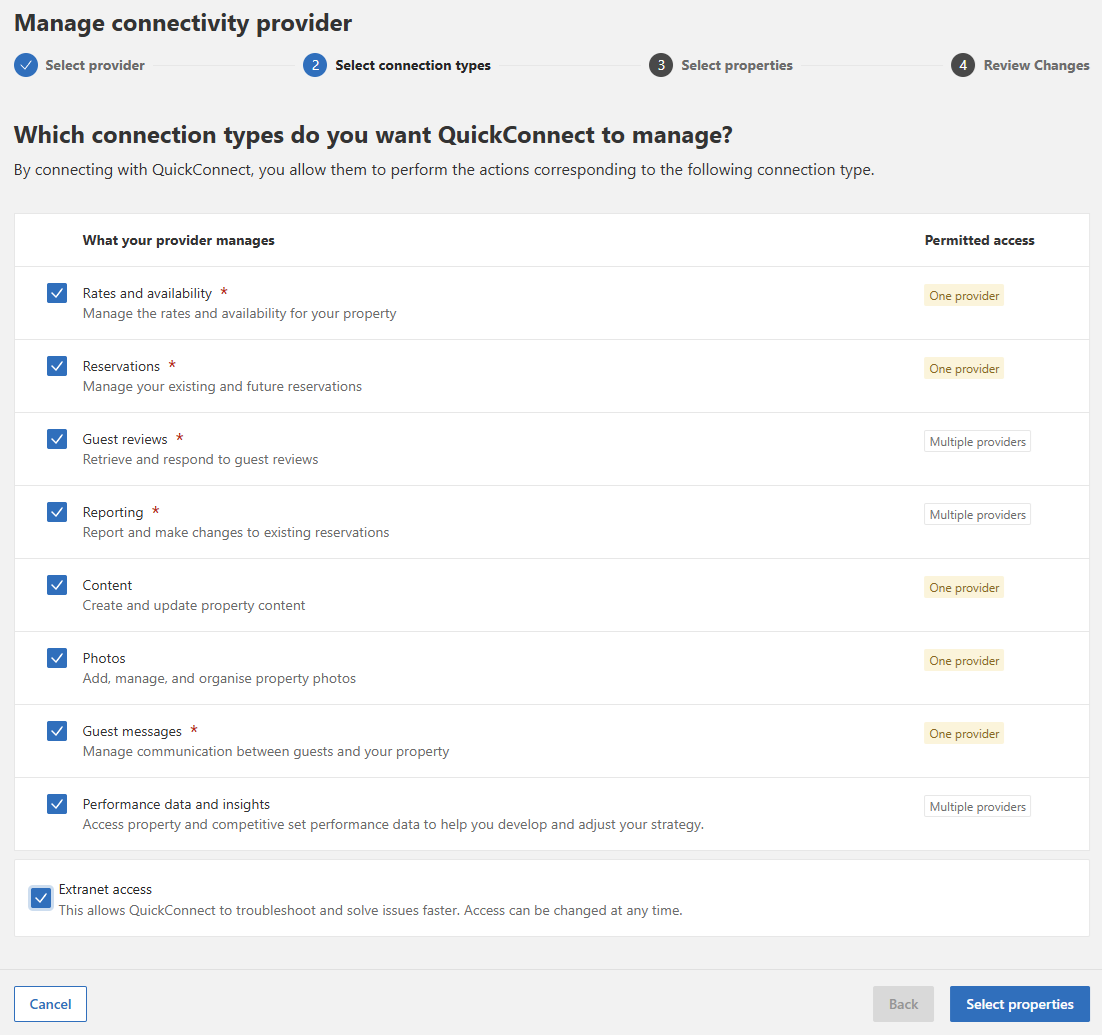
Booking.com page opens. Follow the instructions and grant us access to the listing in Booking.com.
-
Once you complete the steps in Booking.com, come back to Rentals United and check the box. Click Done.
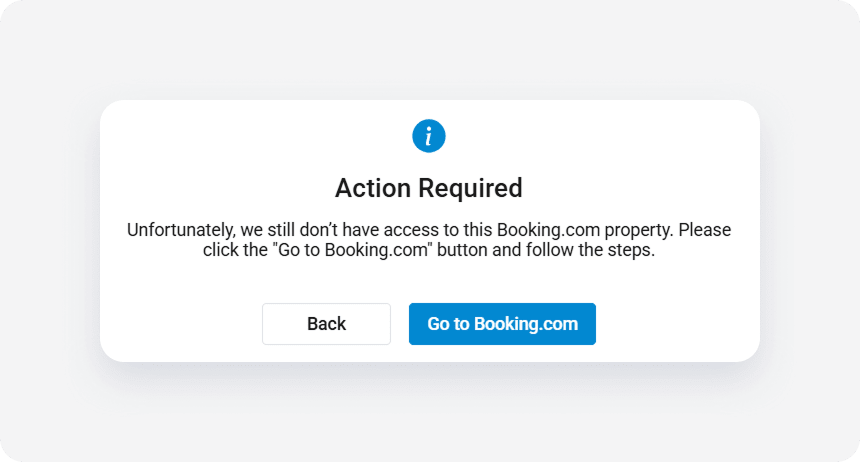
There may be a small delay in the communication from Booking.com to Rentals United. If you followed the steps in Booking.com and gave us access, but still see the pop up about no access, try clicking Done again after waiting a couple of minutes.
-
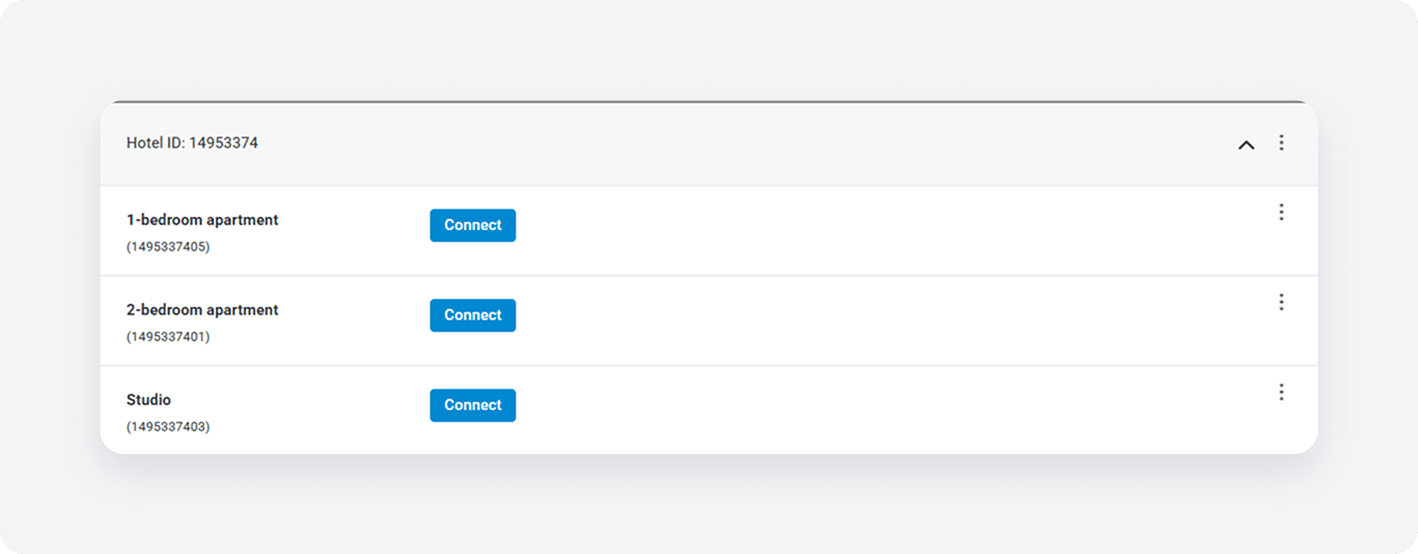
Click Connect next to the room type you want to map and click Select properties.
-
From the list, select one or more properties to map and click Next.
Note: Select multiple properties only if they share the same characteristics, such as amenities, photos, pricing. This way you create a multiunit group in the channel.
-
Review the rate setting summary and set the rate markup.
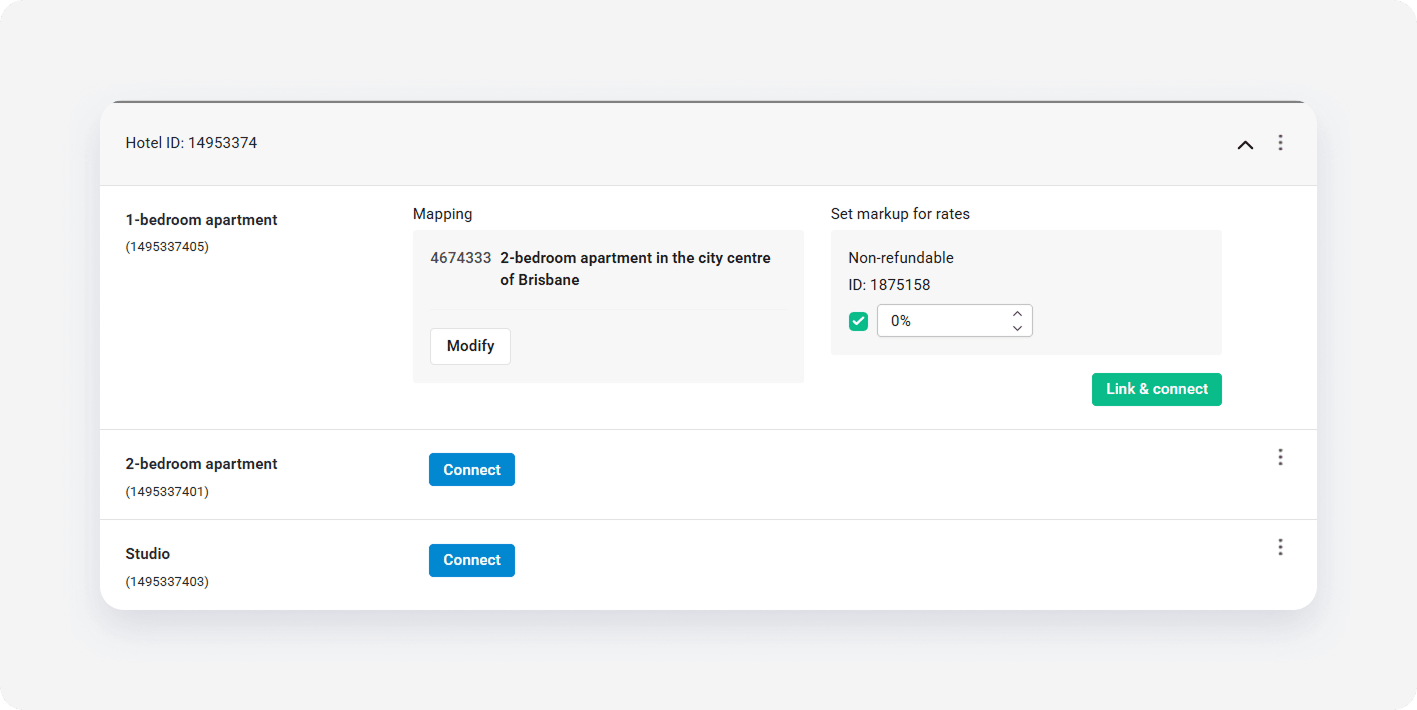
- Click Link & Connect.
-
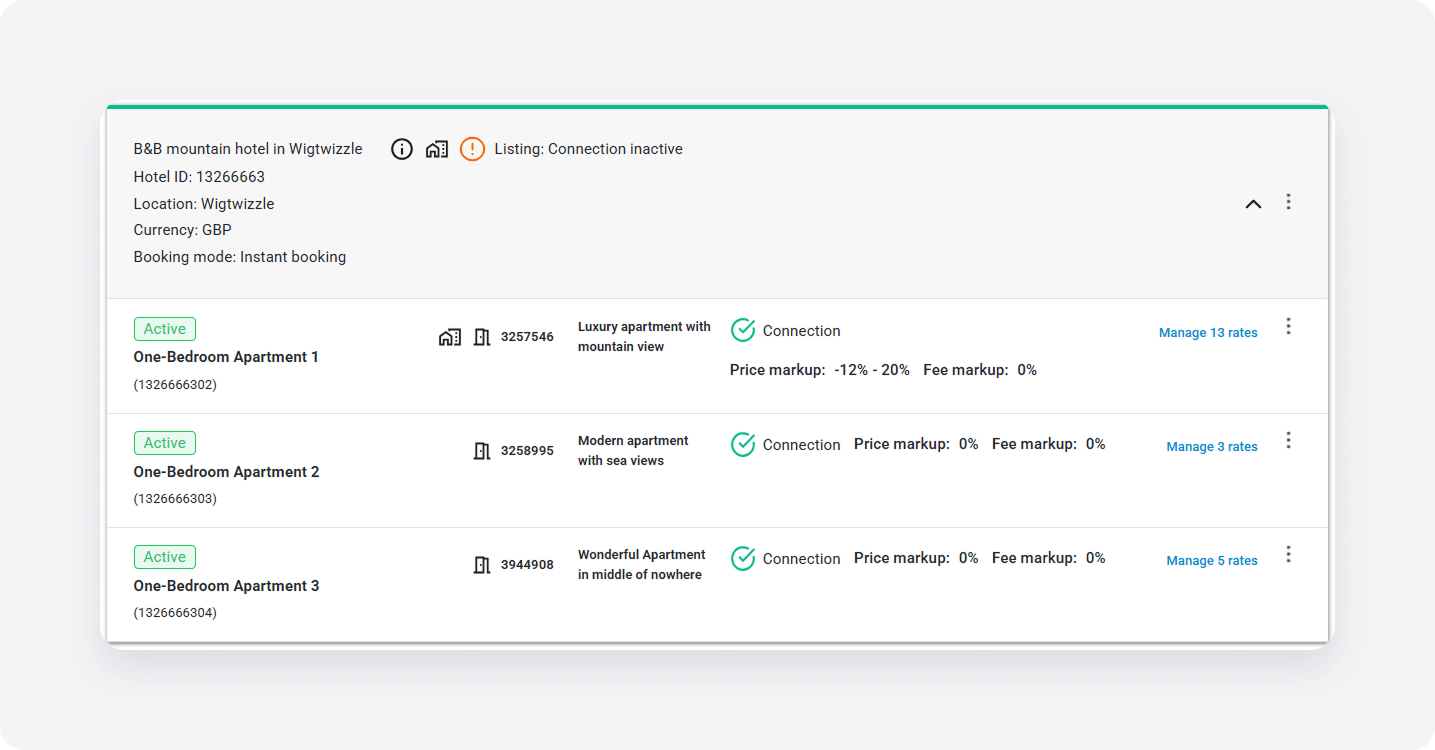
The connection is established. Go to Manage rates and activate the rate plans to enable sending the prices and availability. If you do not have any rate plans yet, create them.
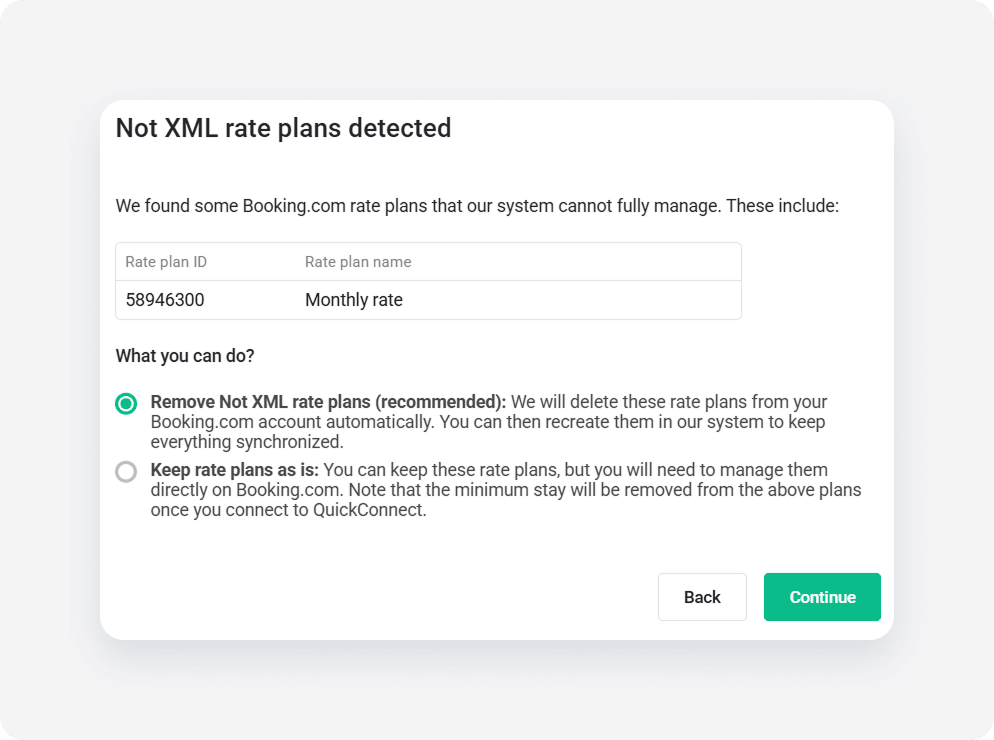
Not XML rate plans detected
Not XML rate plans are rate plans that were created in Booking.com and do not follow the standard XML format, therefore Rentals United cannot update certain details in them. The list contains the rate plan names and IDs that are not XML.
- Remove not XML rate plans (recommended): We will remove these rate plans from your Booking.com account automatically. Take note of the rate plan details and room types they are added. You will be able to recreate them later in Rentals United - follow the steps here.
-
Keep rate plans as is: We will not remove these rate plans from Booking.com, but the minimum stay settings will be erased from them. If you follow with this option, go to Booking.com and define minimum stay settings again. Remember that these rate plans will need to be managed in Booking.com only! You can also try other options to switch these rate plans to XML - see here for more information.