If you edit your property's content in Rentals United and want your listing reflect them, you need to update your listing.
Note: Remember that price and availability updates sync automatically. You don't need to update your listing when you made price or availability changes to the property in Rentals United.
Supported configurations
For Booking.com, updates are supported for the following configurations:
- One hotel - one room type - one rate plan
- One hotel - one room type - multiple rate plans
- One hotel - multiple room types - one rate plan
- One hotel - multiple room types - multiple rate plans
Listing content updates source from the main property selected for a hotel and/or room type.
Partial and full content update
Choose which details you want to update in the channel.
On the hotel level
- Update content only for this hotel - only the hotel listing updates in the channel
- Update the entire content (full update)
- Update only selected content areas (partial update)
- Update content for this hotel and all room types - hotel details and all room type listings in this hotel
- Update the entire content (full update)
- Update only selected content areas (partial update)
On the room type level
- Entire content for the room type - full update on the room type listing
- Selected content areas for the room type - partial update on the room type listing
Important:
If you have extra details saved in the channel, making changes in Rentals United and then triggering an entire content update overwrite any additional information on the listing. It's not possible to reverse this action. We recommend using the partial update (select areas to be updated) or keep introducing changes in the channel dashboard only.
Before you start
Make sure that the entity you want to update (hotel and/or room type) has the main property selected. Otherwise, you will be prompted to do so.
Update listing content for hotel
Step by step:
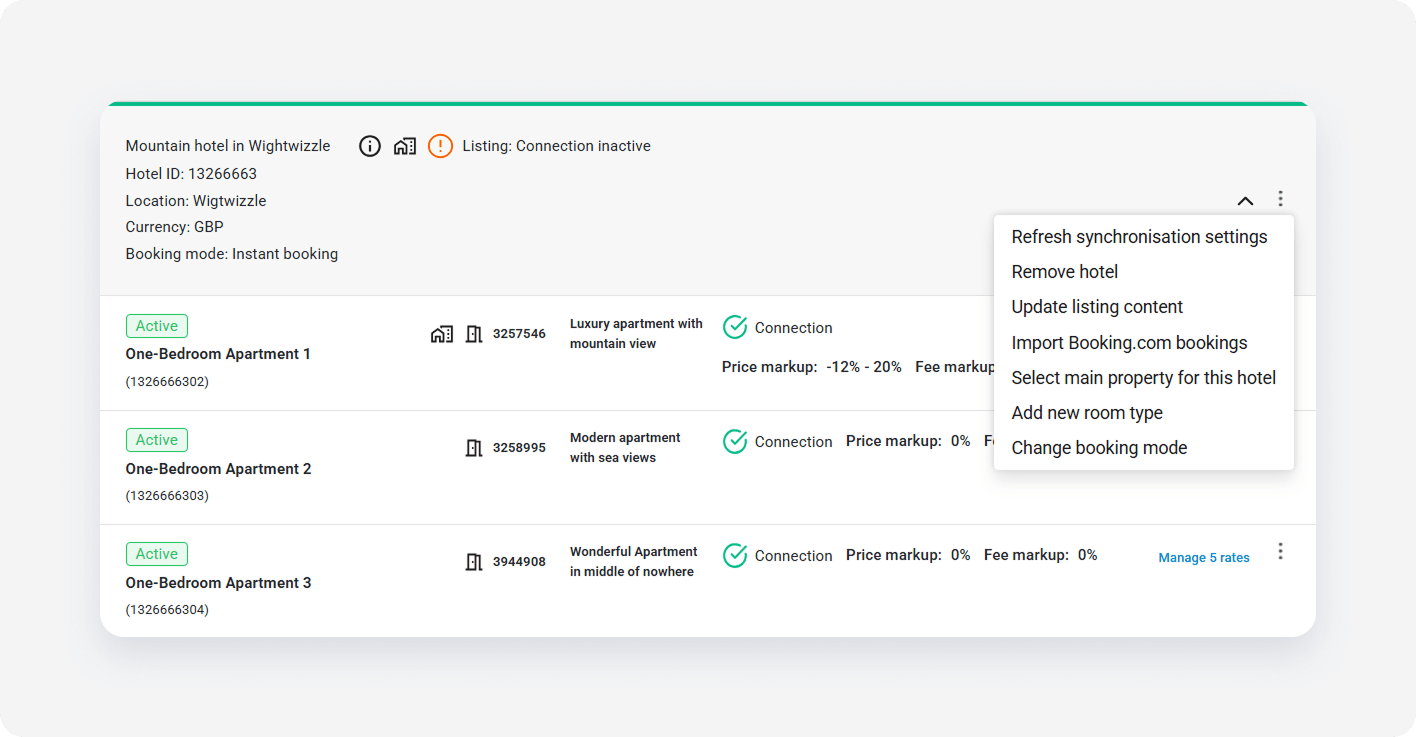
Click the three-dot menu on the hotel level. Choose Update listing content.
Select one from the update options.
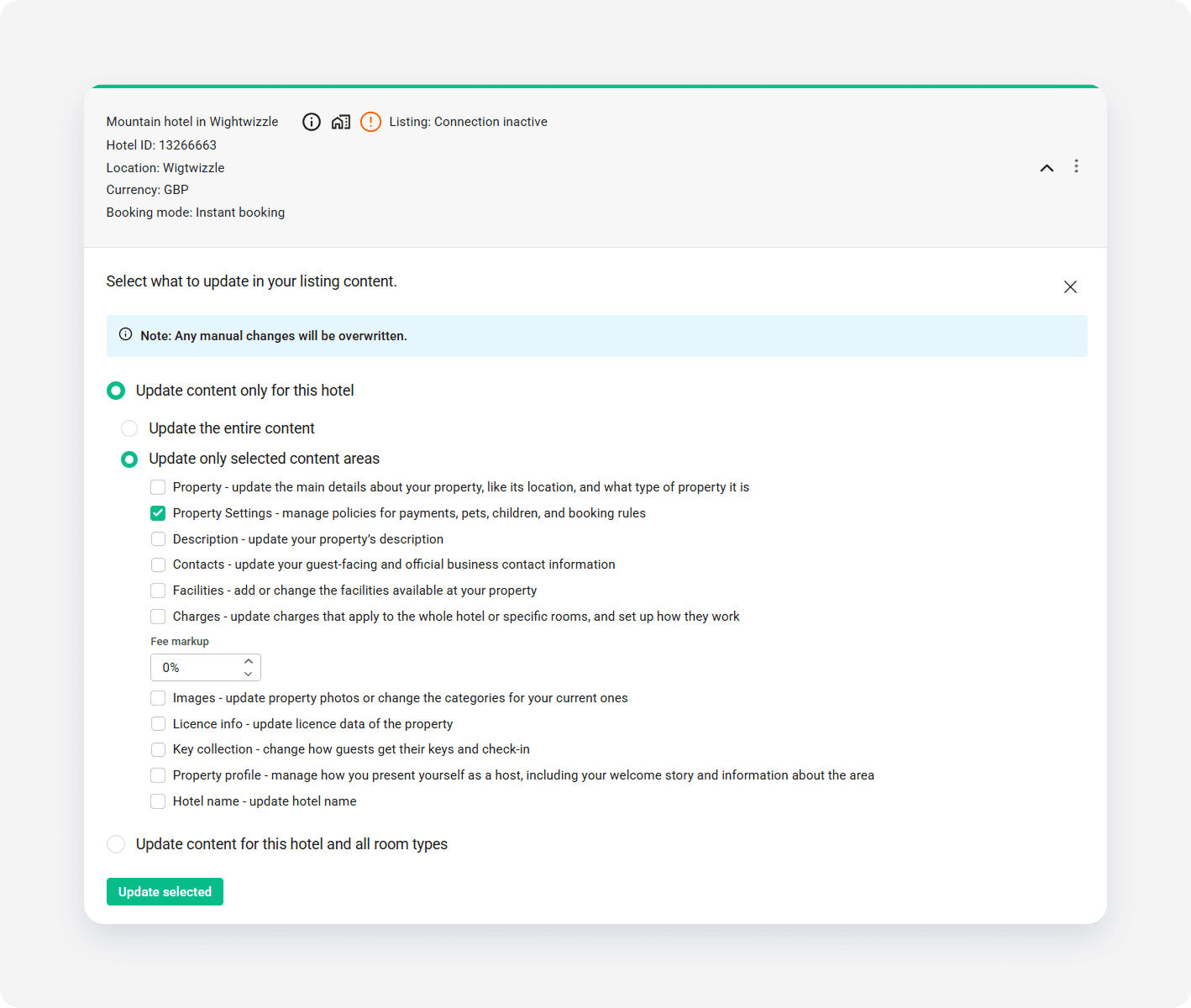
- Click Update selected. The update is scheduled and the listing should be updated within approximately 30 minutes.
Update listing content for room type
Step by step:
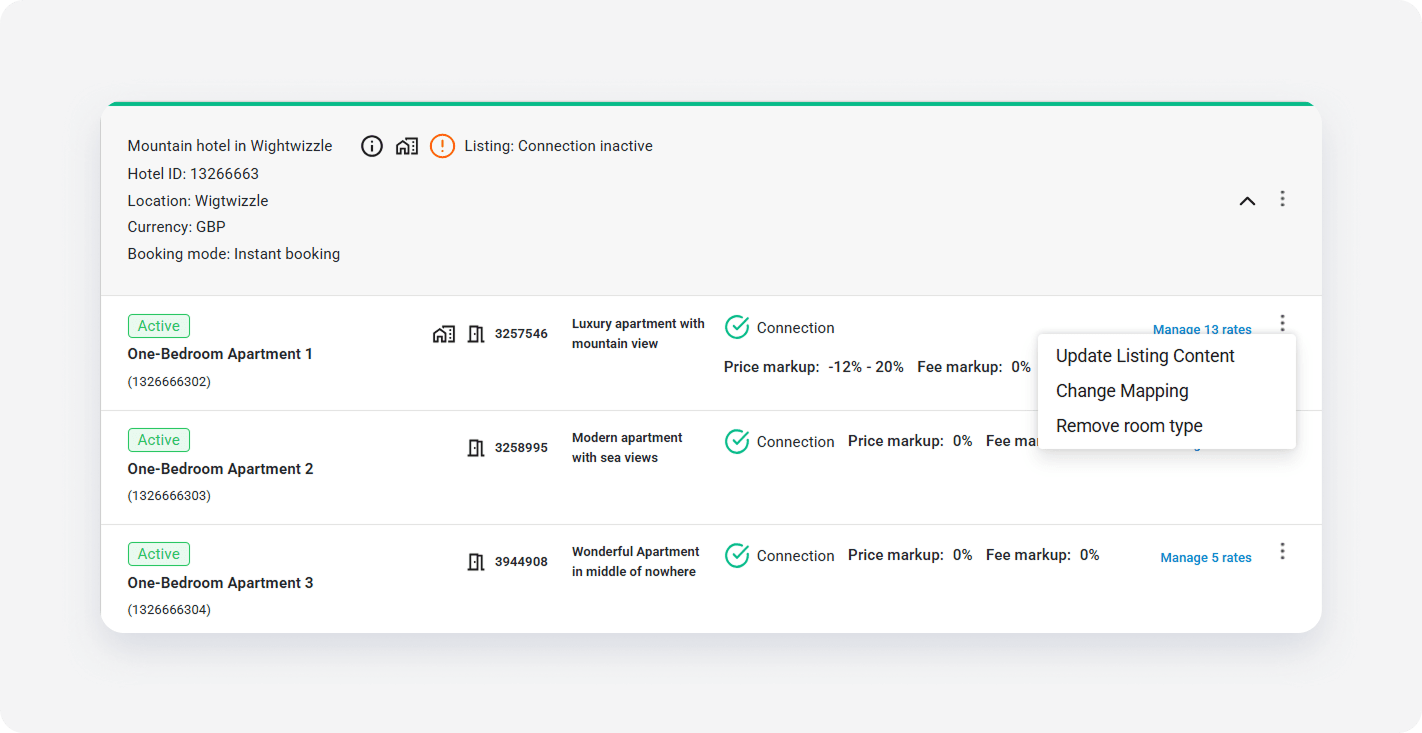
Click the three-dot menu on the room type level. Choose Update listing content.
Select one from the update options.
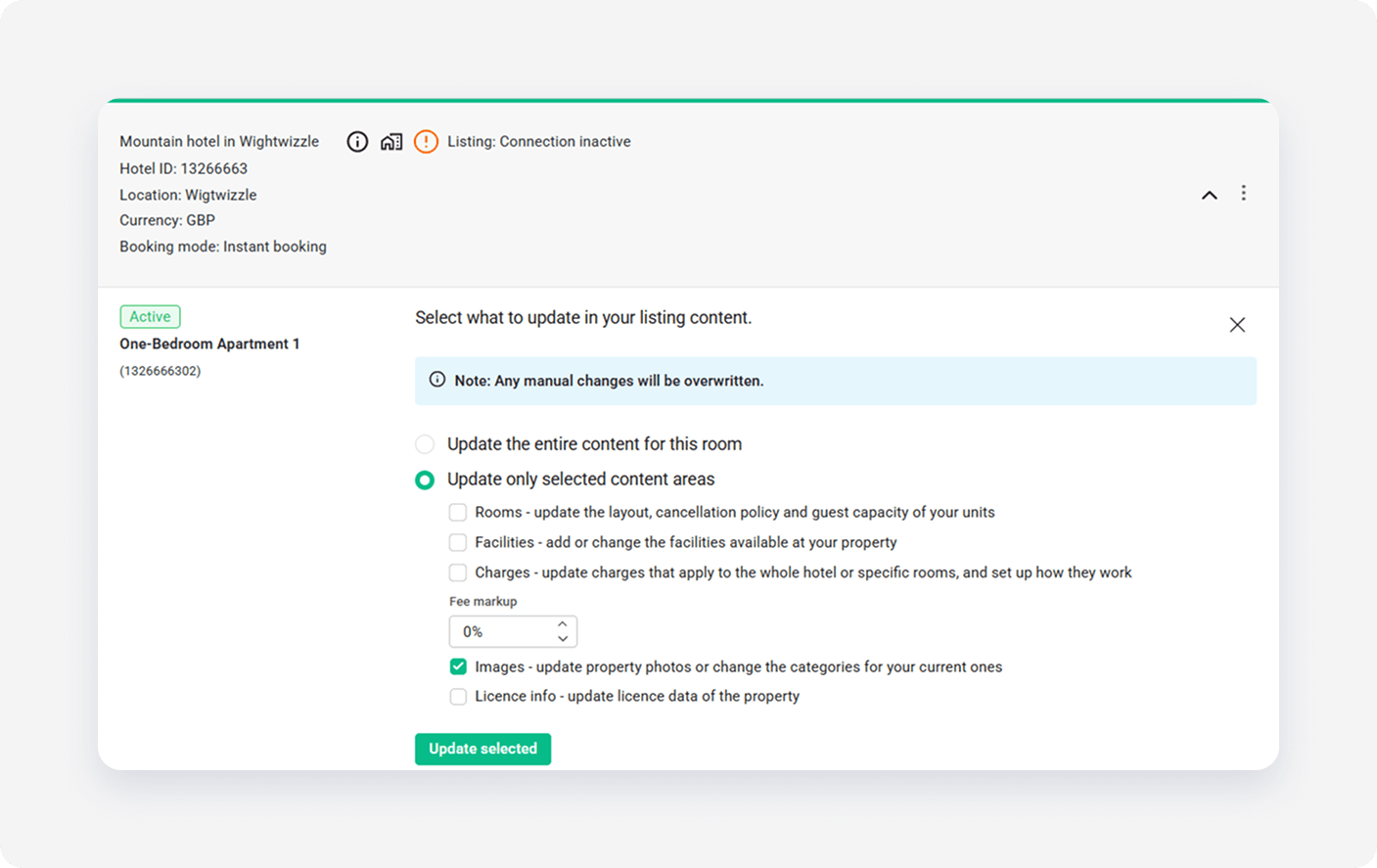
- Click Update selected. The update is scheduled and the listing should be updated within approximately 30 minutes.