Adding new listing to the channel allows you to manage availability, rates, and content from Rentals United.
Step by step:
In your Rentals United account, open Property Settings for Despegar. Follow the steps here.
Click + Add properties.
- When the question "Is your property already published in Despegar?" appears, select No.
-
Provide the Provider ID and click Next.
Despegar requires to have separate Provider ID in different countries. If needed, you can generate a new Provider ID by clicking Add new Provider ID. Provide all the details and approve terms via email, so that the new Provider ID is generated. Remember to use a unique email (not used for other Provider IDs in Despegar), otherwise the new Provider ID will not be created.
-
Choose the properties to add to this channel. Click Continue.
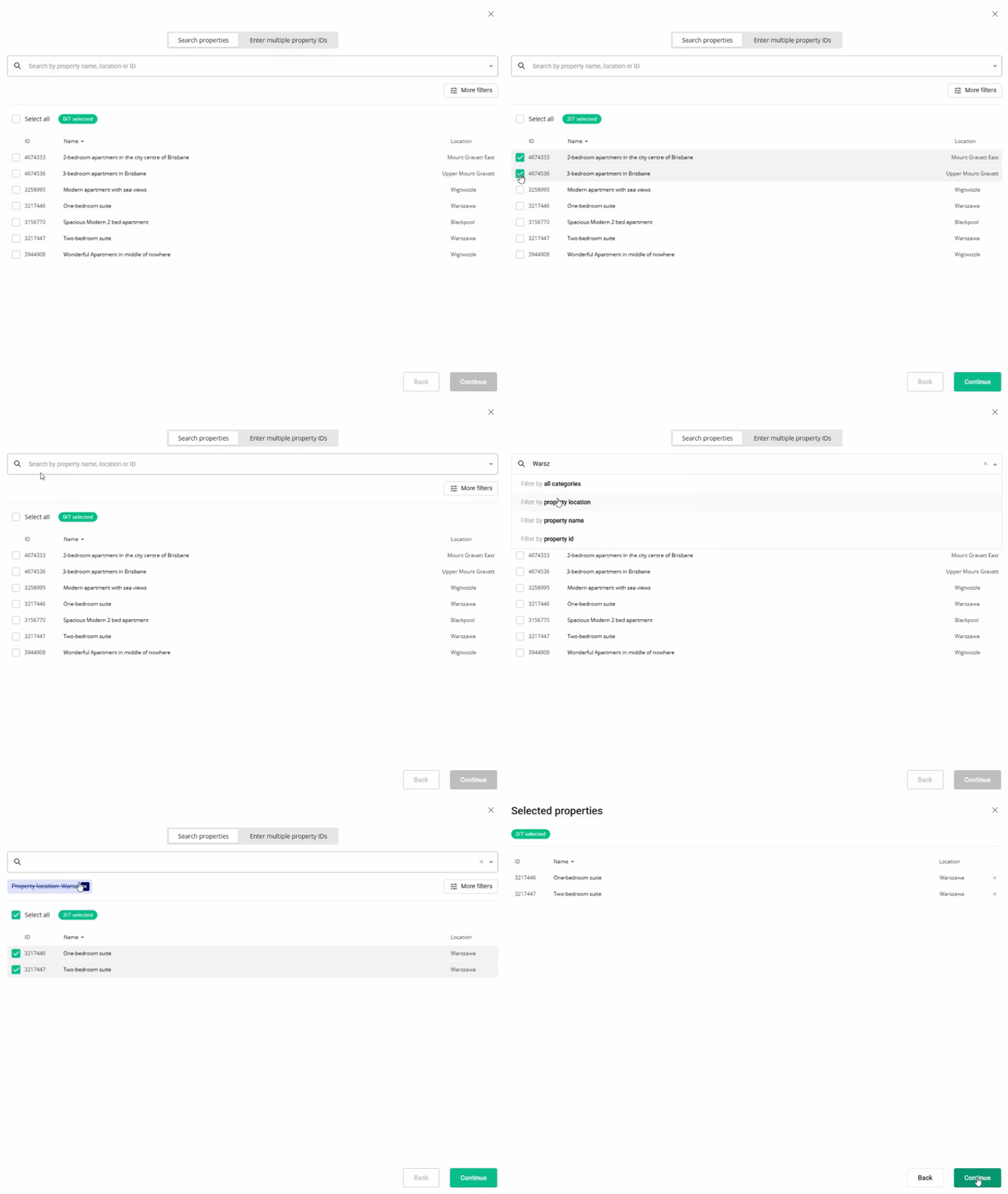
- Review the selected properties. Click Continue.
- We check the property against listing requirements and display the check summary for you. If some properties are not ready to publish, improve them.
- Adjust the markup for each listing.
- Click Publish properties. The listings enter the
 Pending status. The channel reviews your listings and update their status automatically. Listings should appear in your Despegar dashboard within 24 hours.
Each property added to Despegar becomes a hotel with only one room type.