To map your MakeMyTrip listings to Rentals United properties, first add a new listing and contact MakeMyTrip directly. Provide the channel representative with a list of mappings with Rentals United property ID and MakeMyTrip Hotel ID. MakeMyTrip will then build for you the following types of mappings:
- One property in Rentals United connected to one listing in MakeMyTrip
- Many properties in Rentals United connected to one listing in MakeMyTrip
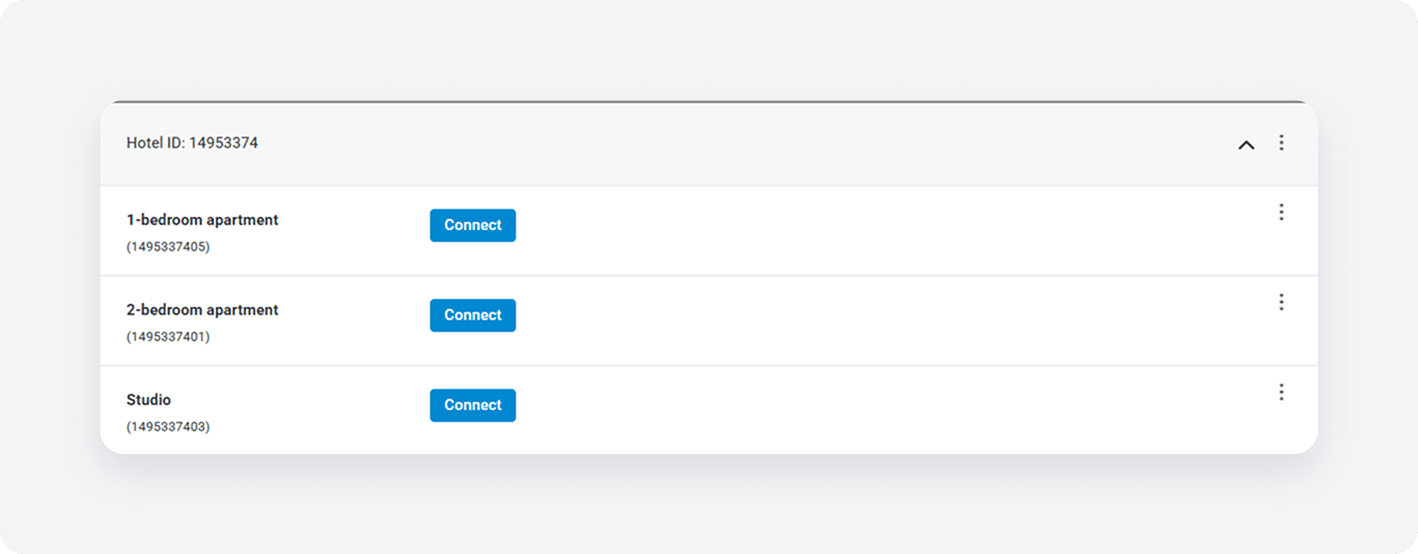
If your listing in MakeMyTrip is a hotel with many rooms, Rentals United gets access to the rooms under each hotel. To map each room to a Rentals United property, follow the steps below.
Step by step:
In your Rentals United account, open Property Settings for MakeMyTrip. Follow the steps here.
-
Click Connect next to the room you want to map and click Select properties.
-
From the list, select one or more properties to map and click Next.
Note: Select multiple properties only if they share the same characteristics, such as amenities, photos, pricing. This way you create a multiunit group in the channel.
-
Review the rate setting summary and set the rate markup.
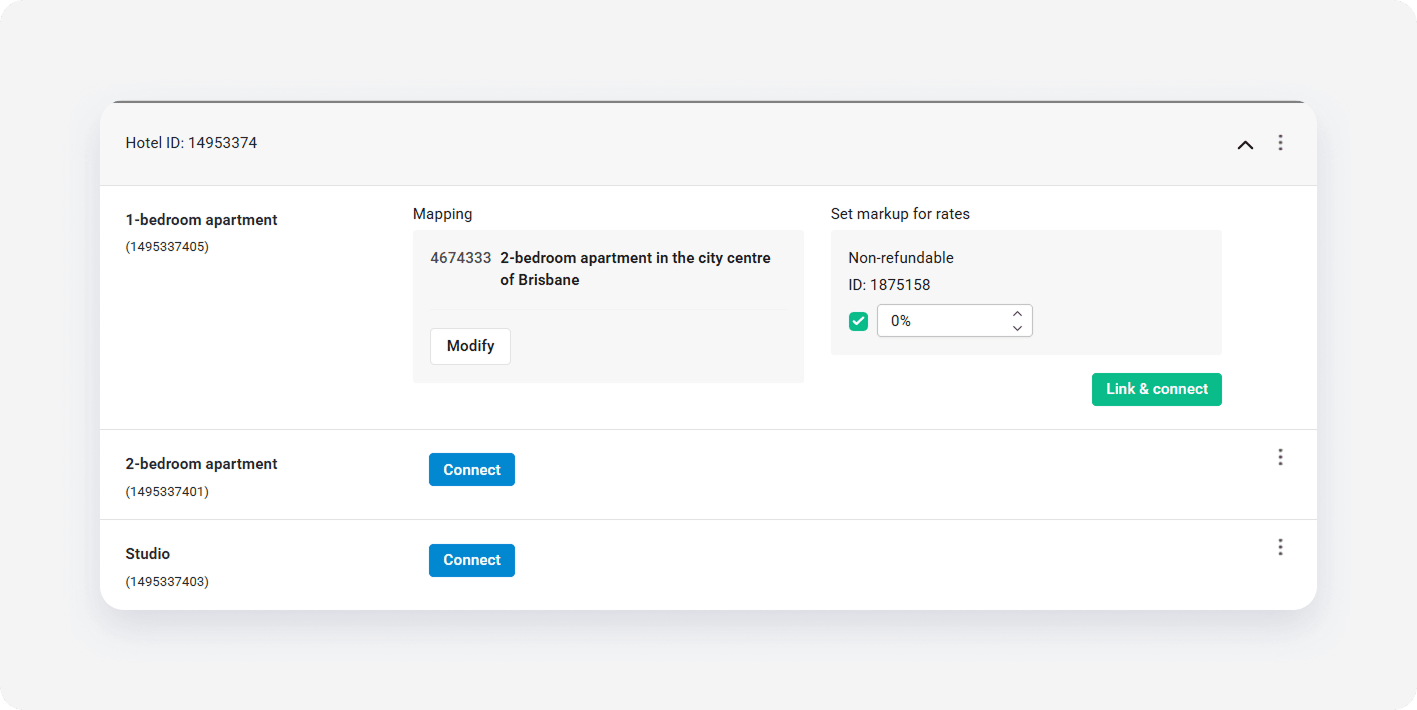
- Click Link & Connect.
- The connection is established. Go to Manage rates and activate the rate plans to enable sending the prices and availability.