Help guests prepare for their stay by displaying important property information before they confirm an instant booking. Manage your welcome messages directly in Rentals United across multiple listings connected to Airbnb.
Understand welcome message settings
You can set an account default welcome message for all listings connected to Airbnb or customize text for individual properties. Guests receive the welcome message before completing an instant booking and must respond to it to confirm the reservation. Airbnb allows up to 400 characters for this message.
Welcome message priority works as follows:
- Message settings priority: A custom message set on a specific listing always takes priority over the account default. If you clear a listing-specific message, the property automatically inherits the account default message. If the default welcome message are disabled, no message is sent.
- Existing messages on Airbnb: Welcome messages already configured on Airbnb import automatically into Rentals United and labeled as current on Airbnb until you edit them.
Set an account default welcome message
Apply a standard welcome message across all new listings you connect to Airbnb in future.
Step by step:
- Log in to your Rentals United account.
- In the side menu, go to the Services tab.
- Select My Services, and navigate to the Airbnb section.
- Click
 to unfold the section, and click Property Settings.
- Select the Channel settings tab.
- Click the Instant book welcome message section to expand it.
- Toggle on Enable welcome message.
-
In the "Welcome message" field, enter your text.
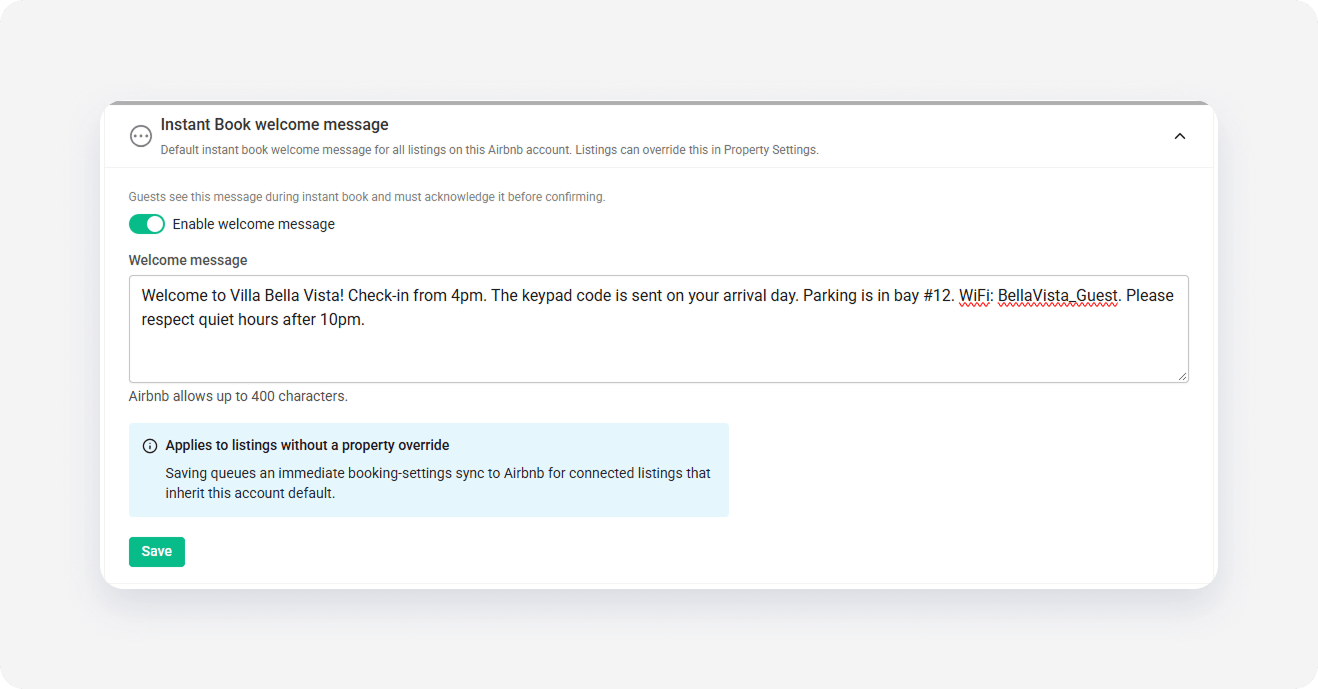
- Click Save.
To disable applying welcome message for new listings, toggle off the settings.
Manage listing-specific welcome messages
Override the account default message or clear an existing message for a specific property.
Step by step:
- Log in to your Rentals United account.
- In the side menu, go to the Services tab.
- Select My Services, and navigate to the Airbnb section.
- Click to unfold the section, and click Property Settings.
- Locate the listing you want to update and click Manage.
- Scroll to the "Listing-specific welcome message" section.
- Choose one of the following options:
- Use default channel message: Inherit the default message set in Channel Settings.
- Set a custom message for this listing: Enter a custom welcome message.
- Don't send a welcome message for this listing: Remove the welcome message for this specific listing.
- Click Save.
Update welcome messages in bulk
Apply custom welcome messages or clear overrides across multiple listings simultaneously.
You can select properties connected across different Airbnb accounts during a single bulk action run.
Step by step:
- Log in to your Rentals United account.
- In the side menu, go to the Services tab.
- Select My Services, and navigate to the Airbnb section.
- Click to unfold the section, and click Property Settings.
- In the top-right corner, click Bulk actions.
- In the "Bulk action" dropdown menu, select Update welcome message for selected properties.
- Click Select properties.
- Select the listings you want to update, and click Continue.
- Review the selected listings, and click Continue.
- Choose the desired bulk action:
- Use default channel message: Revert selected listings to the account default message. Listings already inheriting the default are skipped.
- Set a custom message for selected listings: Enter text to apply as a listing override across selected properties.
- Don't send a welcome message for selected listings: Remove the message on Airbnb for selected properties.
- Click Update.
- Review the summary of updates, and click I understand.
The summary displays separate lists for properties that updated successfully and properties that failed. If the action failed, review the specific error description in the "Error" column for each failed property, and click Update to retry the action after resolving the indicated issues.