Connecting your Vrbo account to Rentals United allows you to sync property details, availability, and reservations seamlessly. You need to make sure to choose the correct setting depending on your existing connection with Vrbo. Choose between:
- Connect existing Vrbo account: If you use a PMS (such as Guesty, Streamline) to manage your inventory on Vrbo or you manage the inventory directly on Vrbo
- Create new Vrbo account: If you don't have an account on Vrbo
Important:
If you already have a Vrbo account, you need to provide the email you use to login on Vrbo.
Connect existing Vrbo account
Follow the steps below if you have a Vrbo account and you’re transitioning to channel manager from direct management on Vrbo (without a PMS) or from another provider, such as another channel manager or a PMS.
Step by step:
- Log in to your Rentals United account.
- In the side menu, go to the Services tab.
- Select My Services, and navigate to the Vrbo section.
- Click
 to unfold the section, and click Connect.
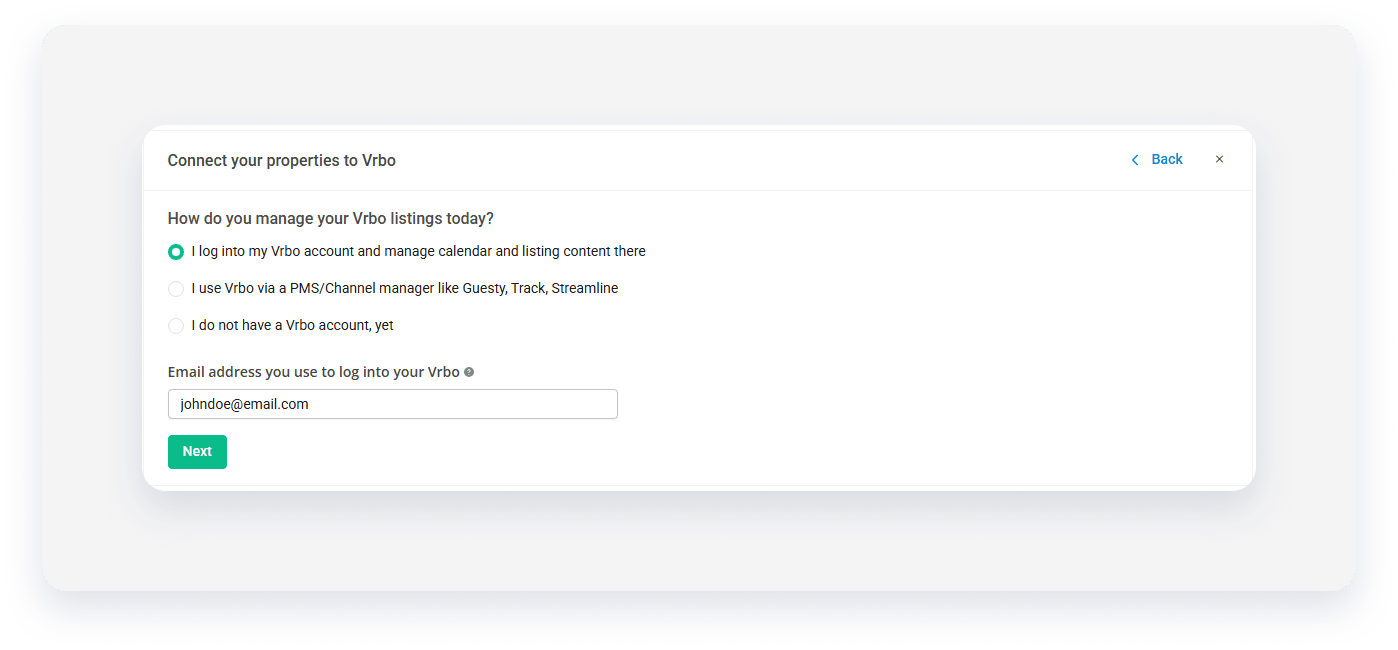
- Choose the relevant connection option:
- I log into my Vrbo account and manage calendar and listing content there
- I use Vrbo via a PMS or channel manager
-
Provide the email address you use to log in to Vrbo, and click Next.
- Copy the email address and the Advertiser ID, and click Go to Vrbo.
- Once you complete the configuration in Vrbo, come back to Rentals United.
- Check the “I granted access to Vrbo” box, and click Done.
-
The system retrieves all listings from the Vrbo account.
Note:
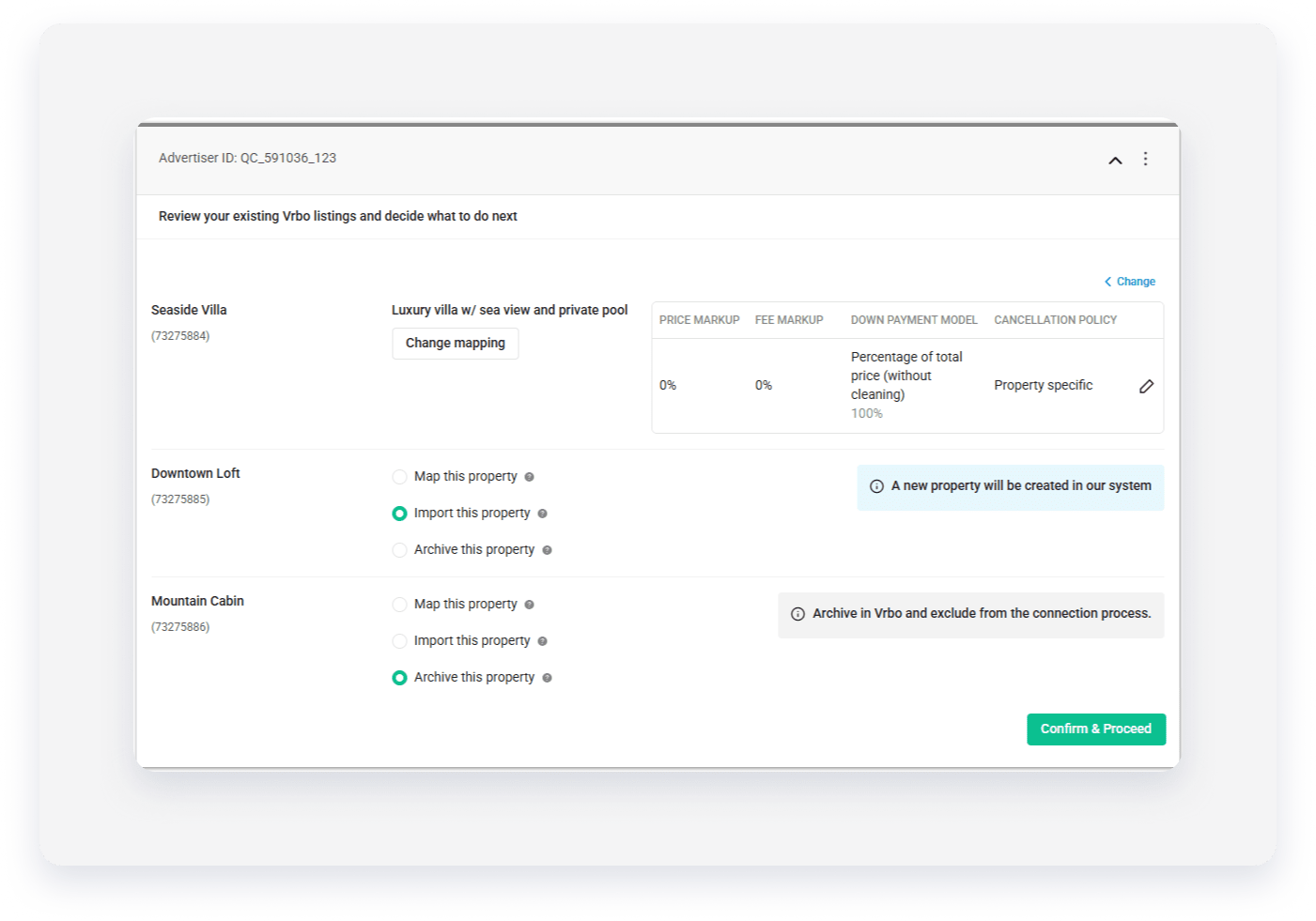
Choose the connection method for each listing now. You won’t be able to map listings from the Vrbo again.
-
Map this property - creates a mapping between Vrbo listing and Rentals United property.
- Click Next. Choose the Rentals United property to map to the Vrbo listing, and click Continue.
- Review the selection, and click Continue.
- Click the Pencil icon to edit listing details, such as markup, down payment and cancellation policy. Then, click Save changes.
- Import this property - creates a new property in Rentals United and creates a mapping between this new property and the source listing in Vrbo. Use it when the source property doesn’t exist in Rentals United.
-
Archive this property - skips a listing from connection when you don’t want to map the listing.

-
Map this property - creates a mapping between Vrbo listing and Rentals United property.
- Click Confirm & Proceed.
- In the confirmation popup, click Confirm.
The system creates a link between the Rentals United and the Vrbo accounts and creates connection between Rentals United properties and Vrbo listings. Once the connection is complete, the listing status updates to “Active”.
Create a new Vrbo account
Users who didn’t work with Vrbo before can create a new Vrbo account directly through Rentals United. Follow the steps below to create a new account with Vrbo.
Step by step:
- Log in to your Rentals United account.
- In the side menu, go to the Services tab.
- Select My Services, and navigate to the Vrbo section.
-
Click
to unfold the section, and click Connect.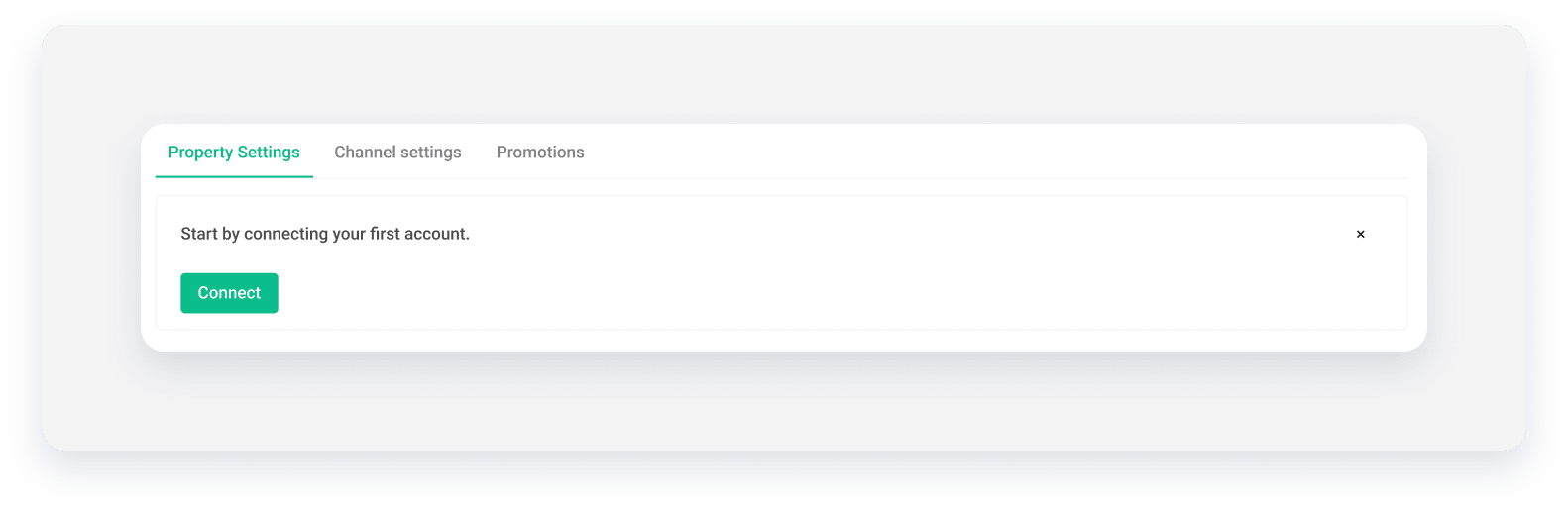
- Select I don’t have a Vrbo account yet.
-
Provide the email address to use in Vrbo, and click Next.
Note:
Make sure you didn’t use this email in Vrbo before.
- Copy the email address and the Advertiser ID, and click Go to Vrbo.
- Once you complete the configuration in Vrbo, come back to Rentals United.
- Check the “I granted access to Vrbo” box, and click Done.
- Choose properties to add to Vrbo, and click Continue.
- Review selected properties, and click Add to create listings in Vrbo.
- The system checks the property against listing requirements and displays the check summary for you. If some properties are not ready to publish, improve them.
- Click the Pencil icon to edit listing details, such as markup, down payment and cancellation policy. Then, click Save changes.
- Click Publish to create listings on Vrbo.
Once the listings publish on Vrbo, the status changes to “Active”.