Your cancellation policy defines the refund amount a guest receives based on when they cancel.
You can change cancellation policy settings in Channel Settings for all listings under the Advertiser ID. To change the cancellation policy for an individual listing, edit the settings in the "Manage listing" page.
Vrbo predefined policies
You can choose your cancellation policy from the list of standardized Vrbo cancellation policies..
-
Relaxed: 100% refund if reservation is cancelled at least 14 days before check-in
50% refund if reservation is cancelled 7-14 days before check-in (otherwise, no refund) -
Moderate: 100% refund if reservation is cancelled at least 30 days before check-in
50% refund if reservation is cancelled 14-30 days before check-in (otherwise, no refund) -
Firm: 100% refund if reservation is cancelled at least 60 days before check-in
50% refund if reservation is cancelled 30-60 days before check-in (otherwise, no refund) - Strict: 100% refund if reservation is cancelled at least 60 days before check-in (no refund after 60 days)
- No refund
Step by step:
- Log in to your Rentals United account.
- In the side menu, go to the Services tab.
- Select My Services, and navigate to the Airbnb section.
- Click
 to unfold the section, and click Property Settings.
- Click Channel Settings.
- Locate the Vrbo cancellation policy section.
- Select the Use one of Vrbo pre-defined policy for all properties option.
- Choose your preferred policy from the dropdown menu.
- Click Save.
Custom policies
If the predefined cancellation policies don't fit the business model, build a custom policy. Vrbo allows up to three specific refund levels.
Step by step:
- Log in to your Rentals United account.
- In the side menu, go to the Services tab.
- Select My Services, and navigate to the Airbnb section.
- Click to unfold the section, and click Property Settings.
- Click Channel Settings.
- Locate the Vrbo cancellation policy section.
- Select Use your own cancellation policies for all properties.
-
Set a Cancellation fee and Currency if you want to charge a flat fee regardless of when the guest cancels.
Note:
Set this to "0" to remove flat cancellation fee.
- Provide the percentage amount to be charged in Charge costs and the required notice period in Days before arrival.
- Click Add to define more cancellation policy rules. You can define up to three rules.
- Click Save.
Property-specific policies
If you have different requirements for specific listings, you can choose to use property-level settings.
Vrbo allows up to three specific refund levels and one no-refund level. If you have more cancellation policy levels defined, we will only sync three most restrictive ones.
Step by step:
- Log in to your Rentals United account.
- In the side menu, go to the Services tab.
- Select My Services, and navigate to the Airbnb section.
- Click to unfold the section, and click Property Settings.
- Click Channel Settings.
- Locate the Vrbo cancellation policy section.
- Select the Use property specific cancellation policy option.
- Click Save.
Overwrite cancellation policy on specific dates
Overwriting cancellation policy on specific dates allows for adjusting the strategy based on the expected occupancy rates. For example, you can set stricter policy on high-demand seasons to protect your revenue.
Step by step:
- Log in to your Rentals United account.
- In the side menu, go to the Services tab.
- Select My Services, and navigate to the Airbnb section.
- Click to unfold the section, and click Property Settings.
- Click Channel Settings.
- Locate the Vrbo cancellation policy section.
-
Check the Overwrite my cancellation policy on specific dates box.
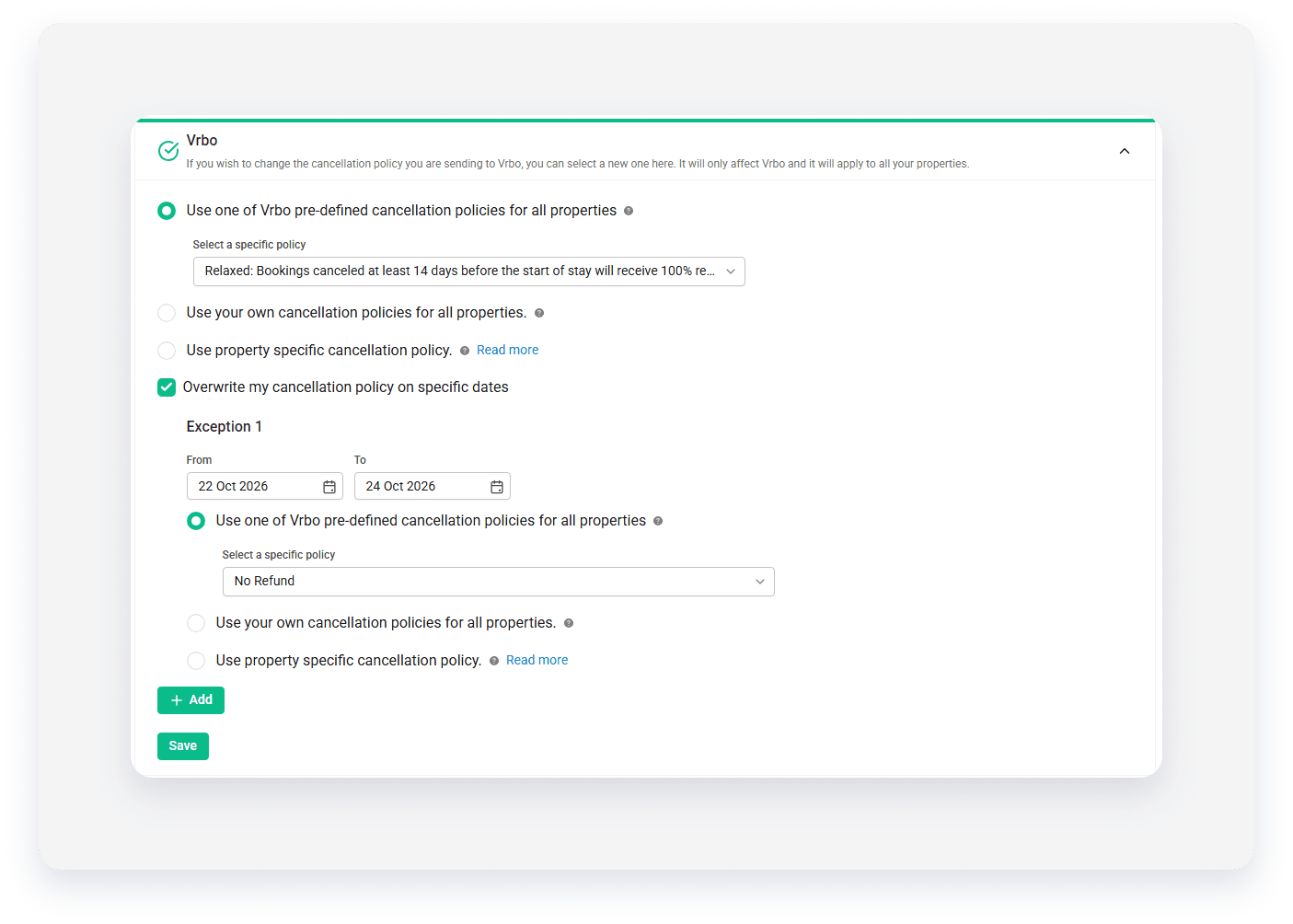

- Select the period when the new cancellation policy applies.
- Select the new cancellation policy.
- (Optional) To add more seasons with different cancellation policies, click + Add.
- Click Save.