Promotions
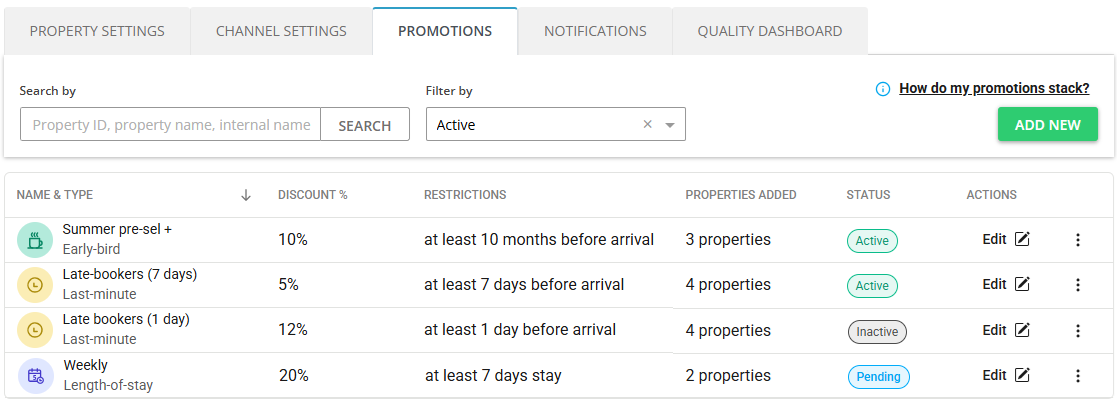
Promotions in Property Settings allow you to manage all your discounts for all your listings at once. View your discounts from the account’s perspective.
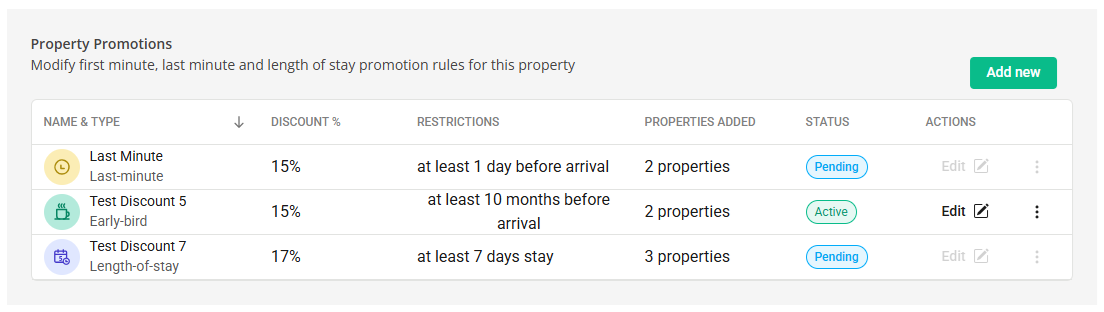
Manage / Manage rates page allows you to view the discounts for a specific listing only.
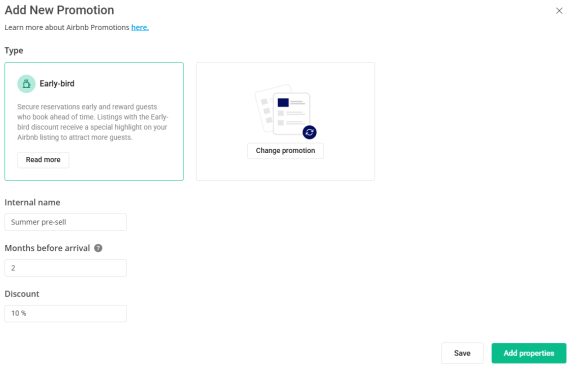
Discount details
Each type of discount can have different settings and restrictions. Read below about the parameters you can edit for each of the discounts.
-
Internal name - Provide a name to differentiate the discount from other discounts of the same type.
-
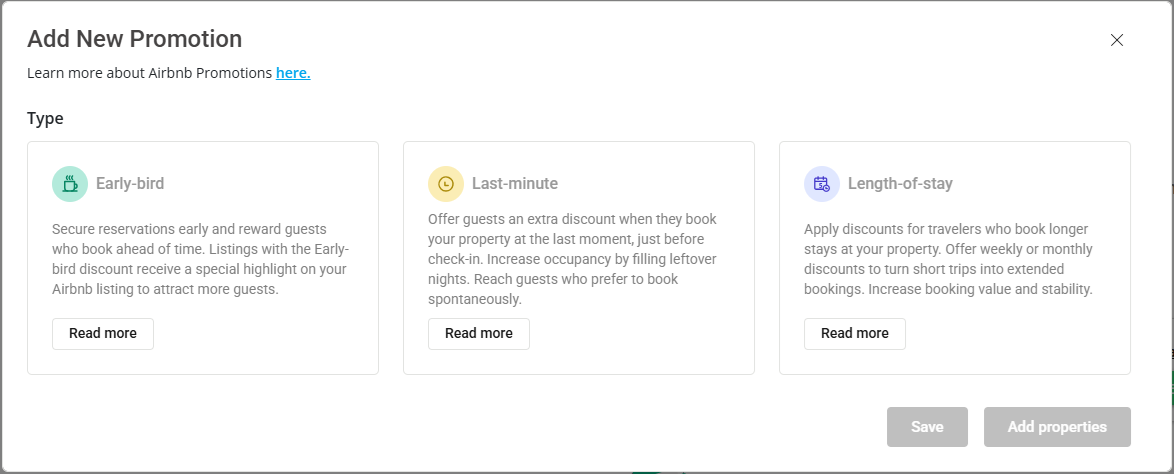
Months before arrival (Early-bird) - Booking time condition to become eligible for the discount. Min. is 1, max. is 24 months. For example, set it to 3 to offer this discount to guests who book 3 months or more before the check-in date.
-
Days before arrival (Last-minute) - Booking time condition to become eligible for the discount. Min. is 1, max. value is 28 days. For example, set it to 3 to offer this discount to guests who book 3 days or less before the check-in date.
-
Minimum booking length (Length-of-stay) - Minimum number of nights in the booking to be eligible for the discount. For example, set it to 7 to offer a weekly discount.
-
Discount - Provide the discount amount, for example 10%.
Restrictions
Airbnb requires longer stays to have the same or higher discounts than shorter stays. If your set-up is different, you will receive an error when trying to define it.
-
Incorrect set-up: 20% discount for weekly stays, 15% discount for monthly stays
-
Correct set-up: 20% discount for weekly stays, 20% or more discount for monthly stays
Promotion statuses
-
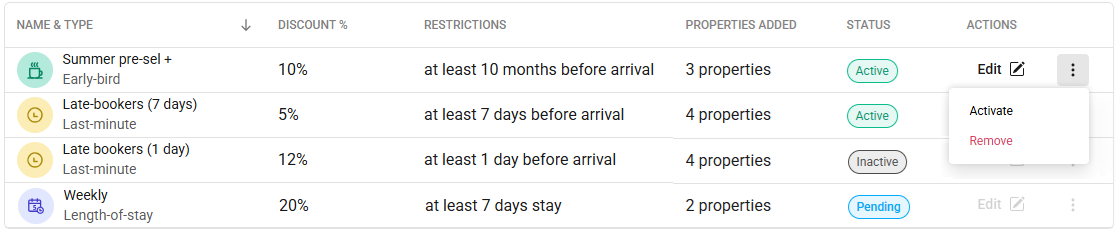
Inactive - The discount is not synced with the channel and is not applied to any property
-
Pending - The discount is being processed and added to the channel.
-
Active - The discount is active and applies to bookings.
Manage promotions
Fetch the data
If you have not added any discounts through Rentals United, you can fetch the data from Airbnb first. Fetching allows you to synchronise the existing discounts from Airbnb and manage them in Rentals United later. Fetching is available only before defining the first discount.
Otherwise, if you skip fetching, the discounts created in Rentals United will overwrite the ones you have in Airbnb.
-
Go to Property Settings.
-
Switch to the Promotions tab.
-
Click + Add new.
-
A pop up is displayed. Select Yes, fetch data from the channel and click Next.
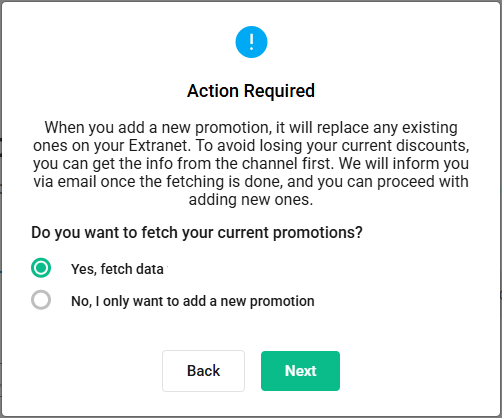
The data is being synchronised from Airbnb and it may take a while.
Create new
-
Go to Property Settings.
-
Switch to the Promotions tab.
-
Click + Add new.
-
Choose the type of discount.
-
Provide the discount details. See here for more information.
-
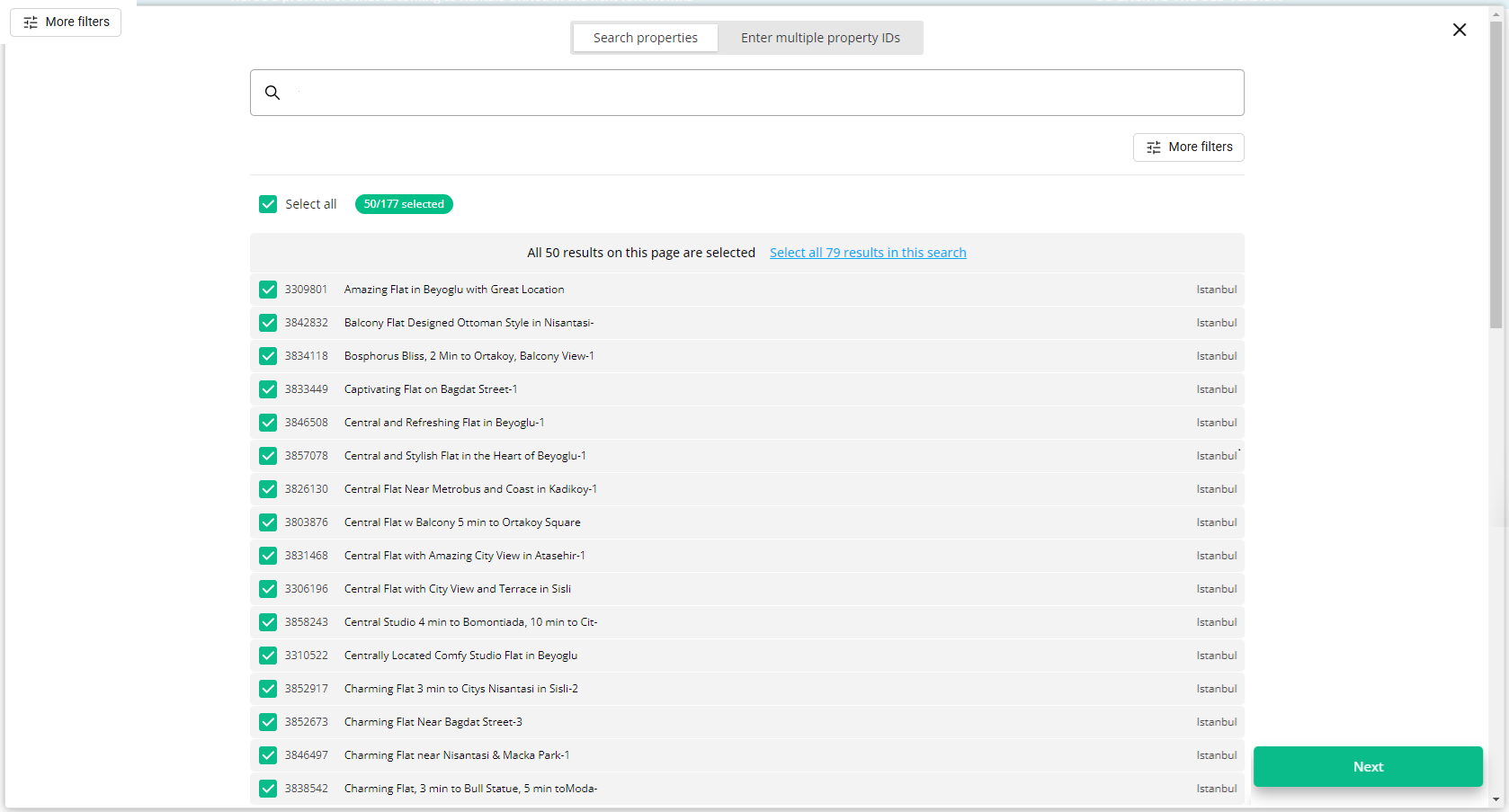
Click Add properties to assign this discount to properties. You can select multiple properties at once.
-
Click Save & Activate.
The discount enters the  state and is being processed by Airbnb. You cannot edit it or delete it at the moment.
You can view and manage your discounts in different ways: Promotions tab and the Manage / Manage rates page. Changes you make in one view are reflected in real-time.
Edit discount
You can edit the discount details such as the discount amount and its conditions.
-
Open the Promotions tab.
-
Click on the Edit button next to the discount you want to edit.
-
Edit the discount details.
-
Click Save changes.
Edit / Delete properties
You can edit the properties which the discount is valid for. This way you can exclude high-performing properties where stays do not need to be discounted and secure your revenue.
-
Open the Promotions tab.
-
Click on the Edit button next to the discount you want to edit.
-
Scroll down to the list of properties.
-
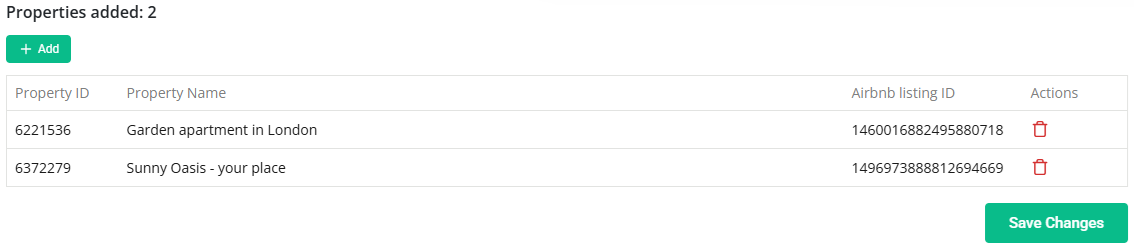
Click + Add to assign this discount to a new property.
-
Click the Trash icon to remove the discount from a property.
-
-
Click Save changes.
.
Activate / Deactivate discount
You can temporarily deactivate the discount and activate it back.
-
Open the Promotions tab.
-
Click on the Status icon and change the status. For example, click on the Inactive status and select the Activate option from the menu.
-
Click Save changes.
Remove discount
You can remove the discount entirely.
-
Open the Promotions tab.
-
Click on the Status icon and change the status. For example, click on the Inactive status and select the Delete option from the menu.
-
Click Save changes.