Promotions
Promotions on Vrbo help your property stand out and attract the right guests at the right moment. They give you more control over visibility, targeting, and demand across different seasons. In this article you will learn about the Vrbo promotion types and how to set them up in Rentals United.
Find Promotions in Rentals United
You can view and manage your discounts in different ways:
-
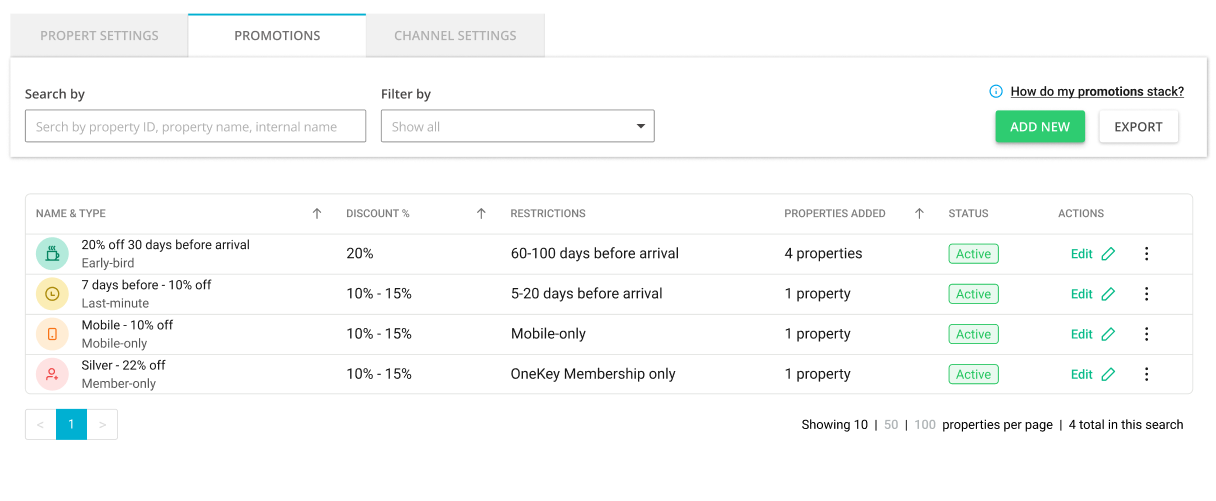
Promotions - for managing all your discounts for all your listings at once. View your discounts from the account’s perspective.
-
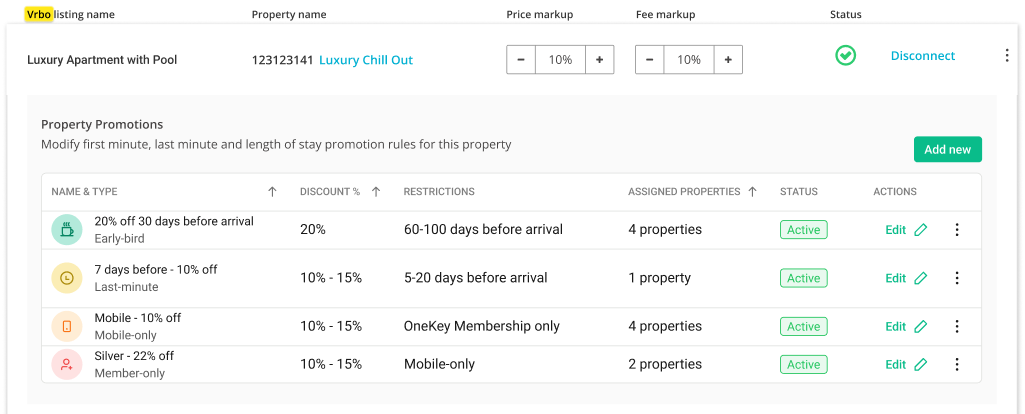
Manage / Manage rates - for managing the discounts for a specific listing only.
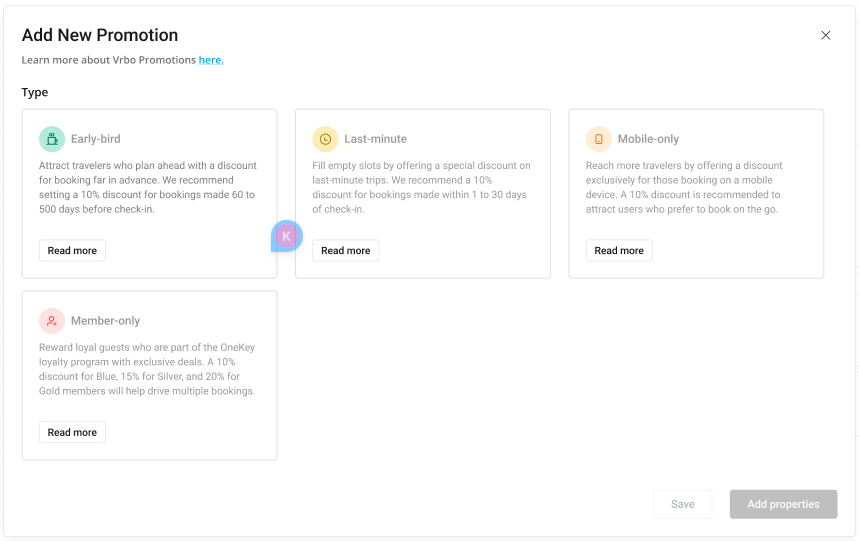
Vrbo promotion types
| Early-bird | Last-minute | Mobile-only | Member-only |
|---|---|---|---|
|
Secure steady bookings by offering discounts to guests who book in advance |
Maximise peak-season revenue by attracting price-savvy guests |
Reach more travellers and boost traffic with mobile-only discounts |
Attract trusted, high-value travellers with member-only discounts. |
|
Example promo: 10% for bookings made 2 months and more before the check-in |
Example promo: 10% for bookings made 3 days and less before the check-in |
Example promo: 10% for bookings made on mobile device |
Example promo: Blue: 10% Silver: 15% Gold: 20%
Note: Gold member discounts are also displayed to platinum members. |
|
Best for: Securing future occupancy and improving forecastability. |
Best for: Filling gaps and reducing unbooked nights at the last minute. |
Best for: Capture predictable demand from desirable guests by increasing your mobile visibility. |
Best for: Attracting valuable guests who book earlier, stay longer, and spend more than non-members. |
Promotion details
Internal name - Name to differentiate the discount from other discounts of the same type.
Application rules - Depending on the selected type, your promotion will apply differently. Set the promotion type and achieve different results. See more here.
-
Single promotion - Apply one discount for the entire stay.
Example: Apply 10% discount for the entire stay.
-
Day-of-week promotion - Set a different discount for each day of the week.
Example: Monday - Wednesday: 10% off to fill occupancy in the weekdays
Friday - Sunday: 5% off to appear higher in the search results
-
Multi-night promotion - Apply a discount to a specific night in the stay.
Example: Offer 50% off on the 3rd night and attract longer bookings.
You can additionally make it recurring to apply to each 3rd night in the reservation.
Discount - The discount amount, for example 10%.
Days before arrival - Booking time condition to become eligible for the discount.
-
Early-bird: Set it from 60 to 500 to target early travellers booking in advance.
-
Last-minute: Set it from 2 to 30 to target last-minute guests and fill in the occupancy gaps.
Available to travel - It indicates the time range when the promotion becomes available based on the arrival and departure dates. Max. promotion length is 2 years. Use it to boost the performance in a low season. For example, this promotion can be offered only for guests staying between 1 October and 31 November. If they stay at a different time, the promo will not apply.
-
Evergreen promotions - You can set up evergreen promotions which is a promotion with no end date. In order to do it, skip the travel end date.
Excluded dates - It indicates the dates excluded from the promotion, such as a local event or high season. Use it to stop offering discounts on dates when you expect high occupancy.
Length of stay - Minimum number of nights in the booking to be eligible for the discount. For example, set it to 7 to offer a weekly discount.
Membership setup - Define the discount per membership level.
-
Blue - from 10% to 75%.
-
Silver - from 11% to 75%.
-
Gold - from 12% to 75%.
The higher the membership level, the higher the discount must be. Additionally, Vrbo has restrictions to the membership level configuration.
-
Accepted configurations:
-
Blue,
-
Blue and Silver,
-
Blue, Silver and Gold,
-
Blue and Gold.
-
-
Not accepted configurations:
-
Silver,
-
Silver and Gold,
-
Gold
-
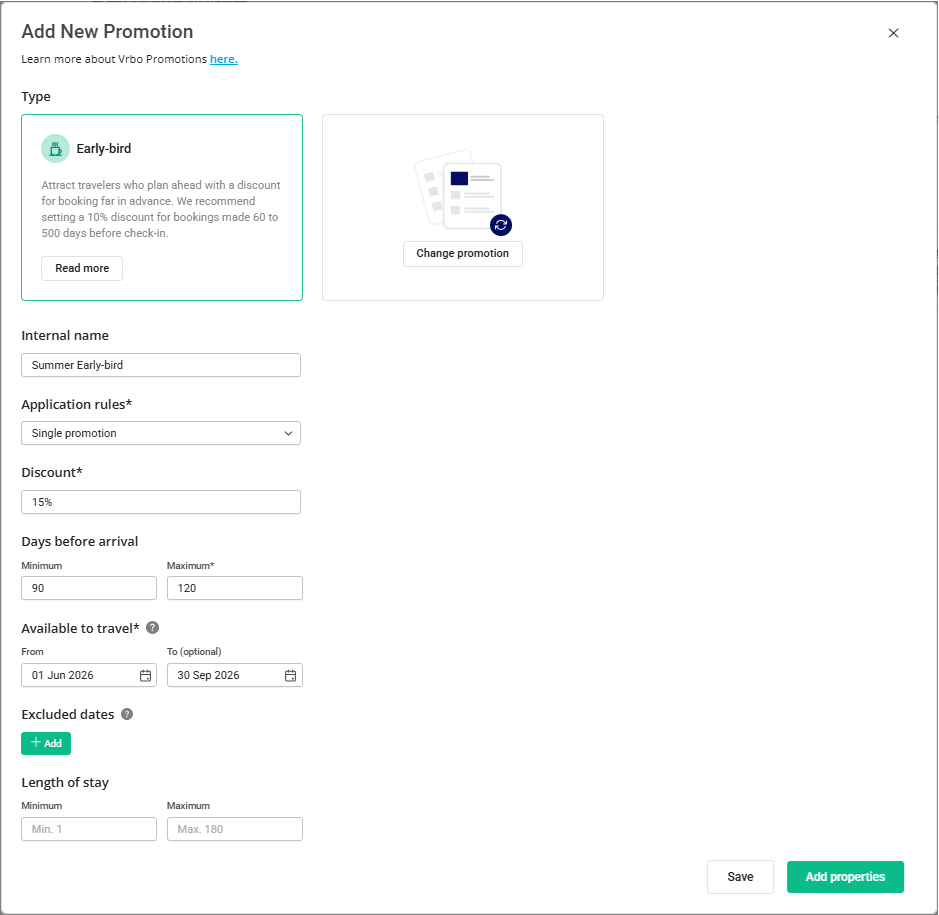
Example: The picture below shows you an early-bird promotion of 15% for guest booking 3 - 4 months in advance of the check-in. The promotion applies only in the high season (from 1 June to 30 September).
Promotion statuses
-
Inactive - The discount is not synced with the channel and is not applied to any property
-
Pending - The discount is being processed and added to the channel.
-
Active - The discount is active and applies to bookings.
Manage promotions
Fetch the data
If you have not added any discounts through Rentals United, you can fetch the data from the channel first. Fetching allows you to synchronise the existing discounts from the channel and manage them in Rentals United later. Fetching is available only before defining the first discount.
Otherwise, if you skip fetching, the discounts created in Rentals United will overwrite the ones you have in the channel .
-
Go to Property Settings.
-
Switch to the Promotions tab.
-
Click + Add new.
-
A pop up is displayed. Select Yes, fetch data from the channel and click Next.
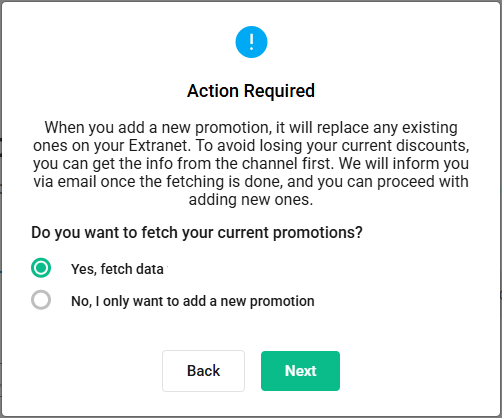
The data is being synchronised from the channel and it may take a while.
Create new
-
Go to Property Settings.
-
Switch to the Promotions tab.
-
Click + Add new.
-
Choose the type of discount.
-
Provide the discount details. See here for more information.
-
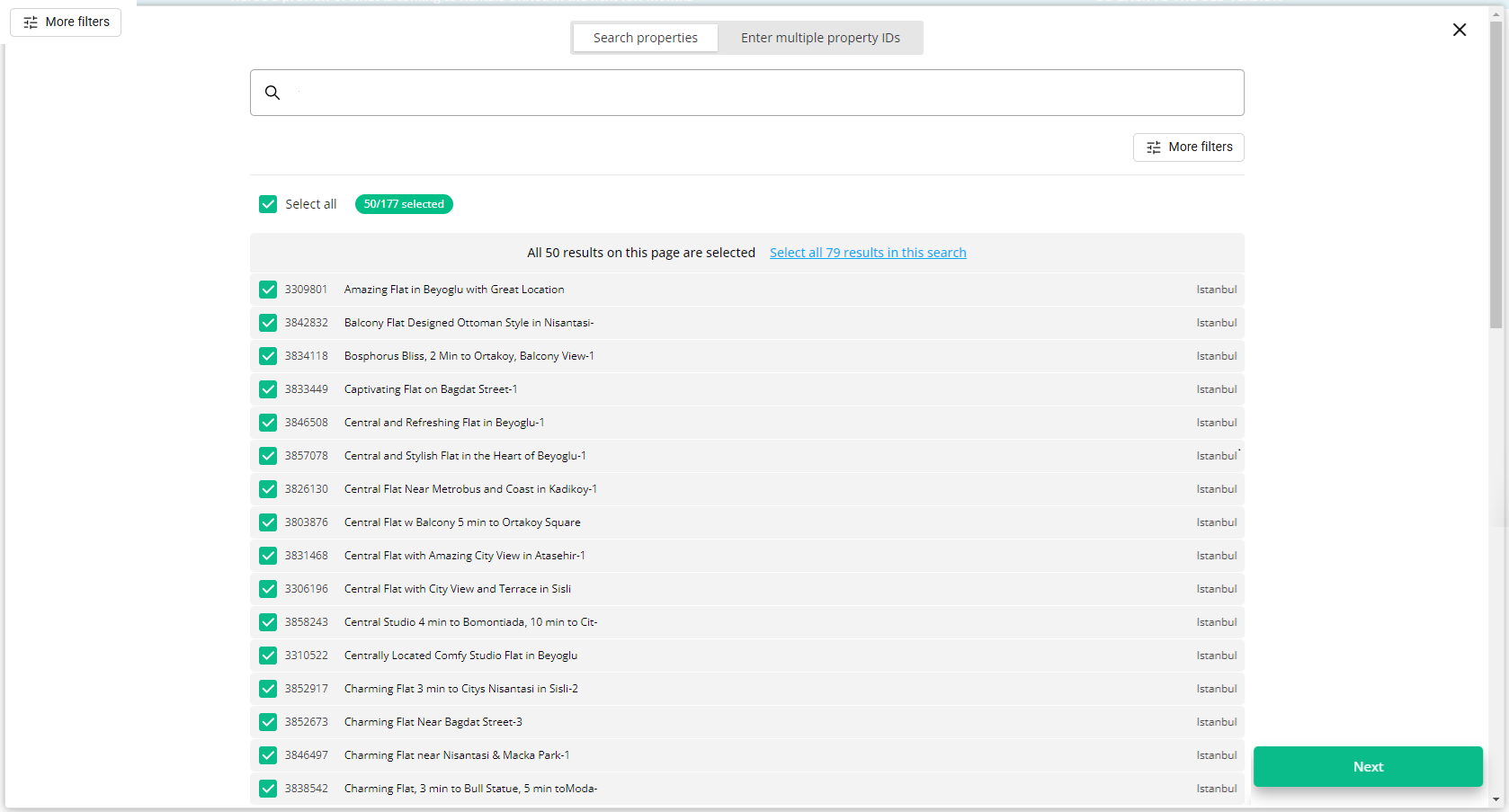
Click Add properties to assign this discount to properties. You can select multiple properties at once.
-
Click Save & Activate.
The discount enters the  state and is being processed by the channel. You cannot edit it or delete it at the moment.
Edit discount
You can edit the discount details such as the discount amount and its conditions.
-
Open the Promotions tab.
-
Click on the Edit button next to the discount you want to edit.
-
Edit the discount details.
-
Click Save changes.
Edit / Delete properties
You can edit the properties which the discount is valid for. This way you can exclude high-performing properties where stays do not need to be discounted and secure your revenue.
-
Open the Promotions tab.
-
Click on the Edit button next to the discount you want to edit.
-
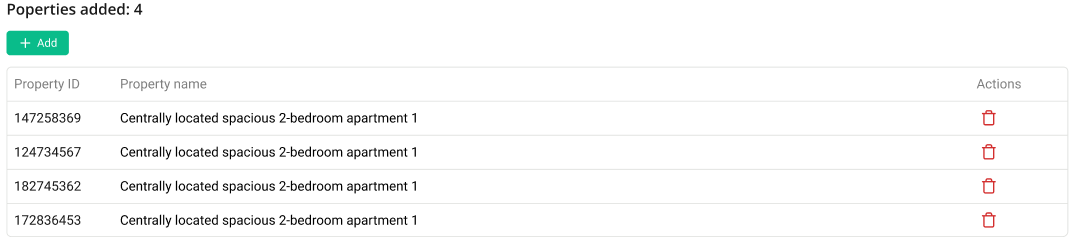
Scroll down to the list of properties.
-
Click + Add to assign this discount to a new property.
-
Click the Trash icon to remove the discount from a property.
-
-
Click Save changes.
.
Activate / Deactivate discount
You can temporarily deactivate the discount and activate it back.
-
Open the Promotions tab.
-
Click on the Status icon and change the status. For example, click on the Inactive status and select the Activate option from the menu.

-
Click Save changes.
Remove discount
You can remove the discount entirely.
-
Open the Promotions tab.
-
Click on the Status icon and change the status. For example, click on the Inactive status and select the Delete option from the menu.
-
Click Save changes.
Restrictions
Mobile and member-only promotions apply to every night of the booking.
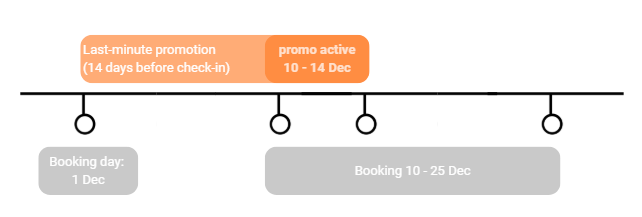
Early-booking and last-minute promotions apply only to the nights that fall within the promotion window you set (days before arrival). This means the discount may apply to only part of the stay, not the entire booking.
Example: You set a last minute promotion for stays booked within 14 days of the check-in date. If a guest books on December 1 a stay that spans December 10 - December 25, the discount will only apply to the first 4 days of the booking.