To start advertising on Vrbo, you must first establish a connection between your accounts. This process involves adding Vrbo to your services and configuring your account-level settings through the Connection Wizard.
Establish connection
Follow the steps below to add a specific channel to your account.
Step-by-step:
- Sign in to your Rentals United account.
- Go to the Services tab and select Find Services.
- Type the channel name in the search box.
- Click the
 to expand the channel section.
 - Click Get connected.
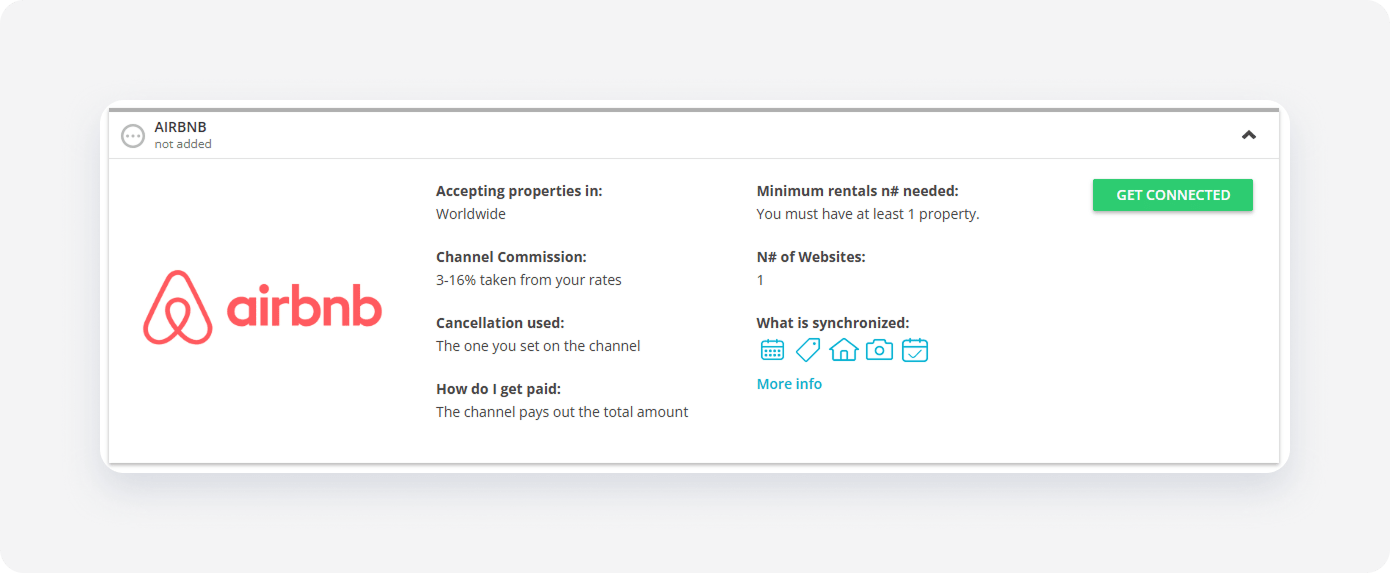
The system validates your connection in the background. If you meet the initial requirements, the Connection Wizard launches automatically. If an eligibility error appears, follow the on-screen instructions to resolve the specific requirement before proceeding.
Minimum requirements to connect
-
Company profile: Must be filled in , including phone number, email address and so on
Tip: Make sure that you filled in the Merchant name and the Company name in the Company Profile. If these details are missing, you can't connect to Vrbo. - Address (street number, post code): Required
- Geo-coordinates: Required
- License number: Required
- Description: Between 400 and 10,000 characters
-
Rooms:
- Bathroom: At least 1 bathroom. If the property doesn't have "Bathroom", Vrbo creates a bathroom with a toilet automatically.
- Kitchen: Required
- Photos: Between 6 and 50 photos, minimum size 1024 px (width) x 768 px (height)
- Number of beds: It must match the maximum number of guests
- Prices and availability: Required
- Cancellation policy: Required
- Arrival information: Required
- Normal check-in and check-out times: Required
- Arrival instructions: Required
Service configuration
The Connection Wizard guides you through the necessary settings for the new integration. You can track your progress at the top of the page.
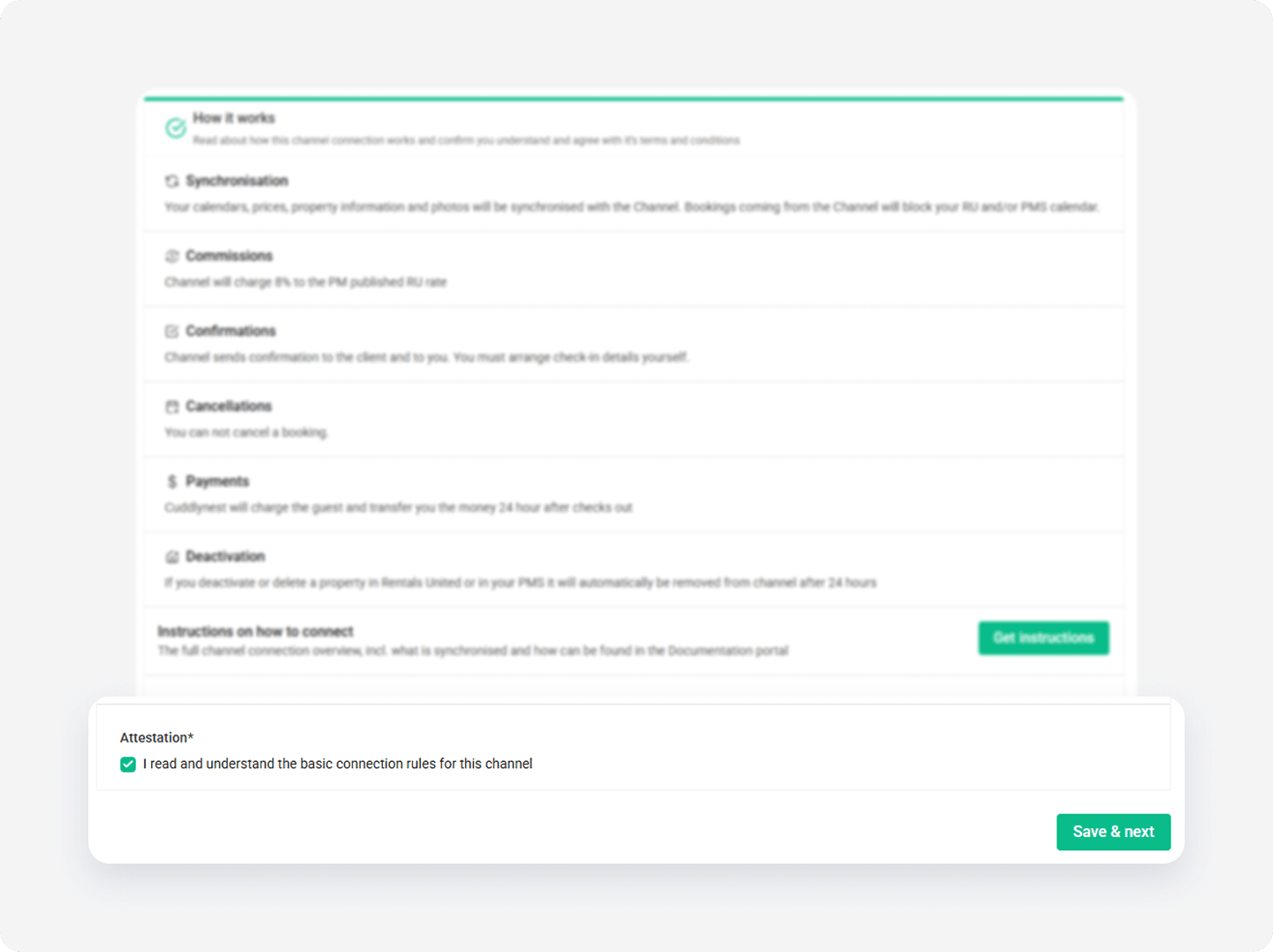
How it works
Read the basic information about the integration. Check the I read and understand the basic connection rules box and click Save & Next.
Channel Settings
The Connection Wizard guides you through the necessary settings for your Vrbo integration. You can track your progress at the top of the page. If you exit the wizard, you can resume from the last completed step later.
Tip: You can revisit the Channel Settings section and adjust these settings at any time from the channel's integration page after completing the setup.
Complete the following fields to define how your listings appear on Vrbo:
- Select the currency in which your prices will be sent to Vrbo.
- Set up the markup for your rates in Vrbo.
- Select a cancellation policy from the available options.
- Choose whether you want to charge a down payment at the time of booking.
- Select the minimum age of guests that you will accept at your property.